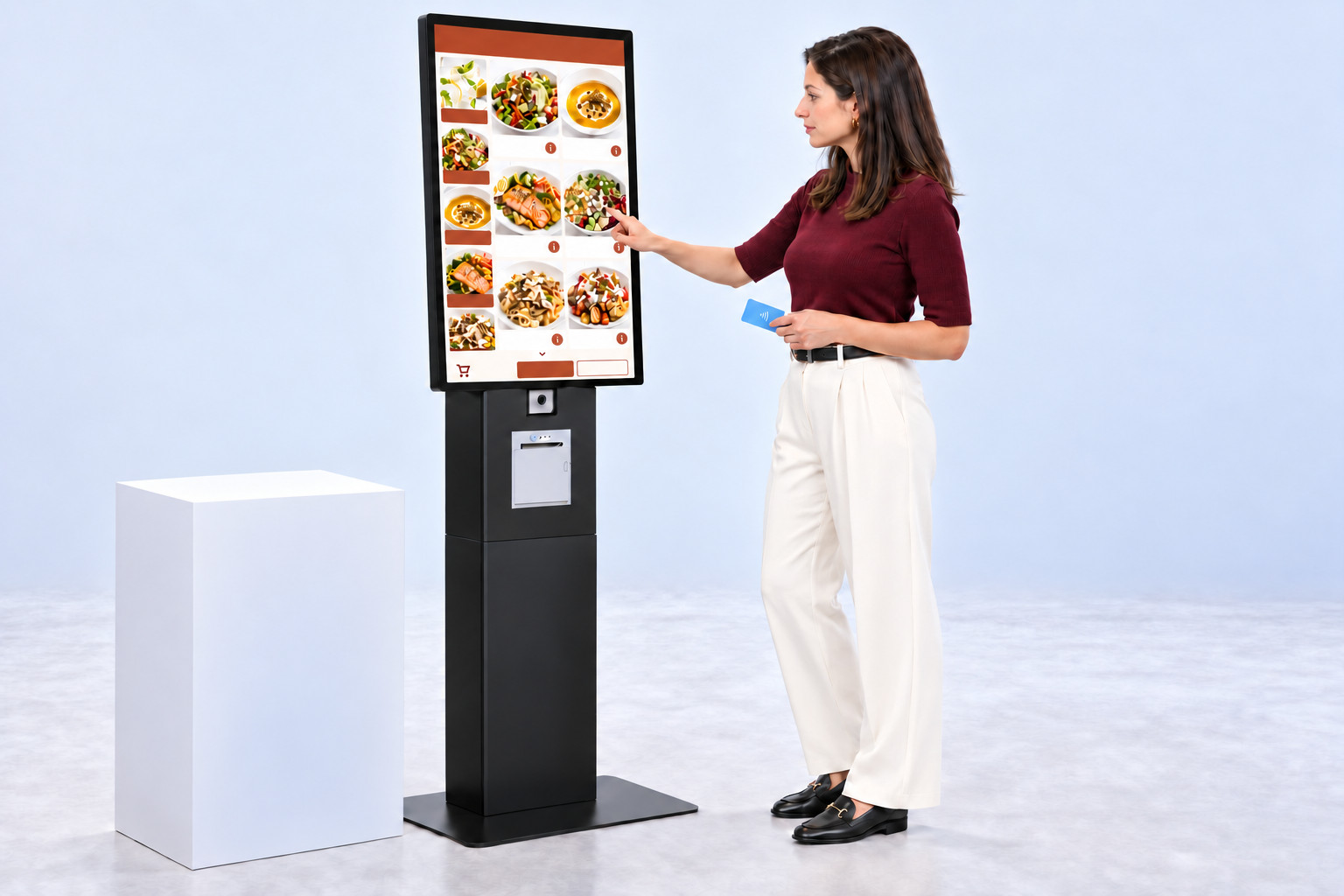
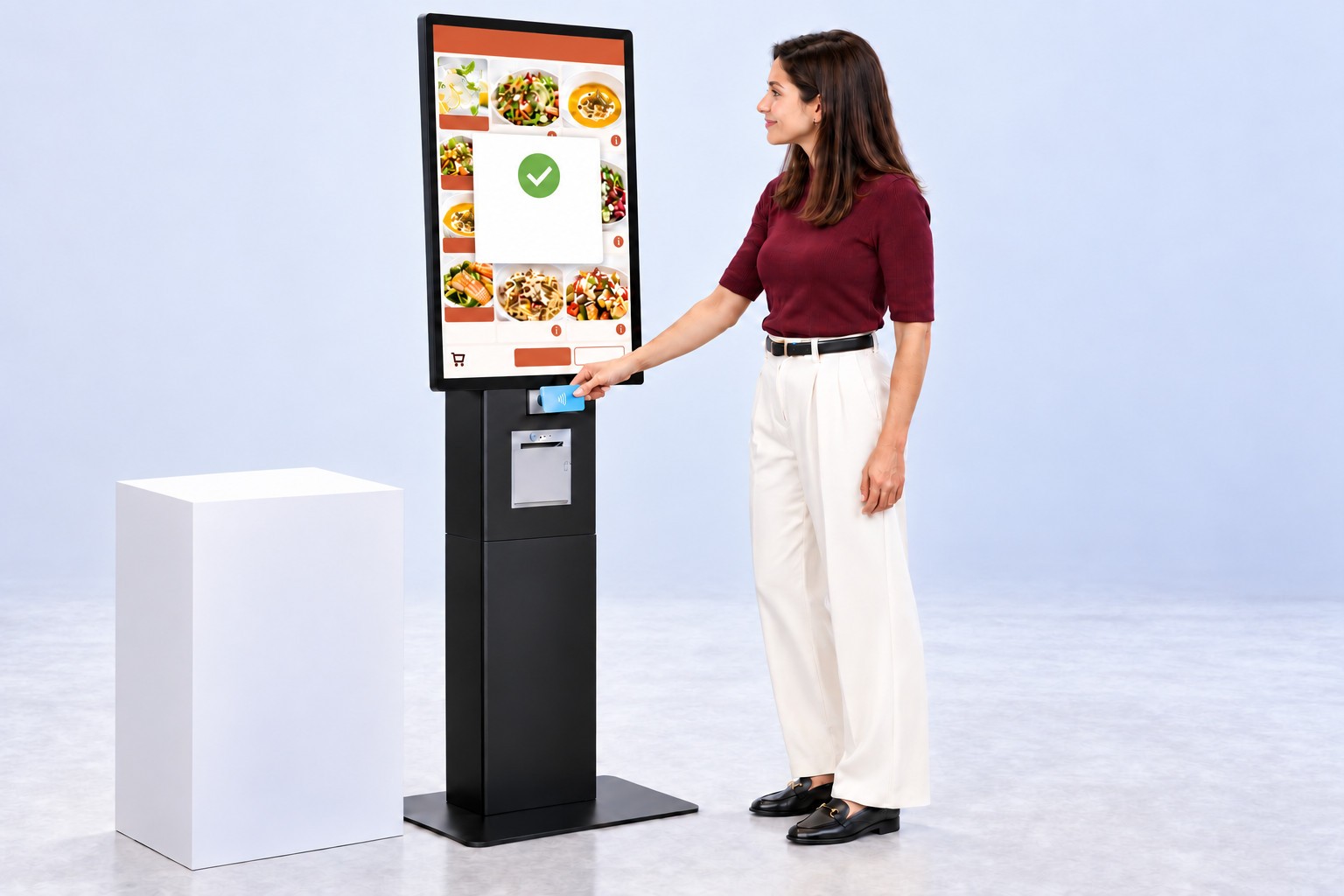
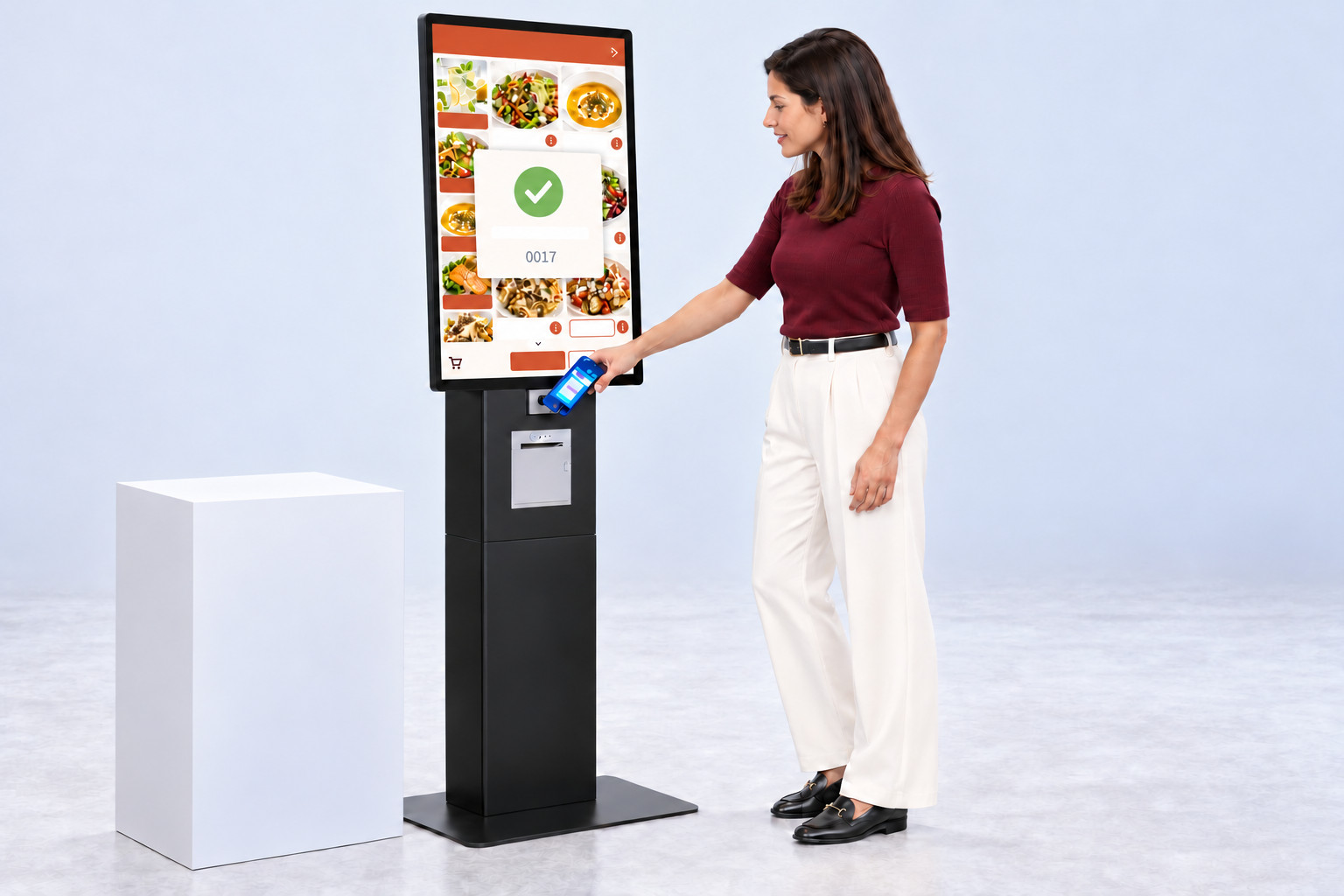
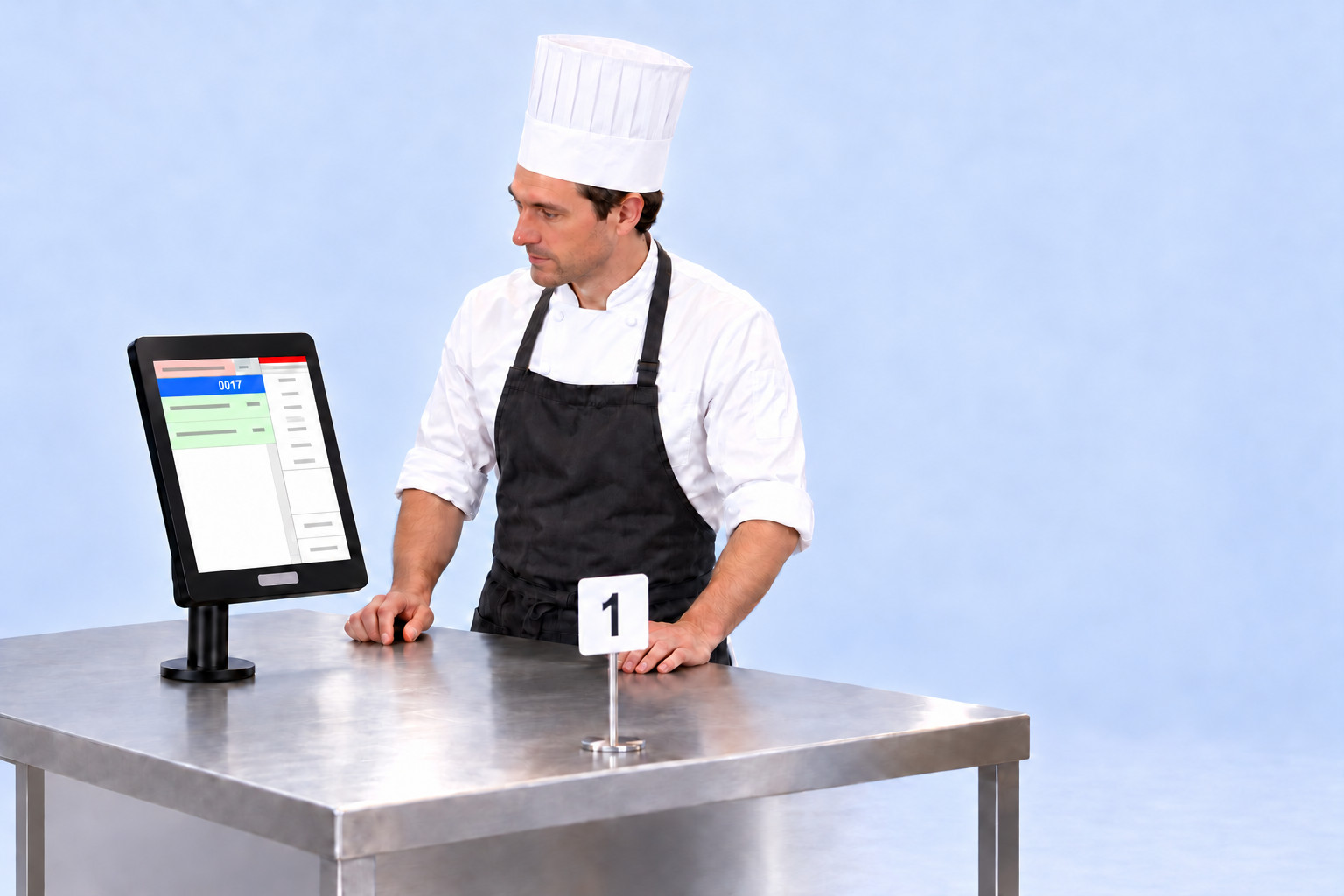
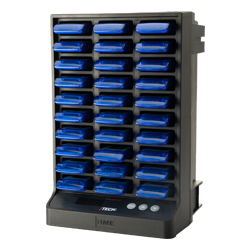
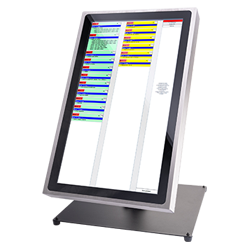
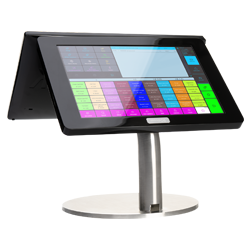
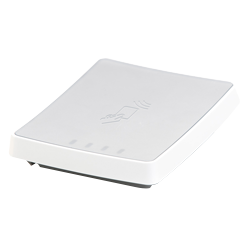
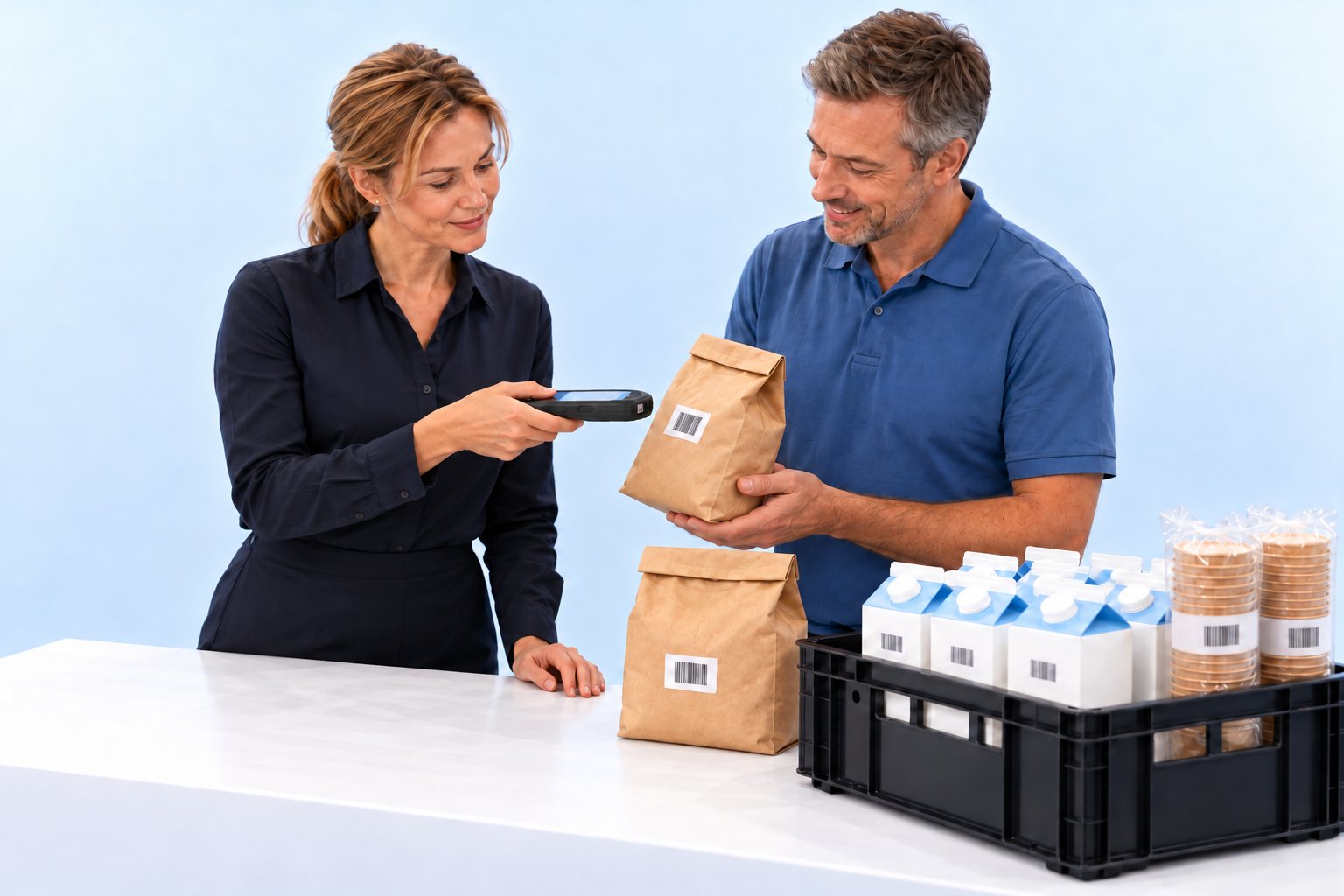
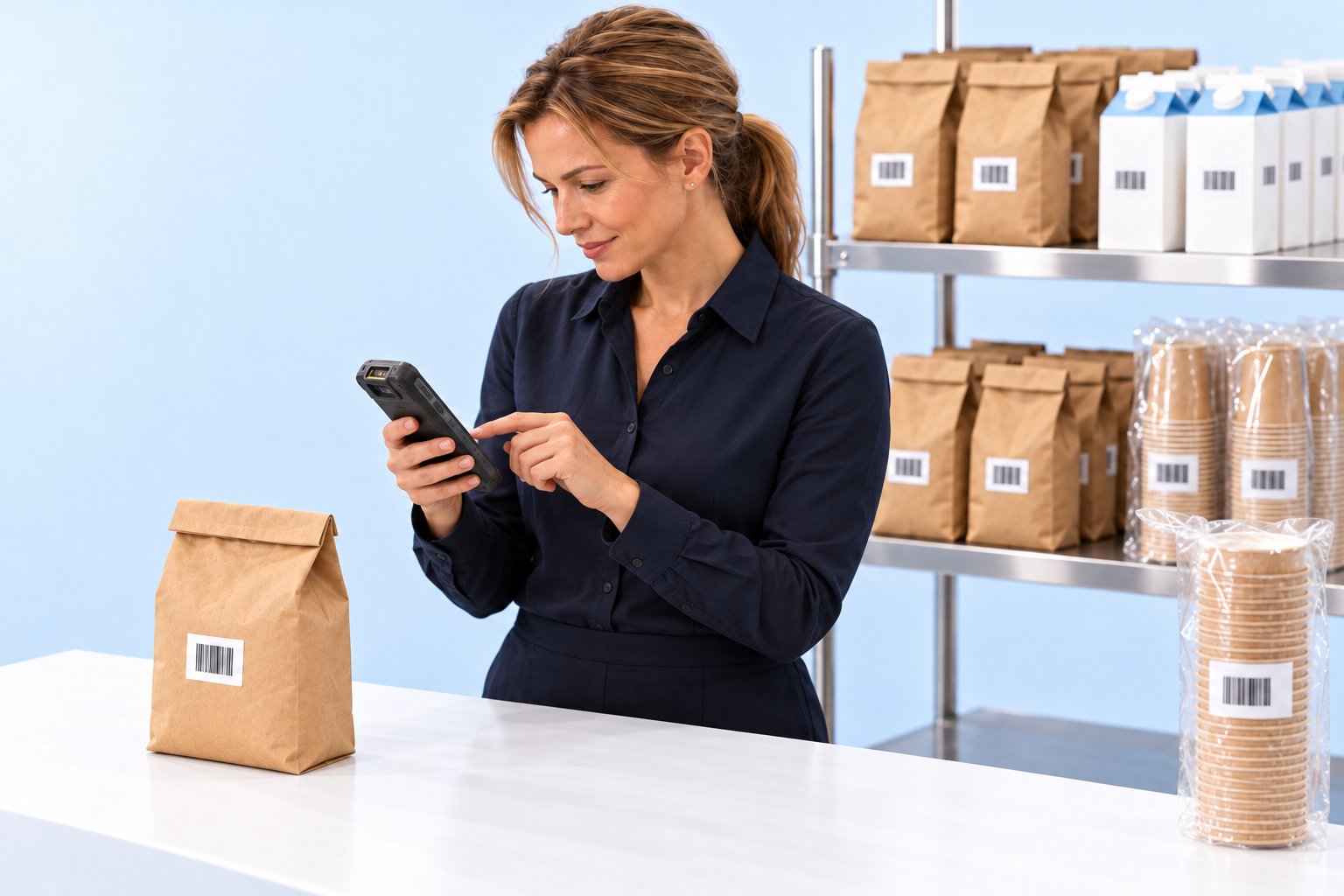
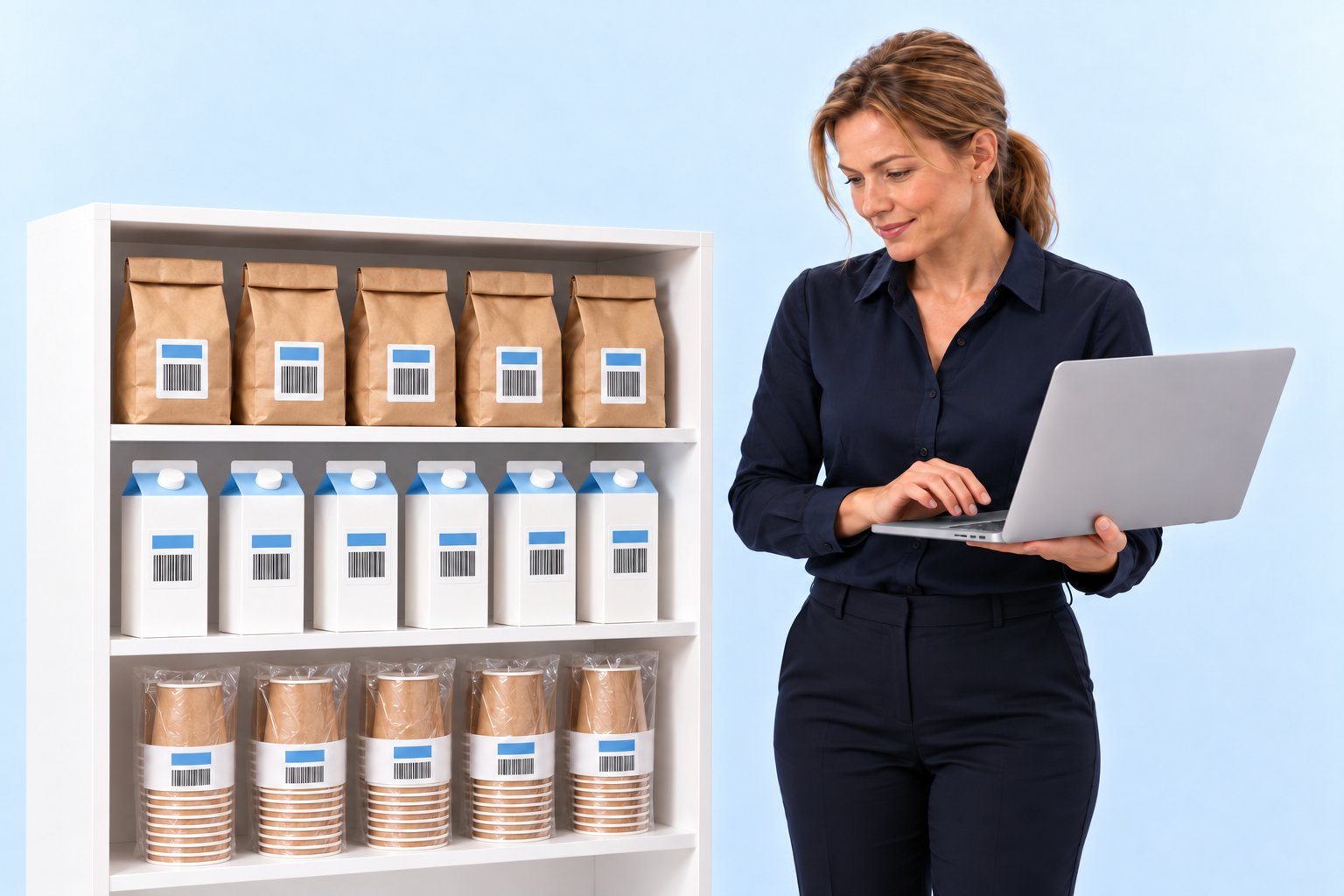
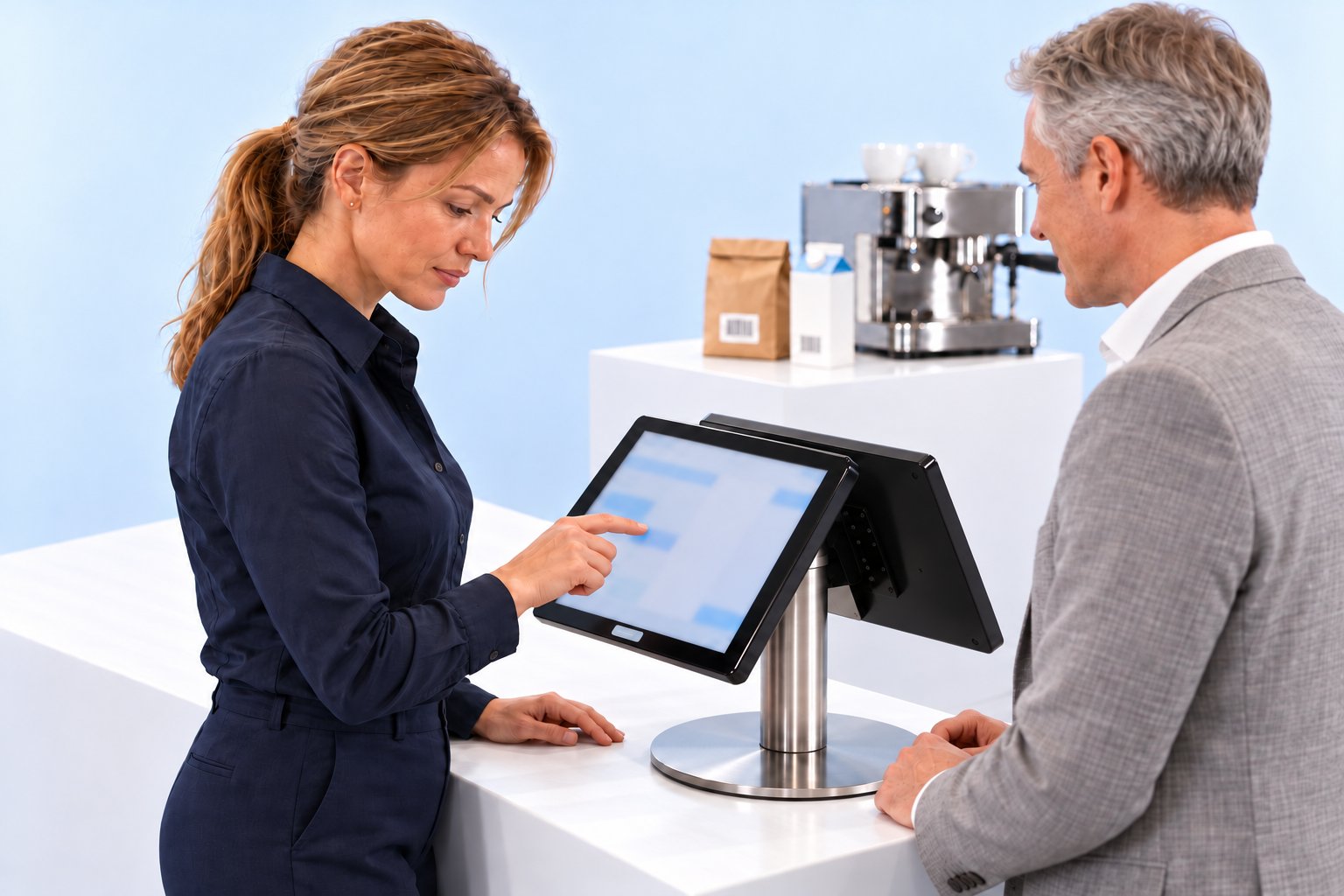
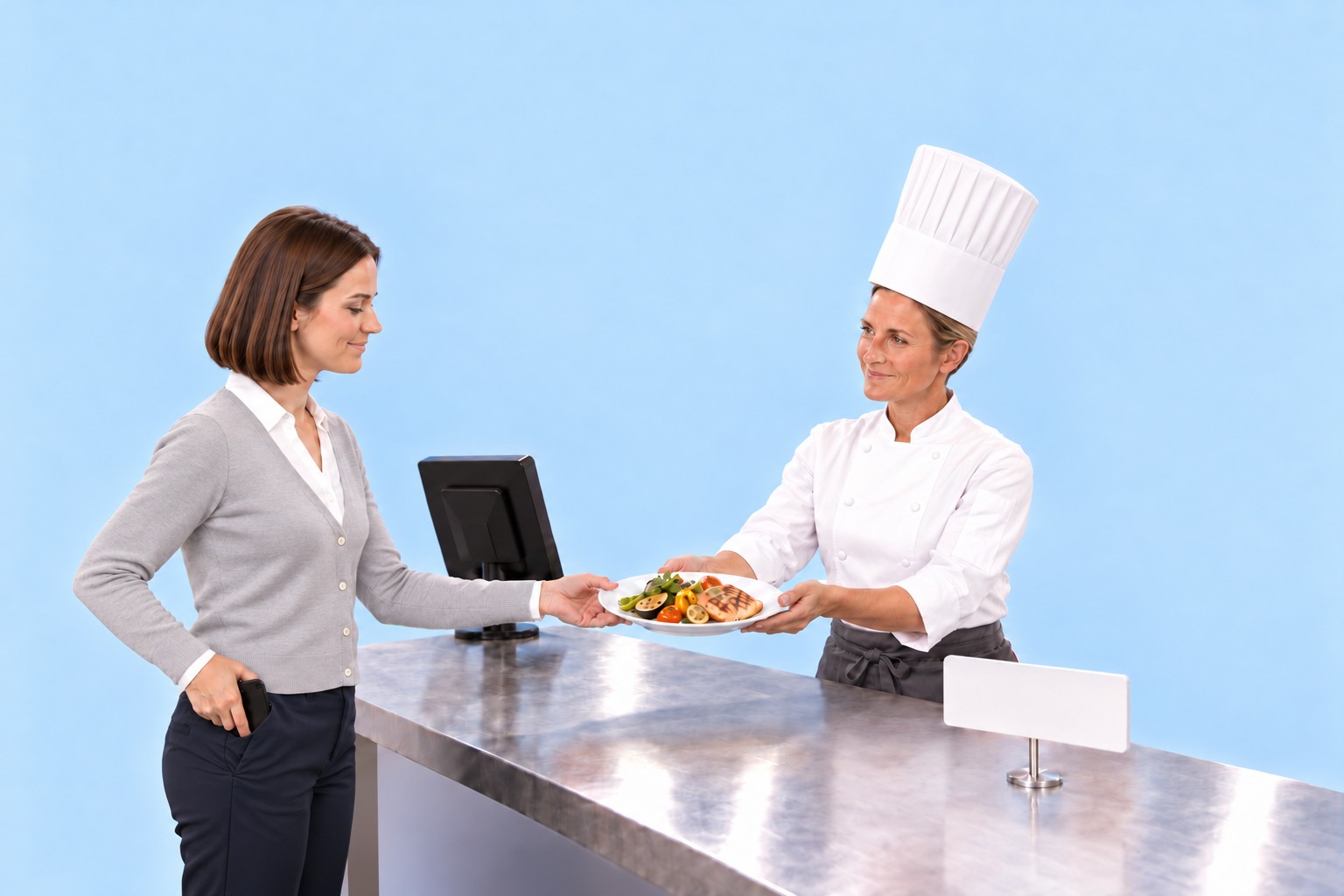
For a Better Organization and Efficiency in the Kitchen.
Software: SW-KM
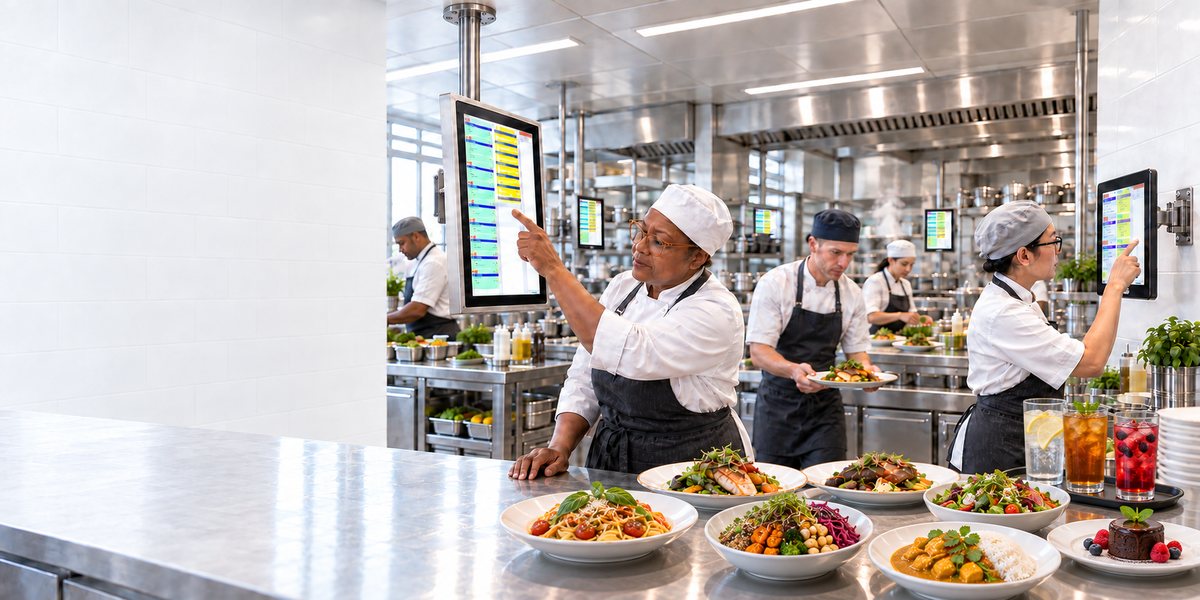
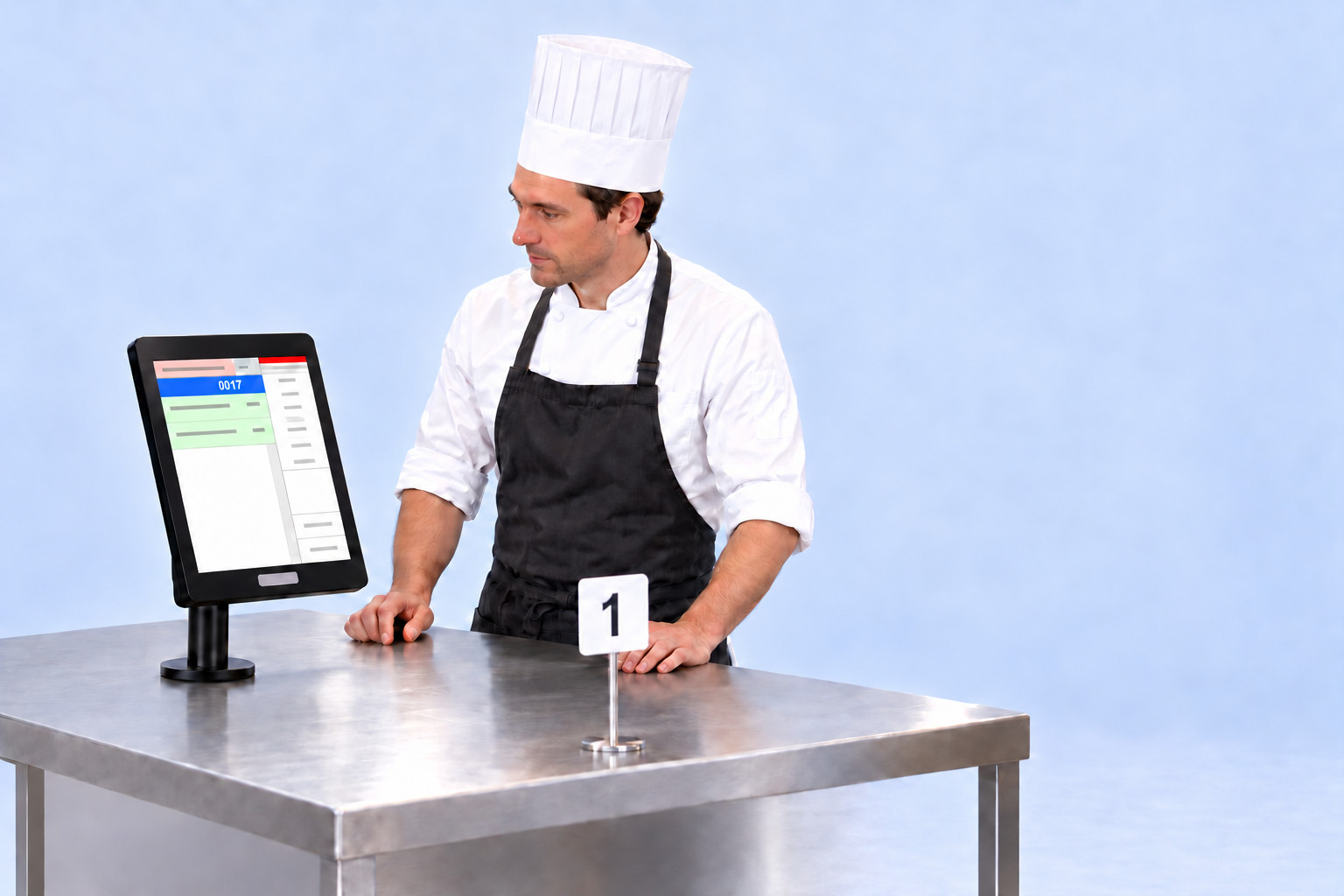
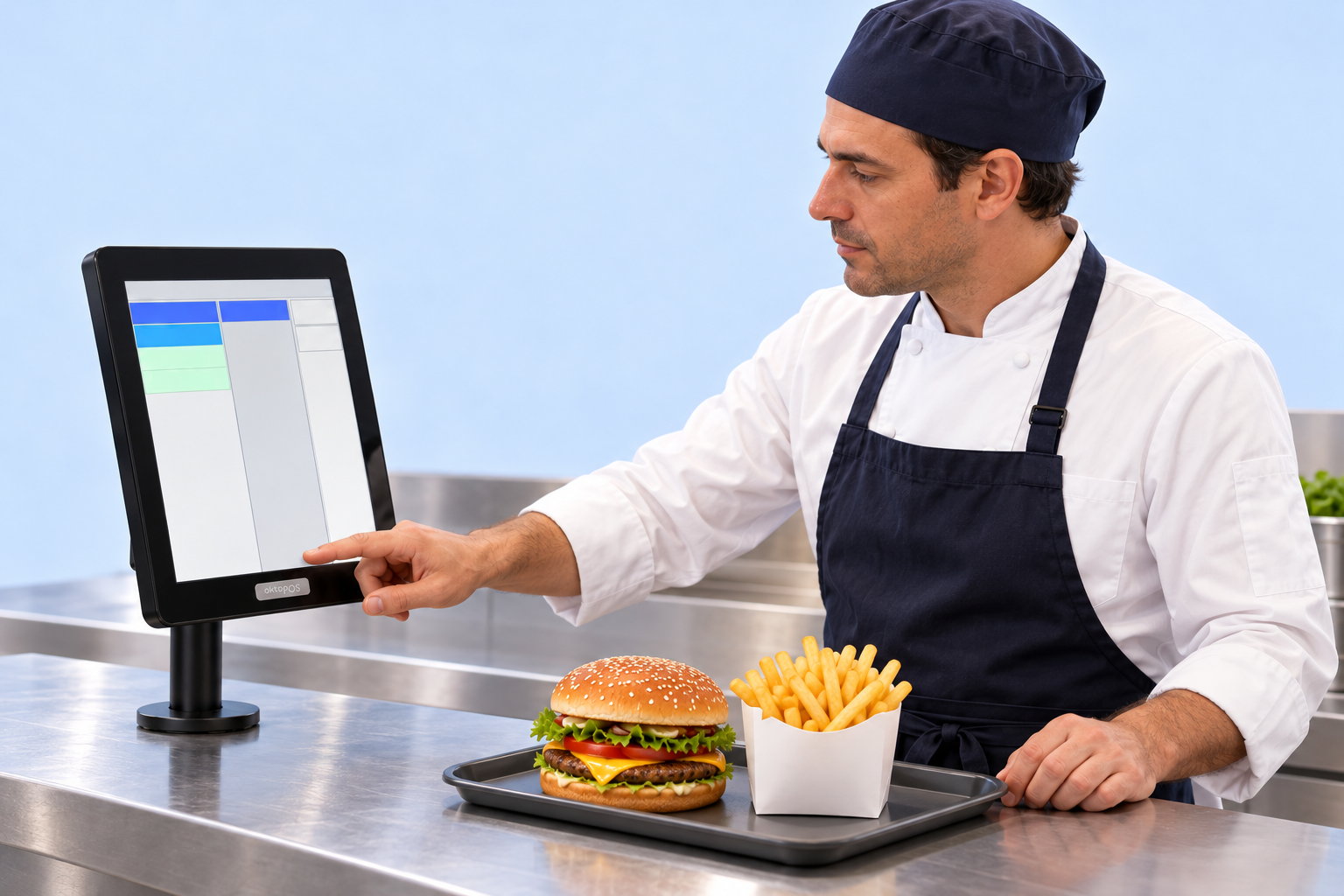
The OktoKitchen terminals optimize kitchen processes and significantly increase efficiency. Orders via cash register, OrderTab, E-Menu, customer app, and Self-Order Terminal are sent directly and without delay to the kitchen stations.
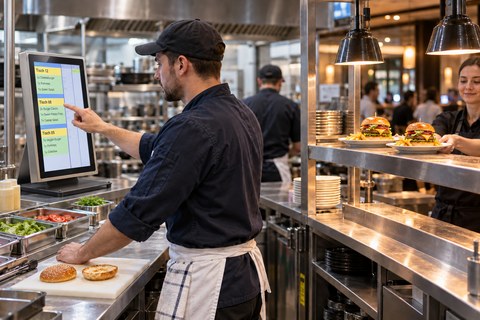
Kitchen station in daily operation, Burgerlich restaurant.
The devices
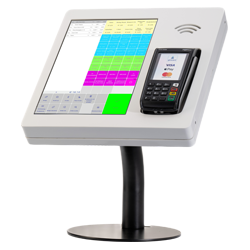
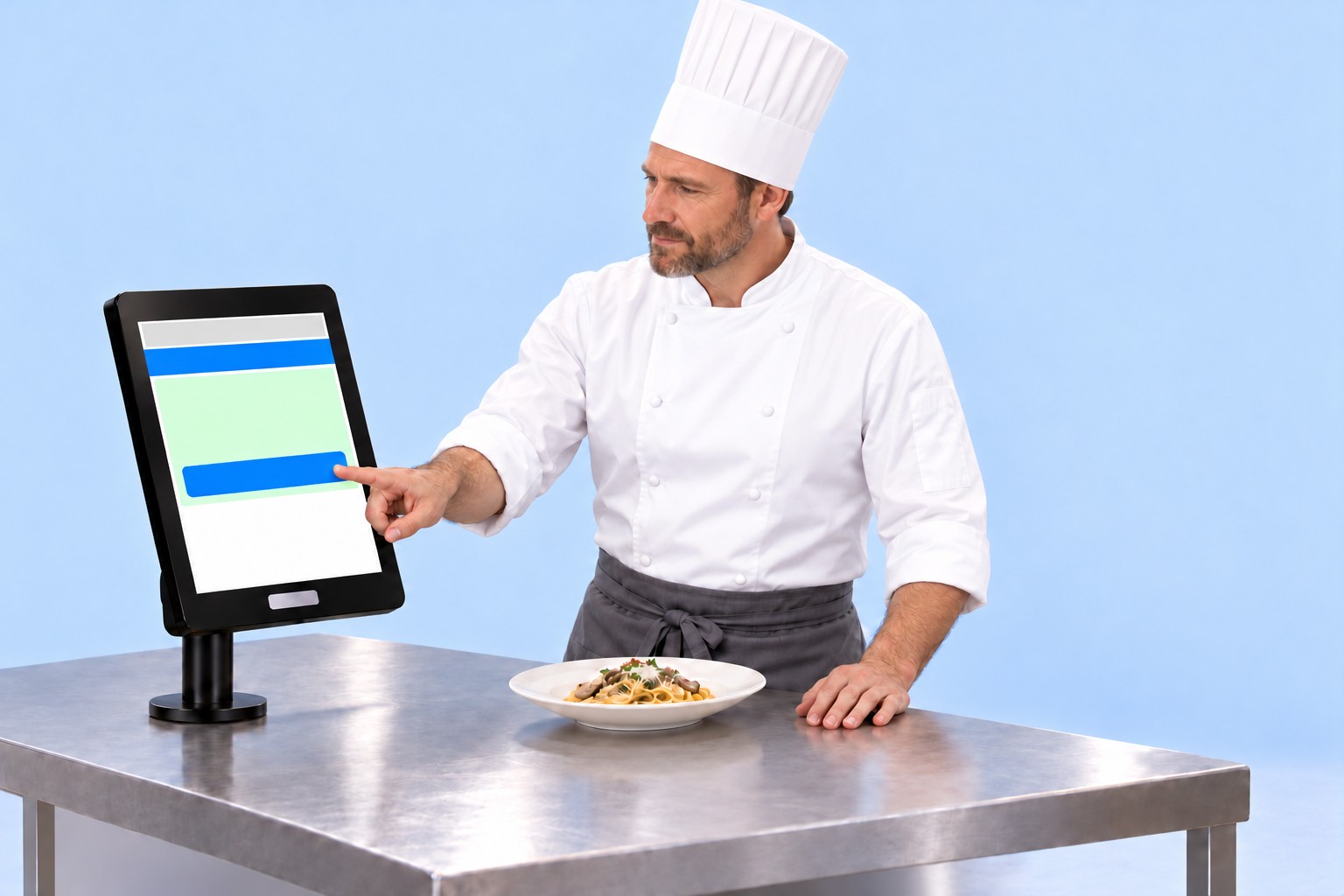
AI-generatedLarge station
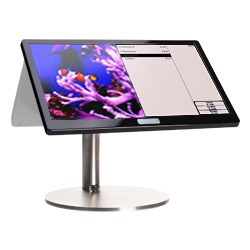
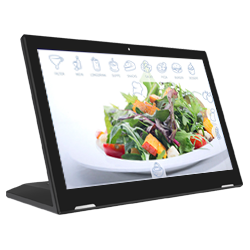
The large 21.5-inch station shows several tables at once. It stands on a solid base and is framed in stainless steel. Its place is the section where most orders come together.
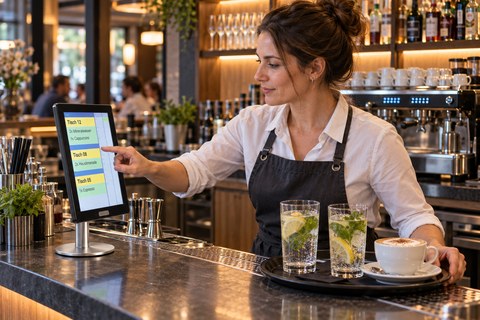
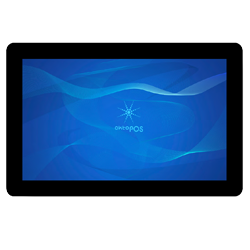
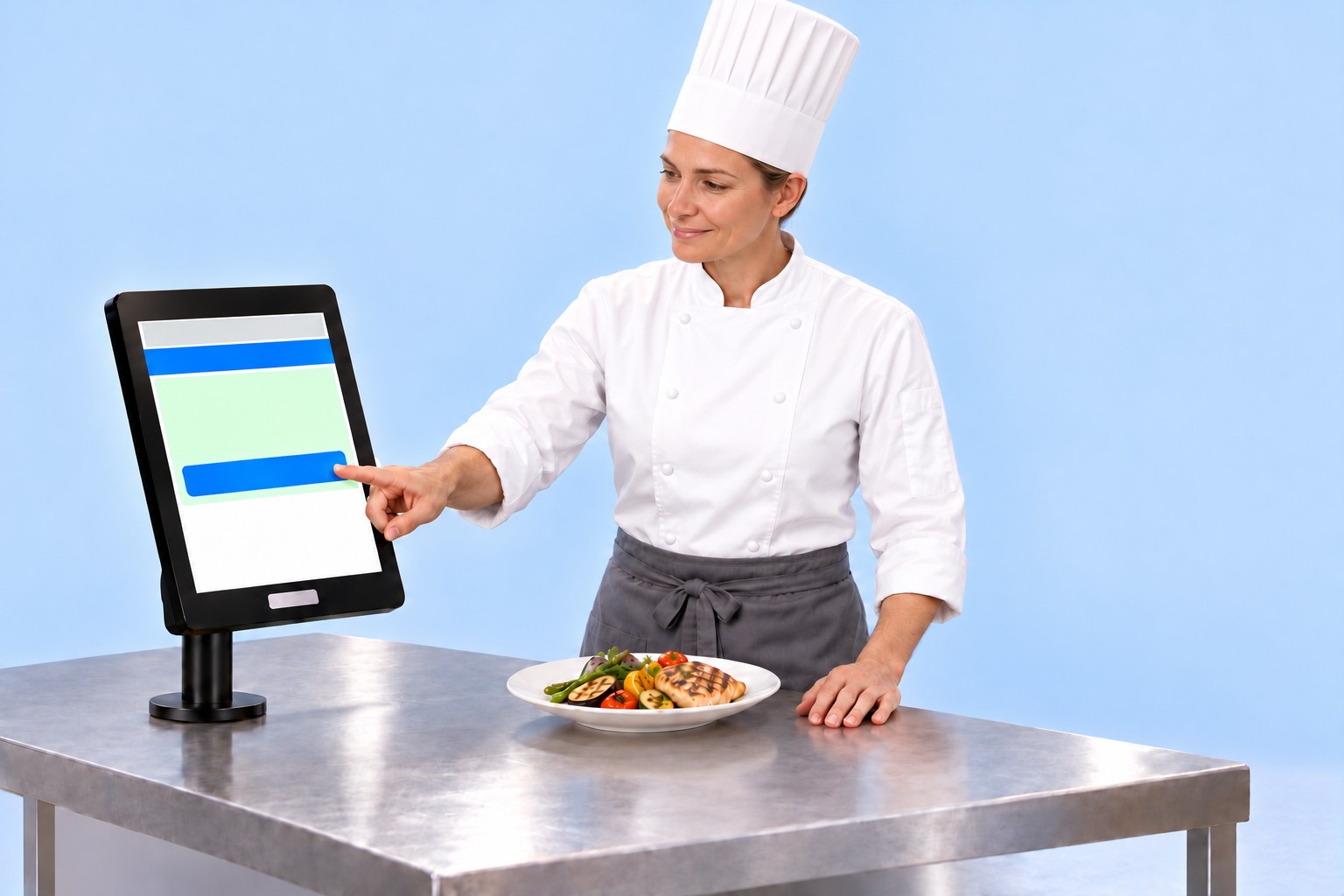
AI-generatedSmall station
The small 13-inch station needs little space. The slim round base fits at the salad section, at the bar and at the pass. It is operated just like the large one.
Features
Depending on the specific processes of your restaurant, various production procedures can be configured. This allows for efficient processing of orders by tables and various courses. Servers fire the next course from the cash register or the OrderTab.
The terminals enable the display of cooking instructions and product images, which visually support the kitchen staff. Depending on organizational requirements, a pass terminal can also be used to further optimize communication and efficiency. The traditional calling out of orders, loud commotion, and forgotten orders are thus effectively avoided.
If you still prefer a classic solution and want to use only a kitchen printer, this is of course also possible.
Individually definable stations
Articles can be assigned to stations (bar, hot, cold, etc.)
Selection of one or several stations on one terminal at the same time
Synchronization of the production steps among the stations
Sending orders to the station(s) in charge
Optional table grouping
Optional course management
Time control
Cooking instructions / recipes / photos
Deactivation of out-of-stock articles for electronic menus
Optional receipt printer
Optional dispatcher station
Setting of profiles for electronic menus and self-order terminals (breakfast, lunch, dinner, etc.)
Software:
Hardware:
Touchscreen Terminals.
Broad choice of models. From a slim Microsoft Surface tablet computer to IP65 protected terminals.
Optional connection of a printer for servers' order printouts.
Of course, a simple receipt printer can also be used instead of a terminal.
Data Connection:
Ethernet to the local server
Kitchen Printer
Print Orders
Software: SW-KP
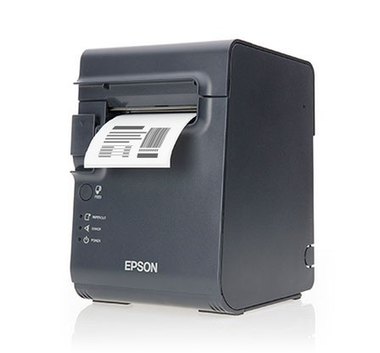
The incoming orders are printed with the kitchen printer. Multiple printers can be connected and positioned at different stations.
Pickup monitor - OktoWaitList
Waitlist on screen
Software: SW-WL
The pickup monitor shows which orders are in progress and which are ready.
AI-generated
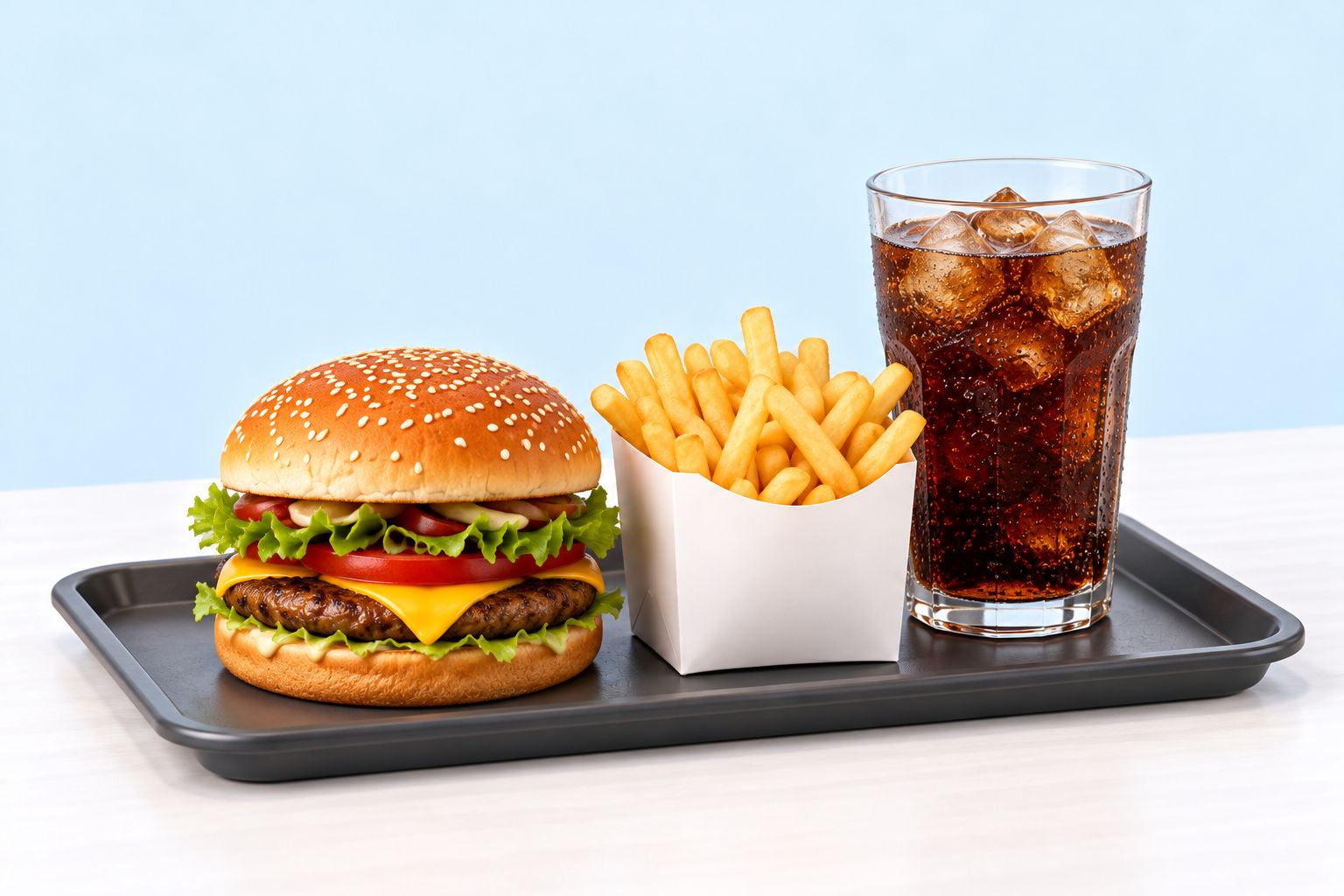
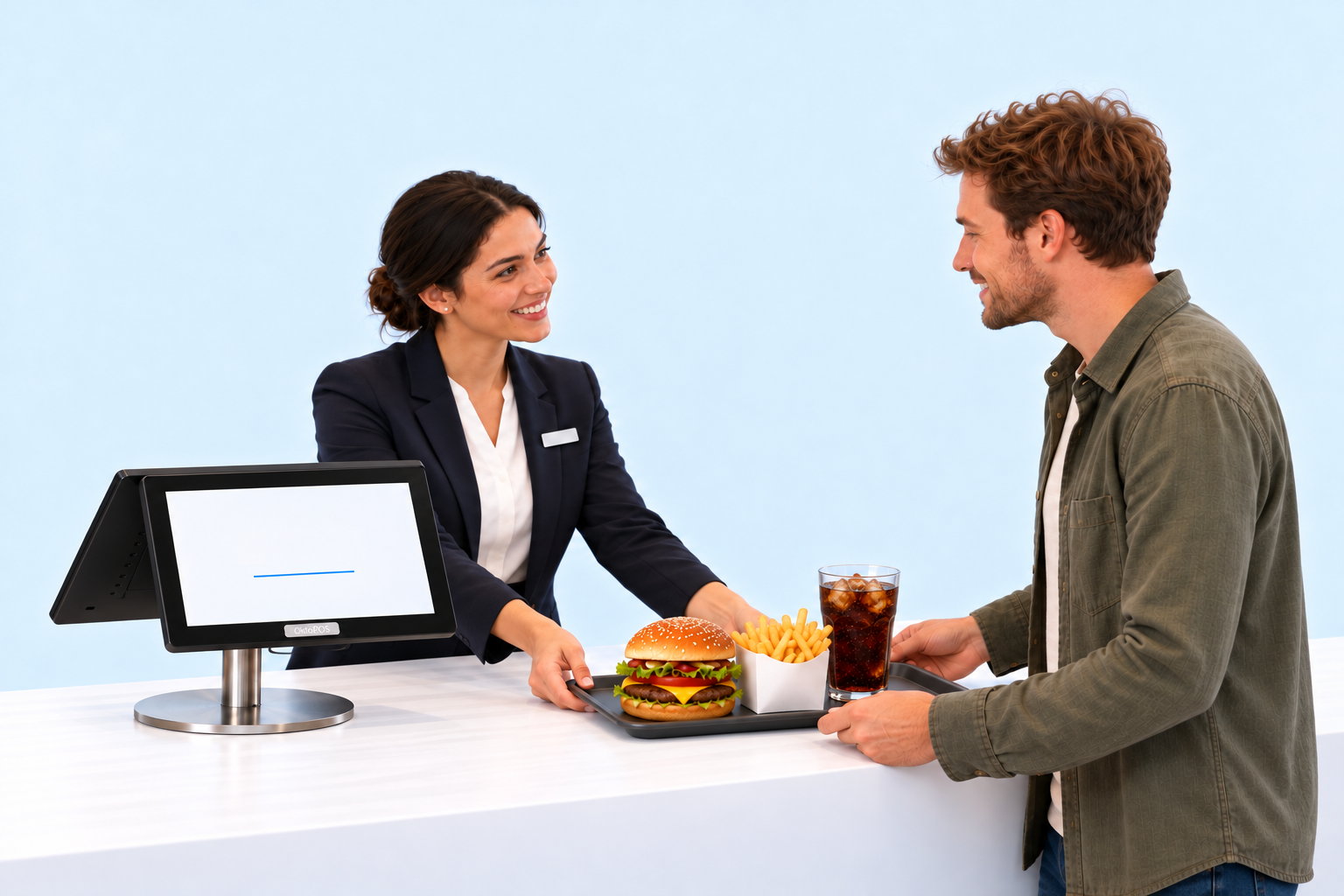
One order, one continuous process: from the self-order terminal through the kitchen to pickup.
AI-generated
Production Control
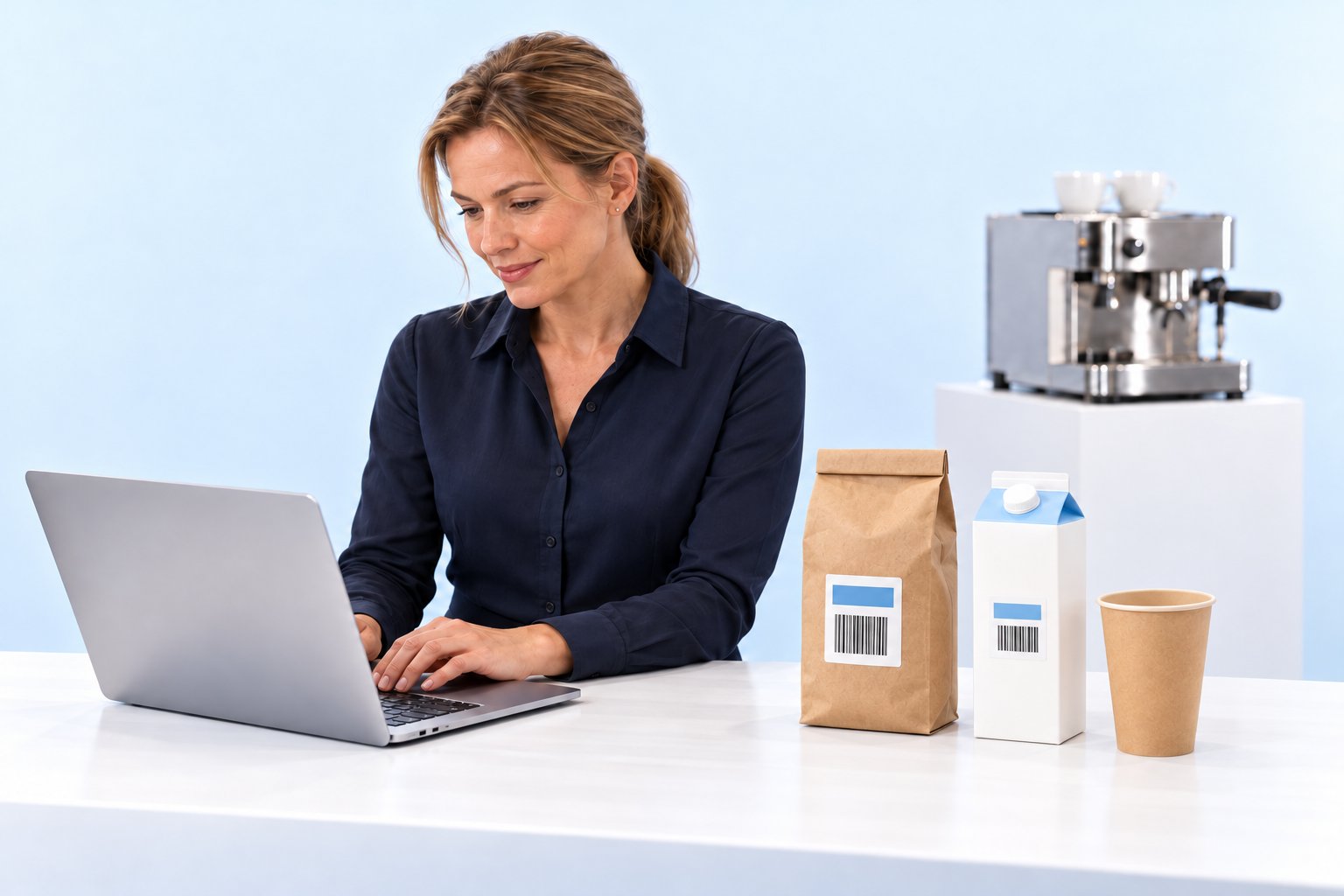
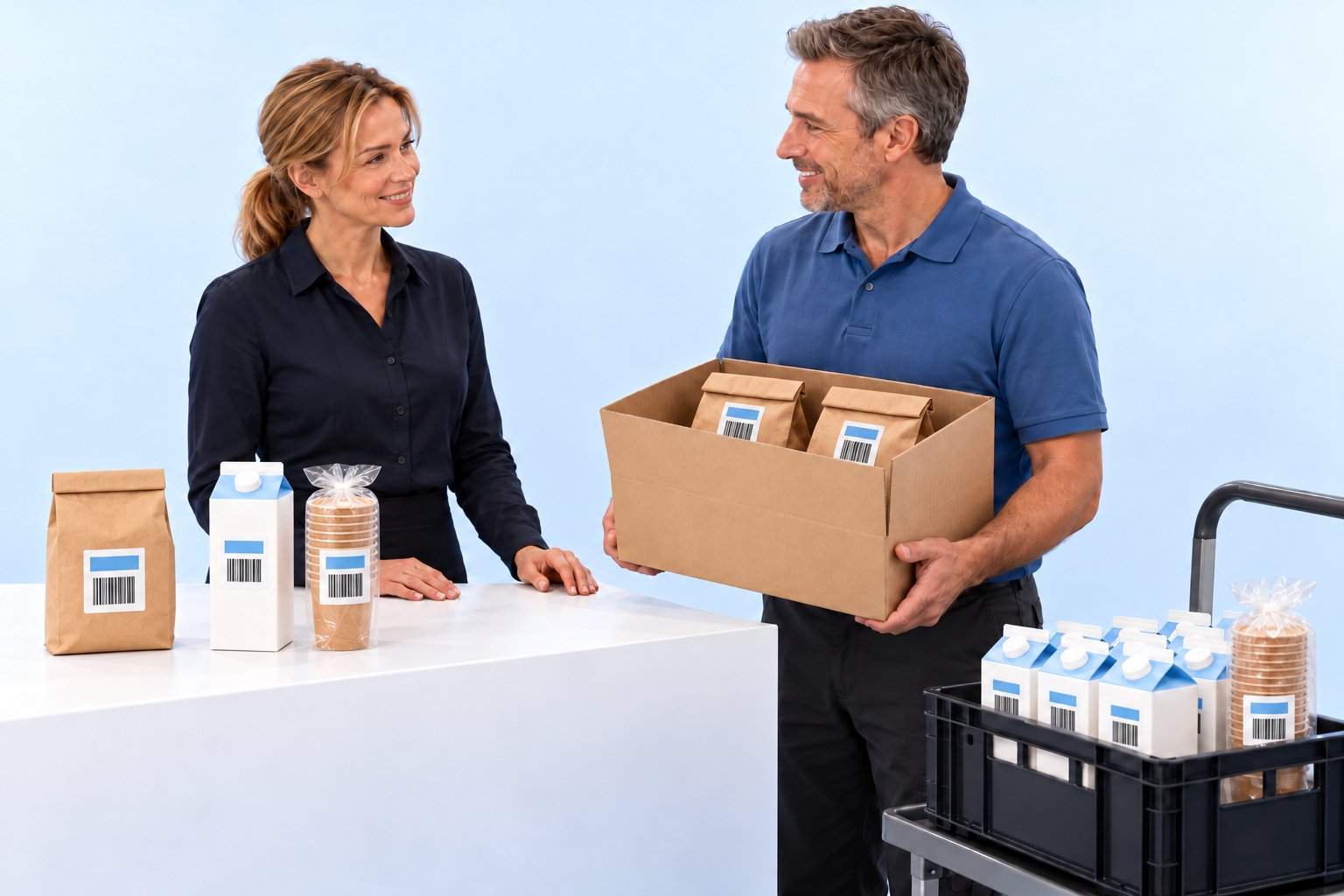
The OktoPOS Manager plans production, reports restocking needs and writes the order to the supplier. Label printers mark the goods during production, with ingredients, allergens and date.
Replenishment System
OktoReplenish is the ideal solution for reordering materials in production storage.
Production teams can order articles through a terminal by selecting them via article buttons and sending the order. These orders are then displayed on the inventory monitor for processing.
Material consumption can be tracked through inventory management using material movements.
OktoCapture
OktoCapture records production output quantities. This is used for inventory management and statistics.
The data is recorded with a touchscreen terminal on which the production articles are available as buttons. Alternatively, the articles can be captured via barcodes with a scanner.
Articles can be recorded as pieces, weight or volume. Optionally, variants of the article (e.g., colors, sizes, etc.) may be captured.
OktoCapture is directly connected to the OktoPOS material management system. In inventory management, stock levels are tracked and inventory counts are carried out. The produced articles are broken down into their components in inventory management via the recipe or parts list.
Each transaction can be automatically exported to a third-party system (for example, SAP or Oracle) in real time.
The OktoPOS Manager provides a variety of reports.
Production Planning
Calculate Ingredient Quantities
With the ingredient calculator you determine the demand for ingredients for a selected production quantity of one or more products.
When calculating several products at the same time, the quantities of ingredients can be combined.
Label Printer - OktoLabel
Labels for Packaged Foods.
Software: SW-OL
OktoLabel
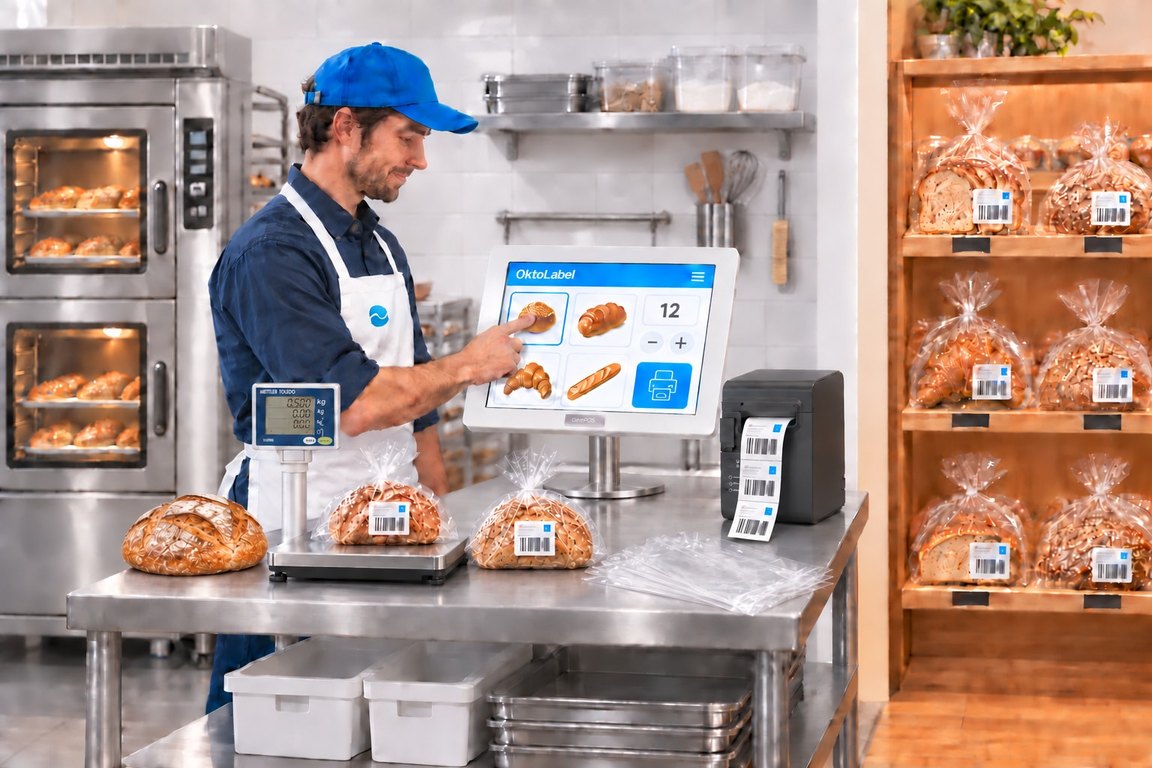
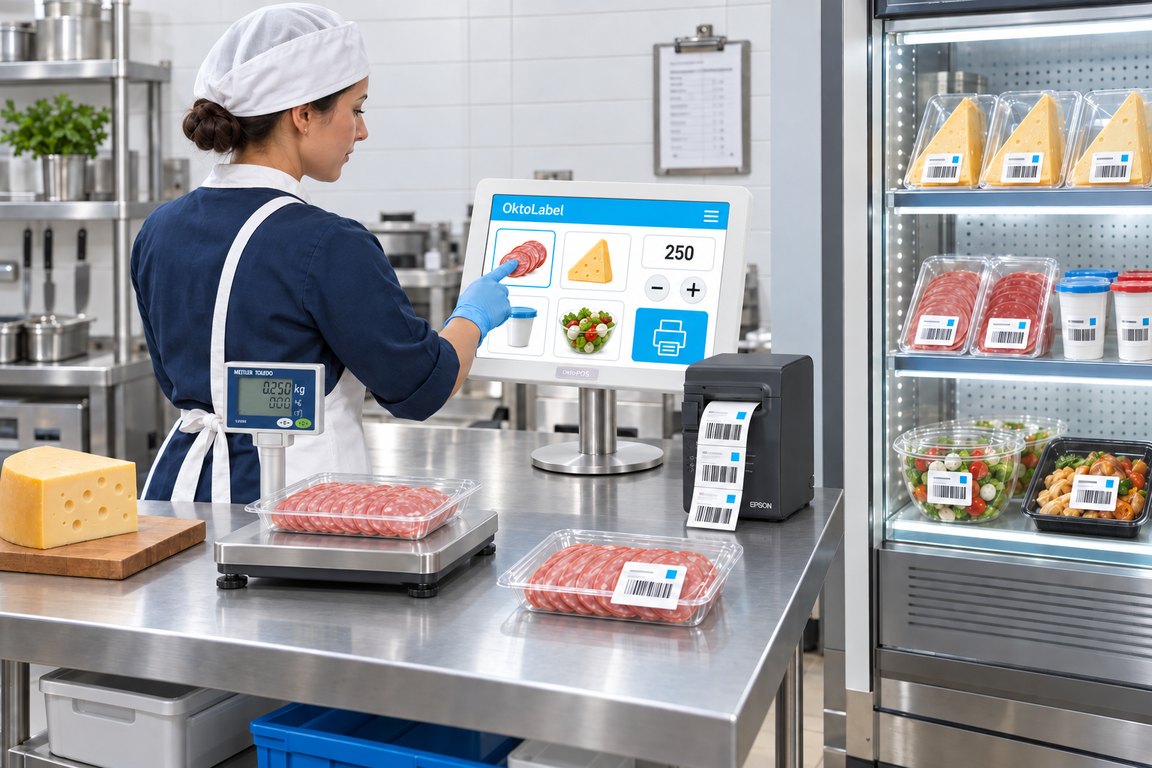
An article is selected on the touchscreen and the number of labels is set. The printer produces the labels with all relevant information such as price, price per unit, quantity, ingredients, additives, allergens, nutritional values, expiry date and barcode.
AI-generated
AI-generated
Features
Connected to the OktoPOS Manager article database
Connection of label printer
Connection of scale via certified interface (optional)
Price
Price per unit
Quantity
Expiration dates
Ingredients
Additives
Allergens
Nutritional values
Barcodes
Etc.
Software:
Hardware:
Touchscreen PC
Printer
Scale
Data Connection:
LAN
Procurement
Create Orders Directly from the System.
Suppliers
Each supplier has a dedicated supplier record. In this record, the articles supplied and the purchase prices for each location are managed.
Order Proposals
The system automatically calculates order proposals based on the sales. These can be adopted for orders.
Purchase order recommendation
Orders
Orders can be generated as a PDF and sent by email to the supplier.
It is possible to transfer orders directly to the material management system of the supplier. For this, a custom connection to the supplier is necessary.
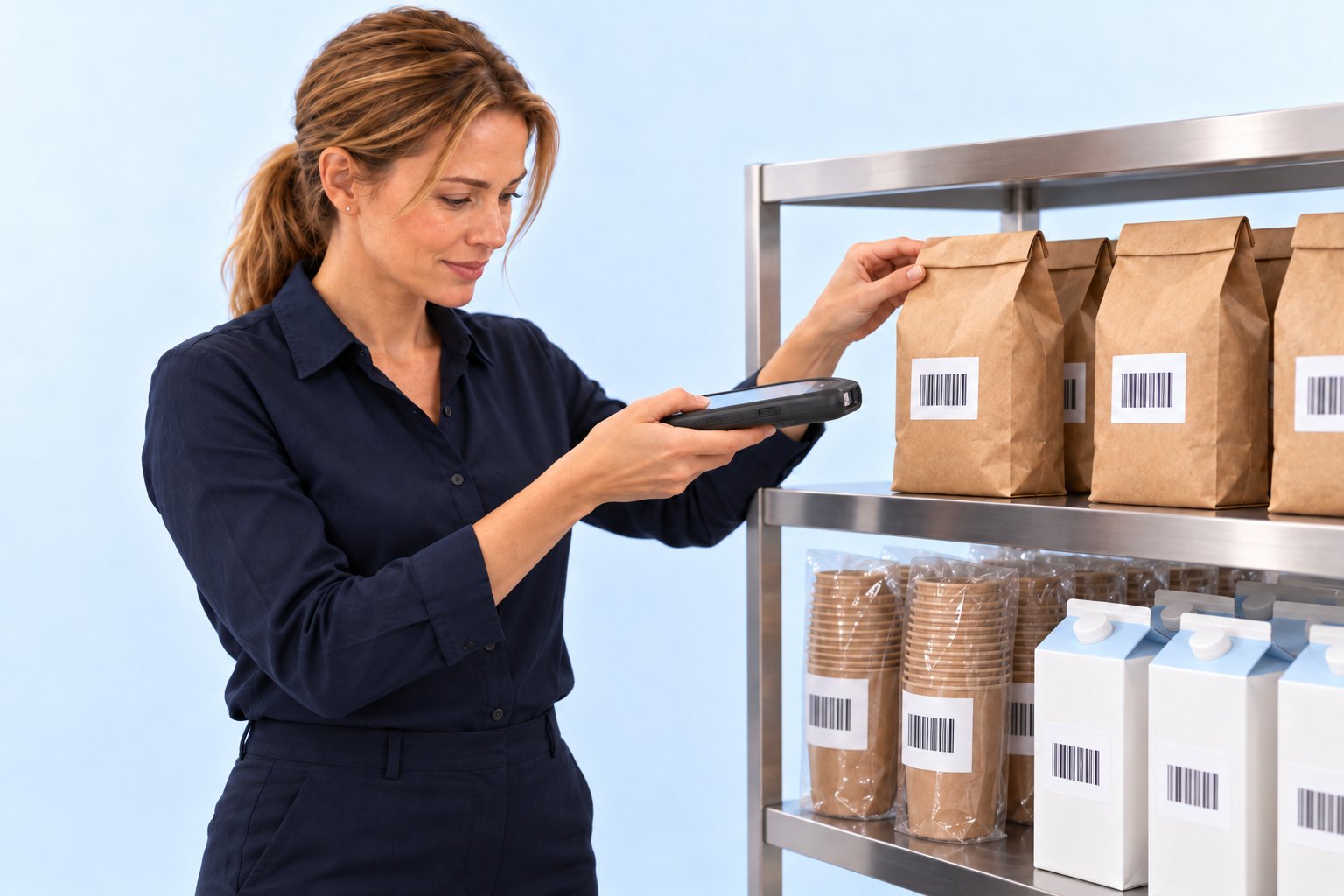
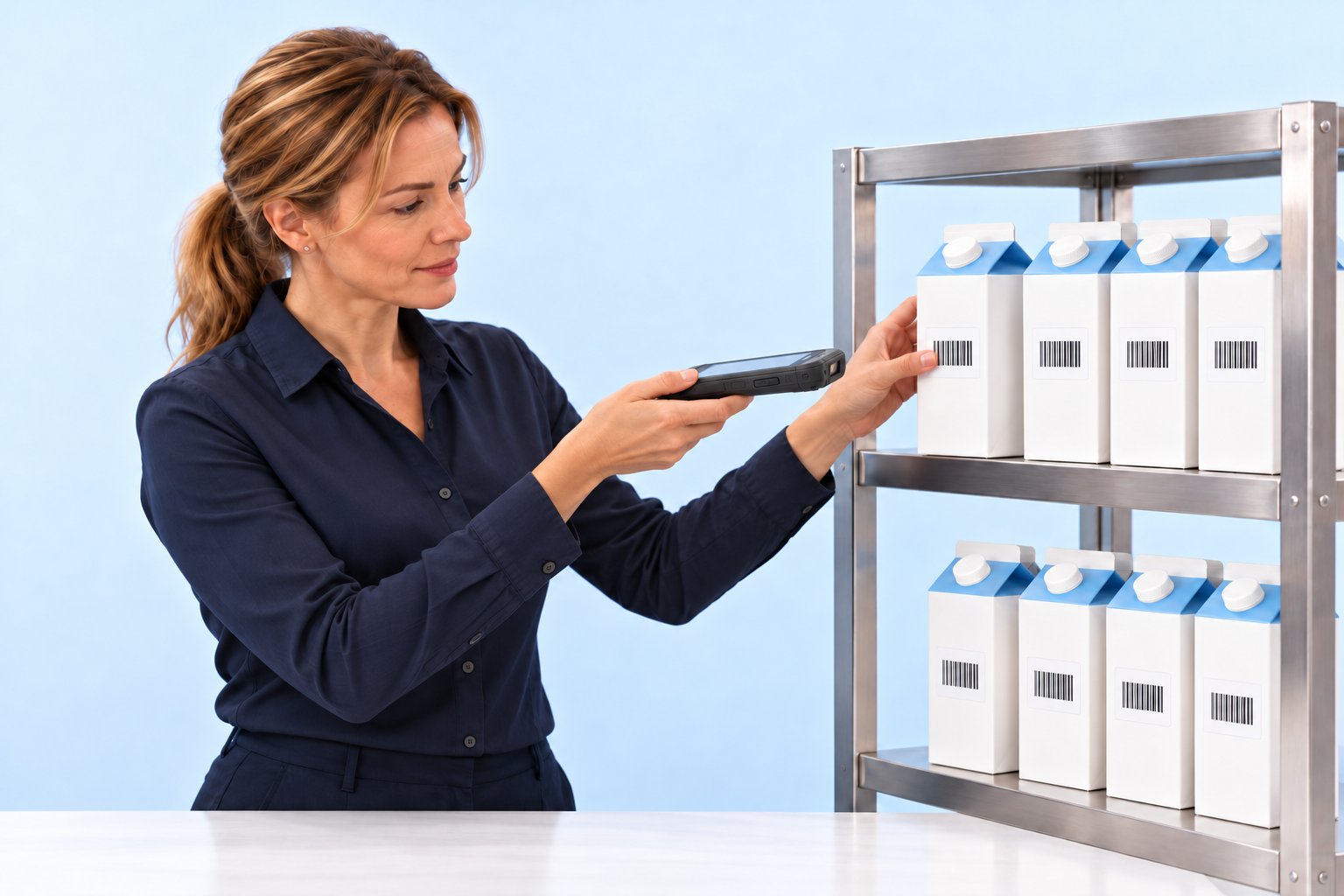
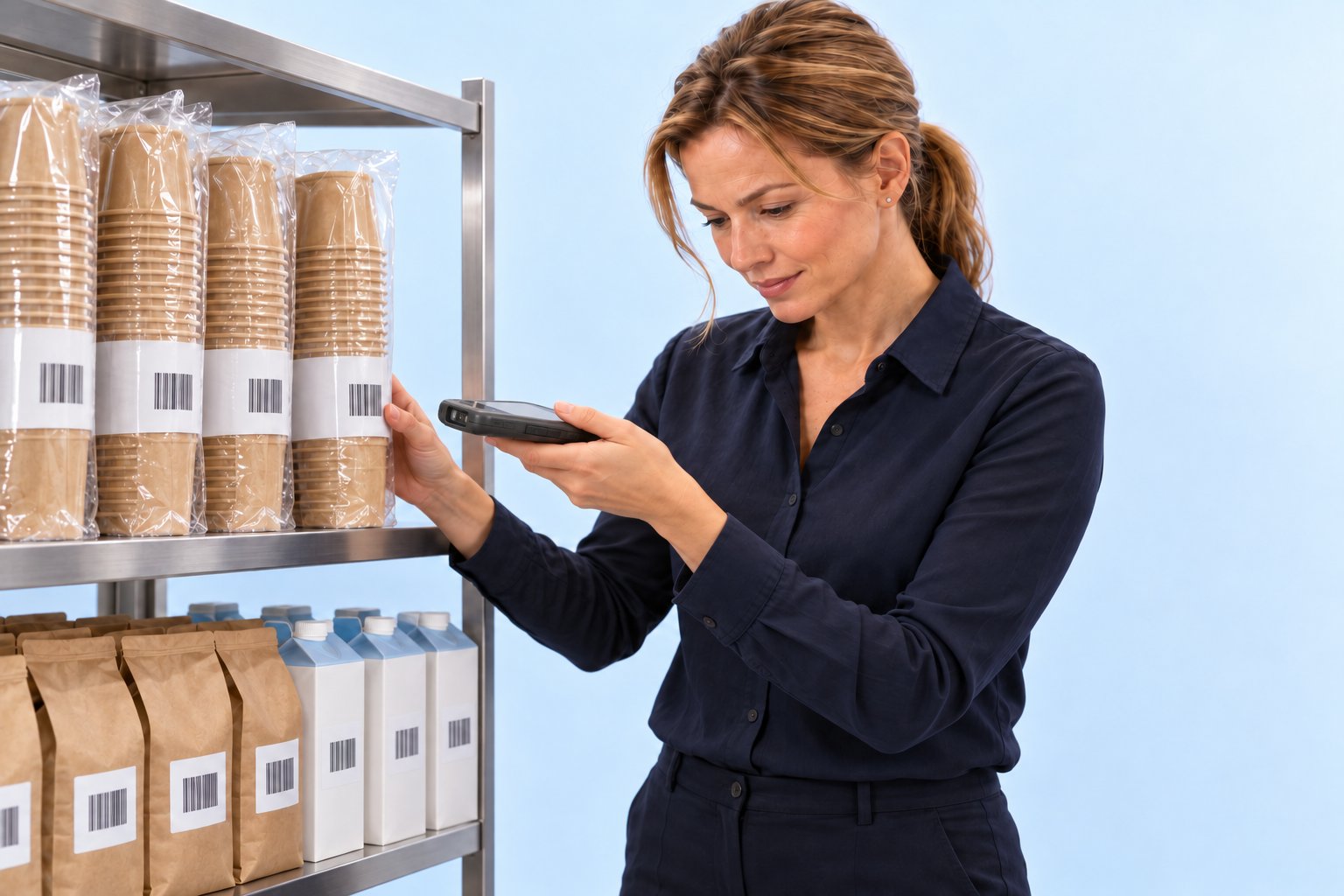
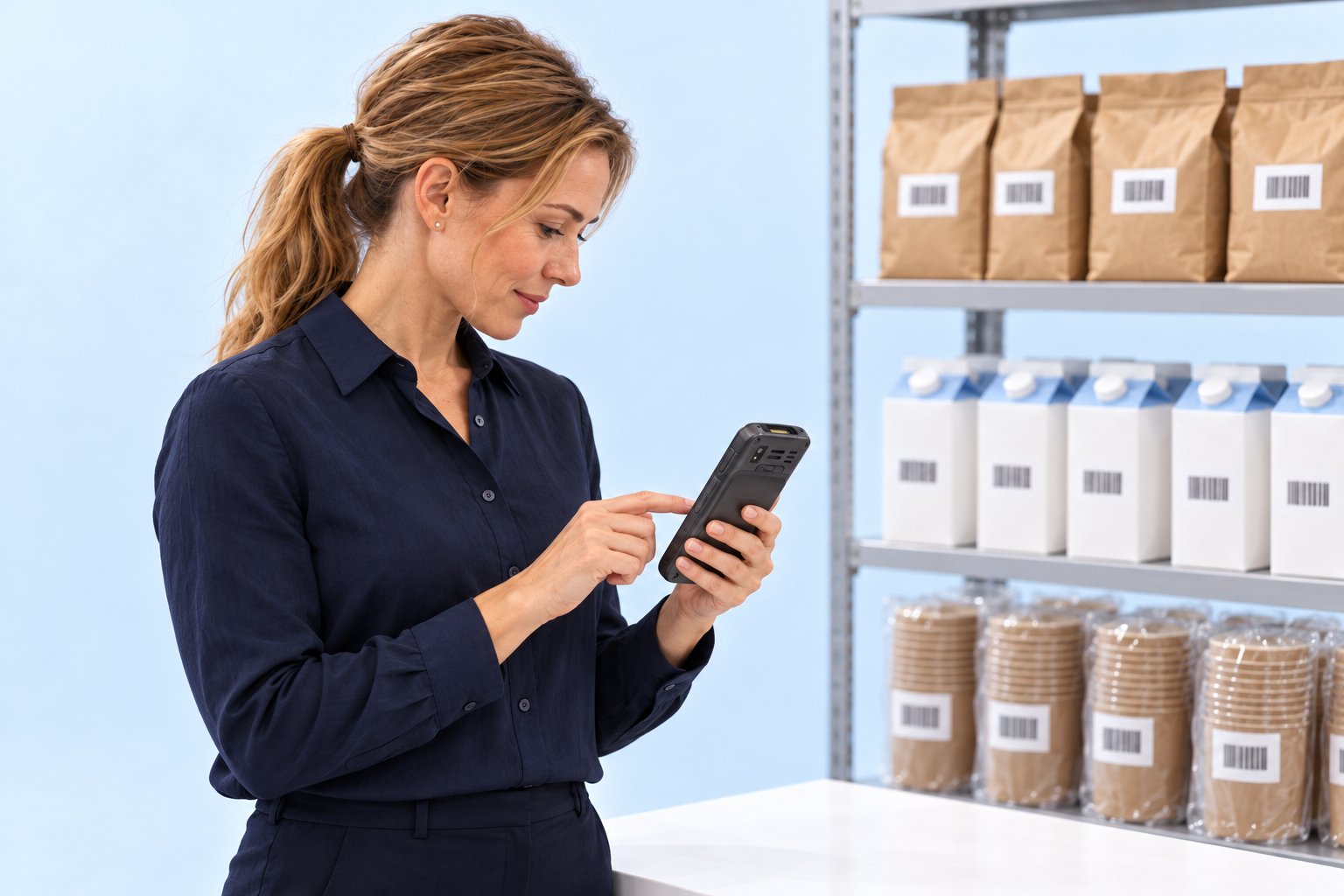
Handheld Scanner
With a handheld scanner (mobile data terminal), reorder quantities can be recorded and transferred to the OktoPOS Manager in order to generate an order.
Deliveries can also be scanned with the handheld scanner and saved as a packing slip in the OktoPOS Manager.
Quantity appears in the OktoPOS ManagerScan the barcodeType in the quantityCreate the exportQuantity appears in the OktoPOS Manager
Use cases
Our solutions for your challenges.
Restaurant
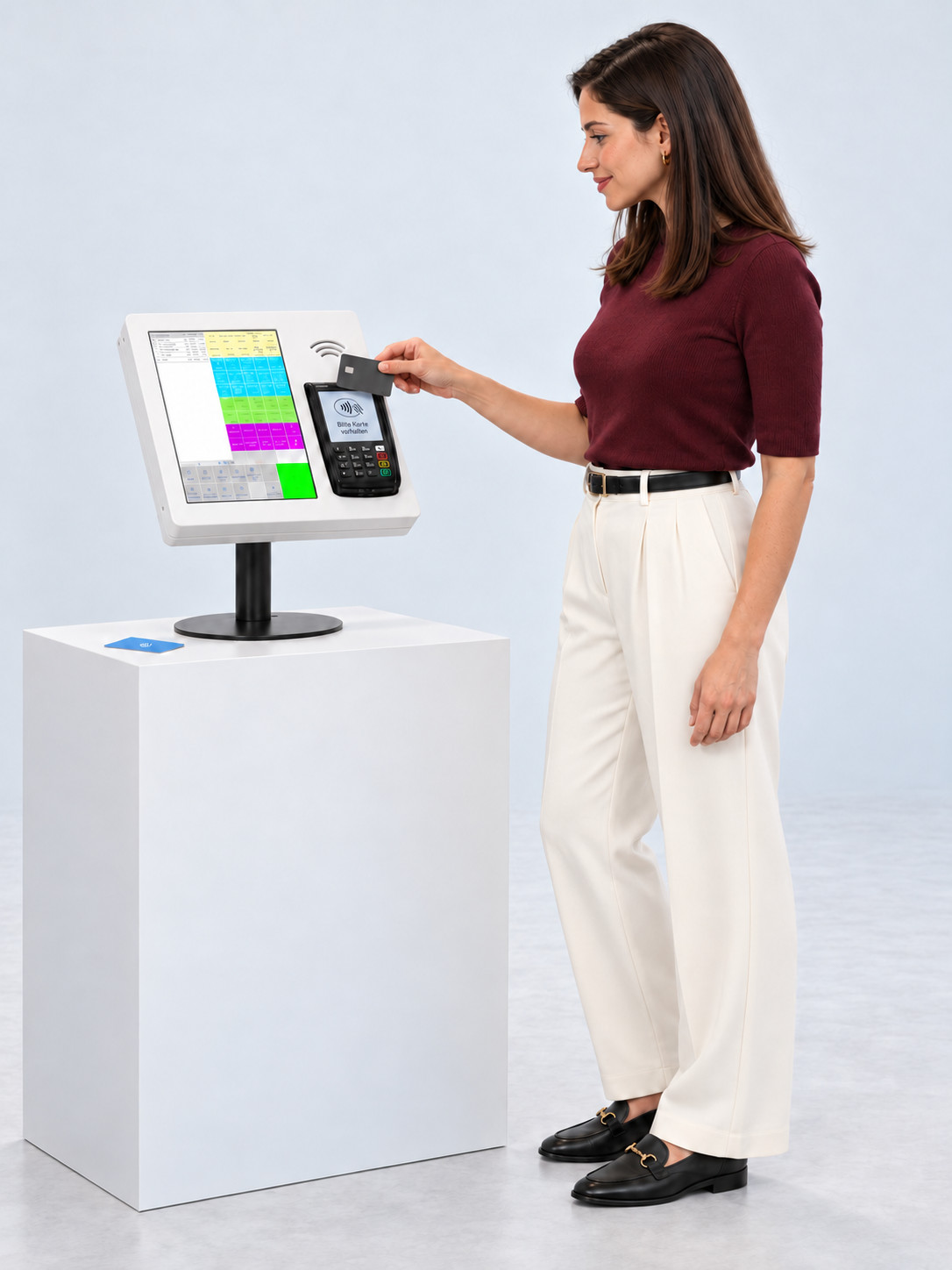
Dining with a guest card
Order at your leisure. Pick up when called. Pay at the end.
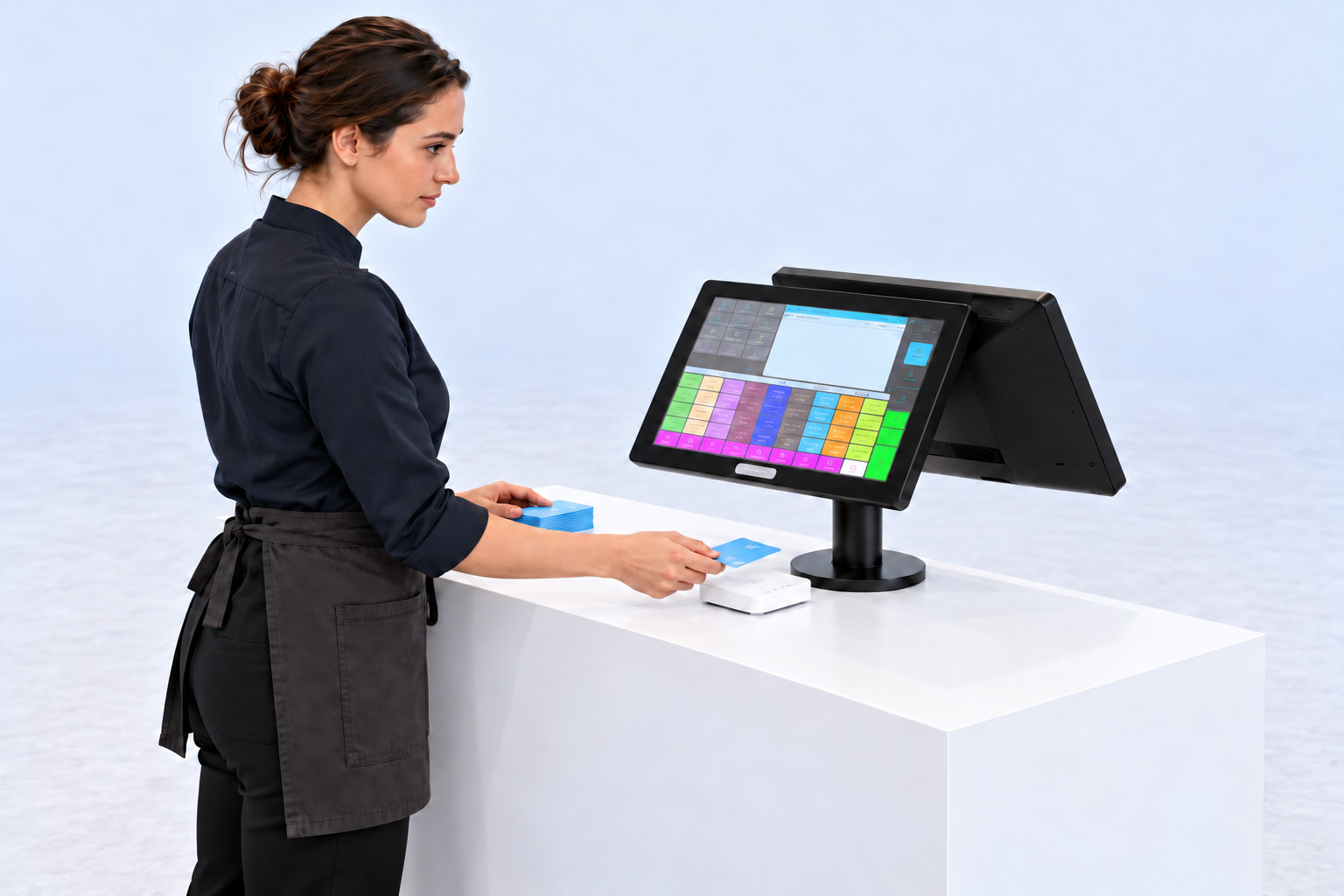
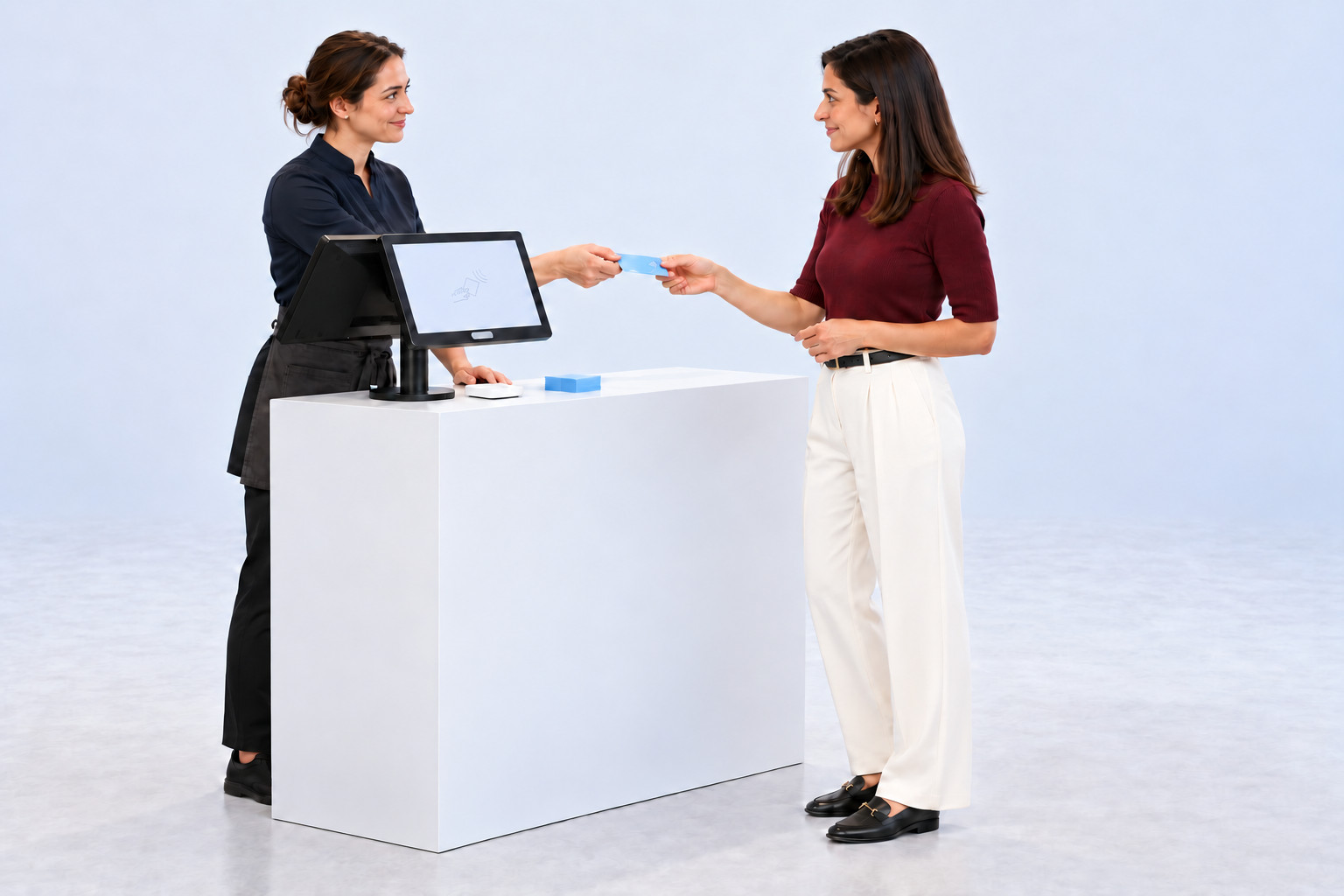
Activate the guest cards at the register in the morning.
Step 1 of 14. Activate the guest cards at the register in the morning.
AI-generated
Which devices you need for this
What the guest carries
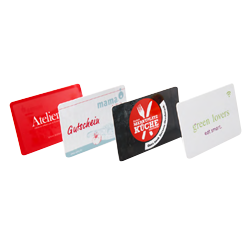
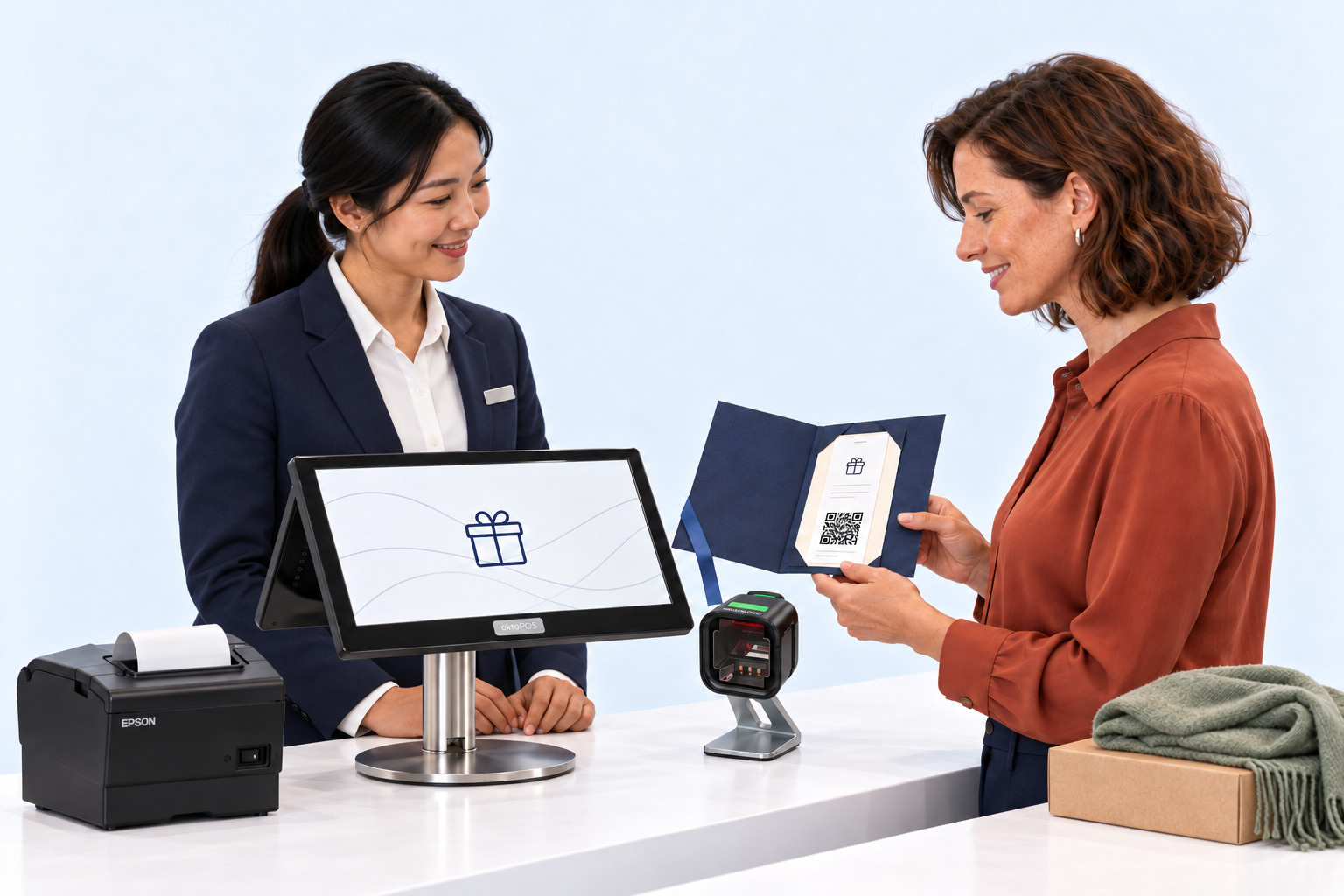
Guest cardHeld up at the terminal, the register and the self-checkout
PagerTaken at the station, the kitchen calls the guest with it
Self-Order TerminalWith a reader for guest cardsOrder
Pager stationCharging station and transmitterCall to the pager
Kitchen stationOne screen per stationOrder
RegisterCards and amounts
Card reader at the registerActivates the cards in the morningCard number
Connected to the register
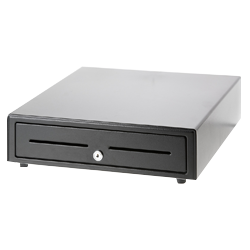
Cash drawer
Customer display
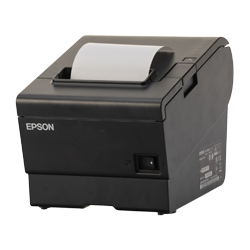
Receipt printer
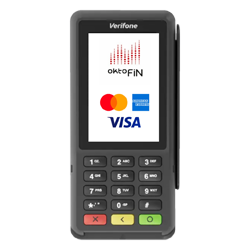
Card payment terminal
OktoPOS POS systemAll devices run on the same system.
Optional
Self-checkoutPayment device in a housing, the guest pays without service staff
Location serverOnly needed in larger venues
Payment is made at the register or at the self-checkout. The business decides which of the two it has on site.
Which software you need for this
Required
Data storage
Keeps all of the venue's data on the server, with hosting. Nothing runs without it.
OktoPOS Manager
The foundation: articles, prices, users and reports are held here.
Register
Activates the guest cards in the morning and settles them at the end.
Customer module
Keeps the guest cards and the orders stored on them.
RFID system
Links the card to the table and releases it again at the end.
Self-Order Terminal
Shows the menu at the terminal and takes the order.
Kitchen station
Shows the order at the station that prepares it and calls the guest.
Payment / OktoFIN
Settles the card payment at the register and at the self-checkout.
Optional
OktoSelfCheckout
Shows the guest their bill and accepts the payment without service staff.
OktoPager
Also calls the guest via WhatsApp when they do not want to carry a pager.
Restaurant · Mobile Ordering
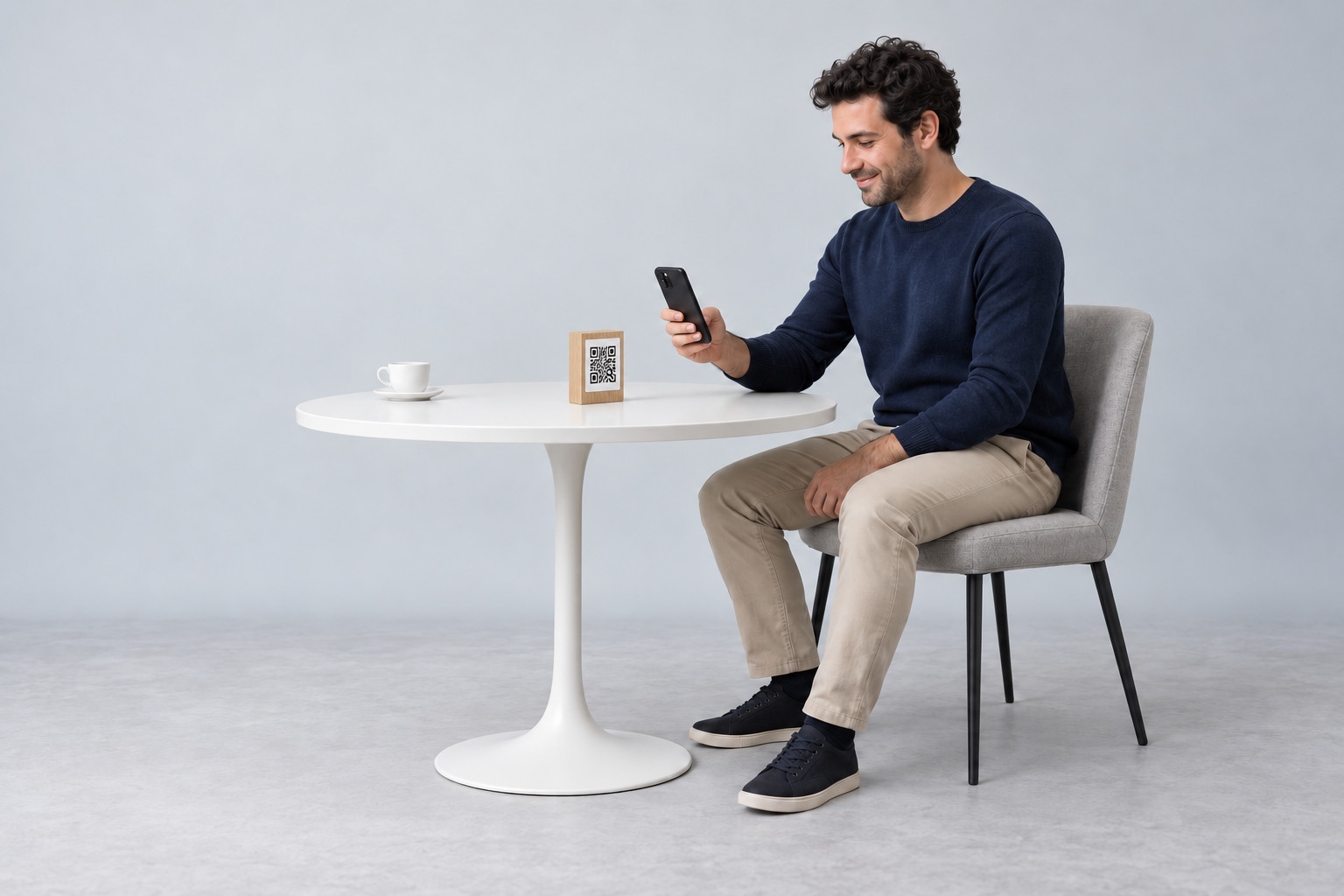
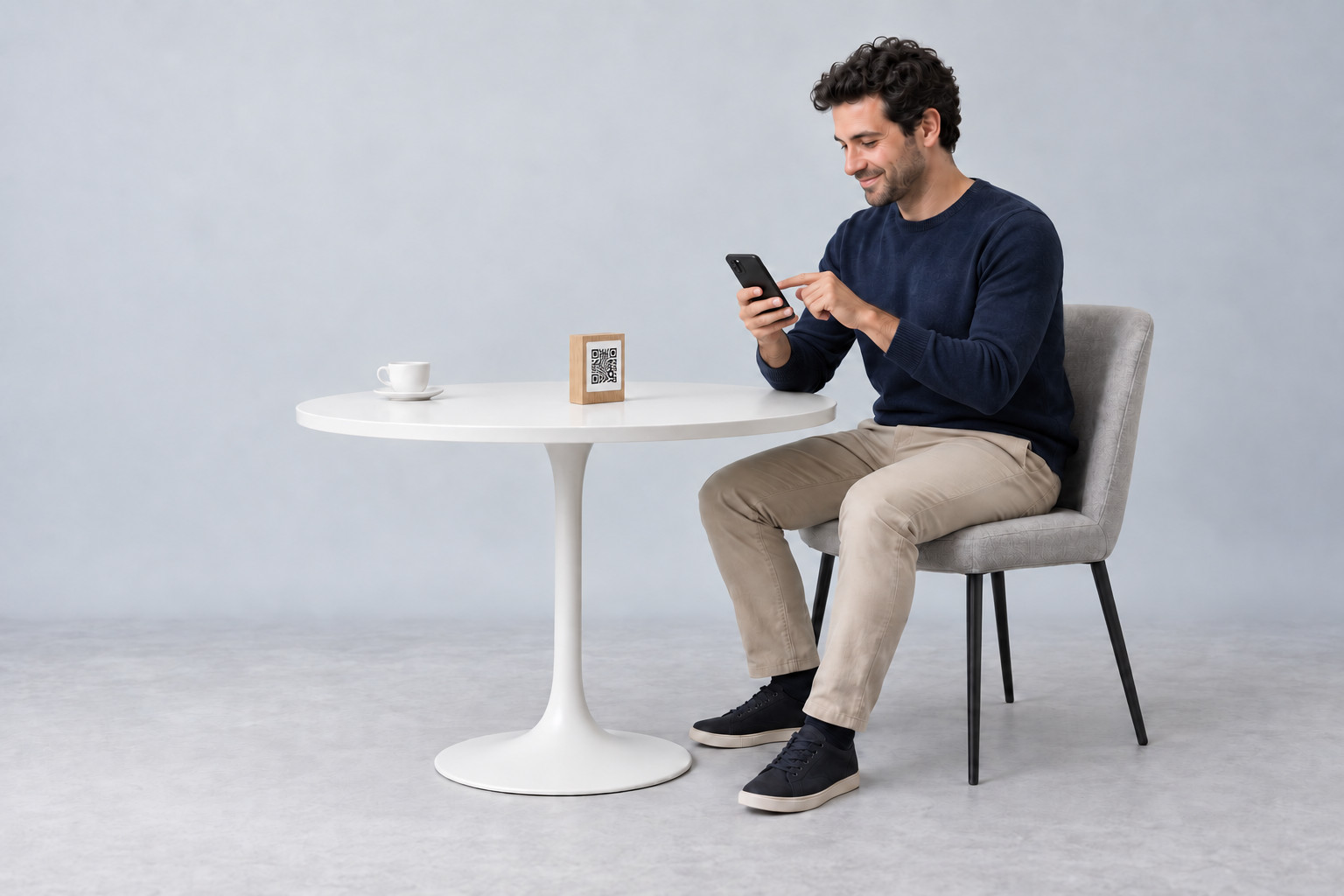
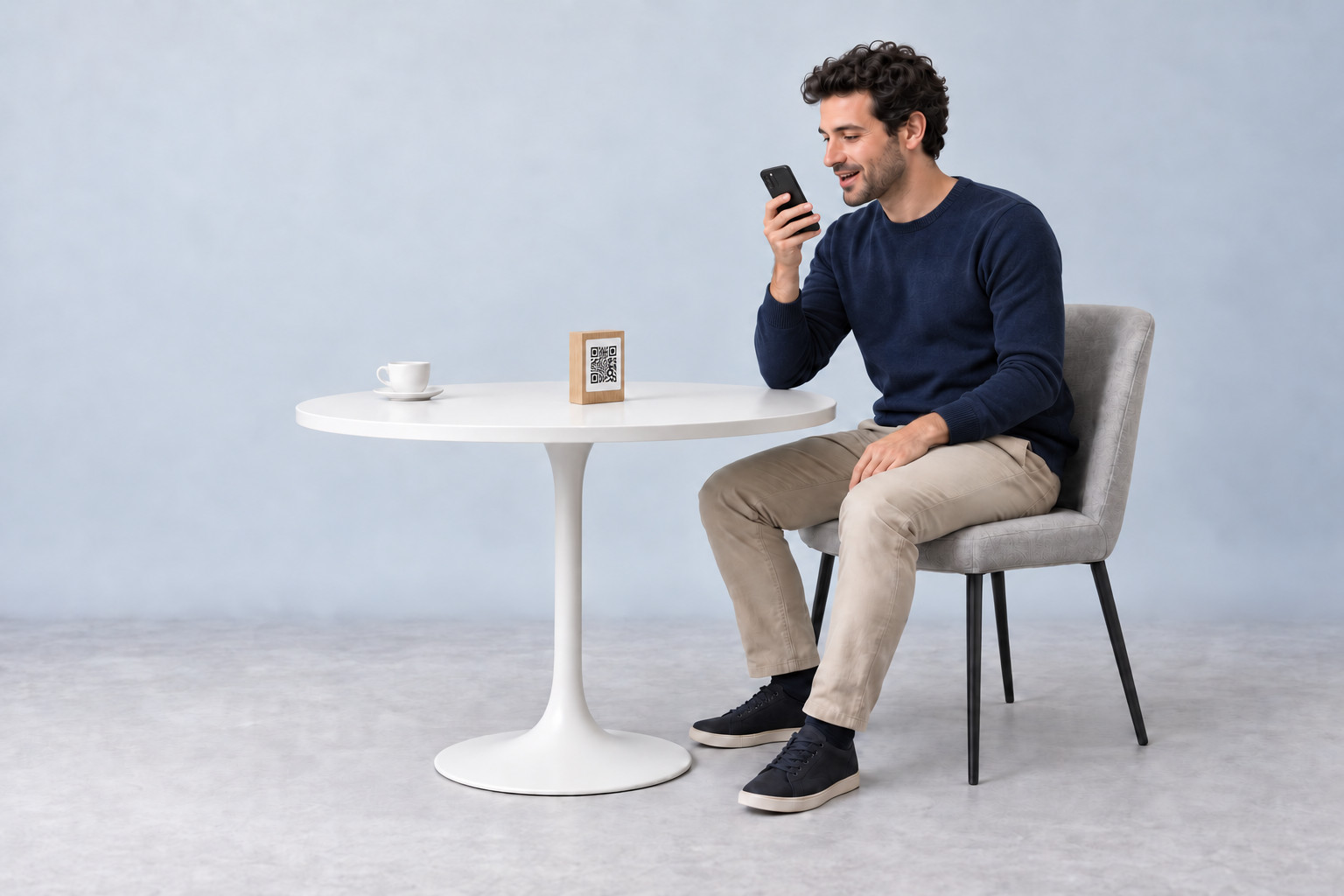
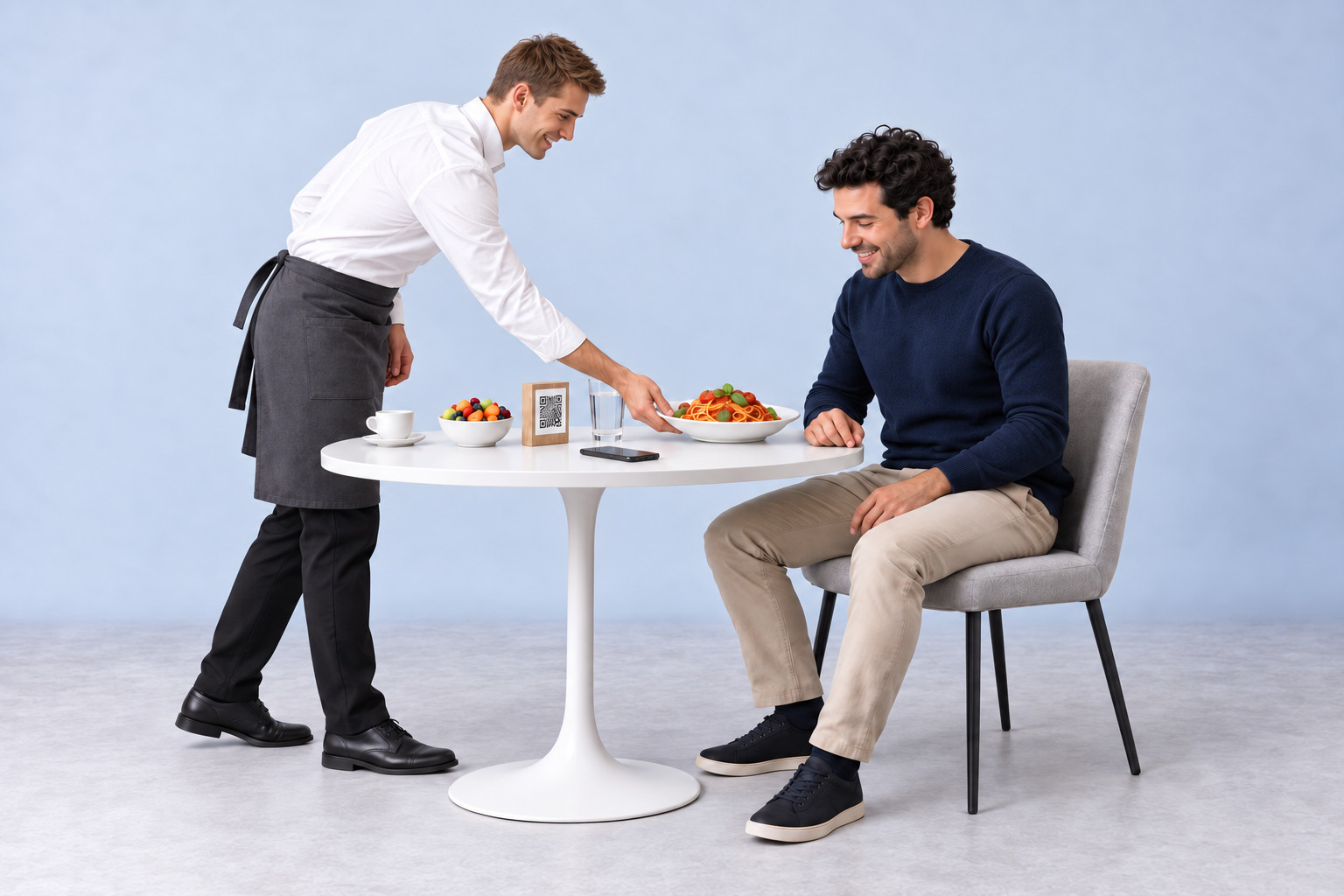
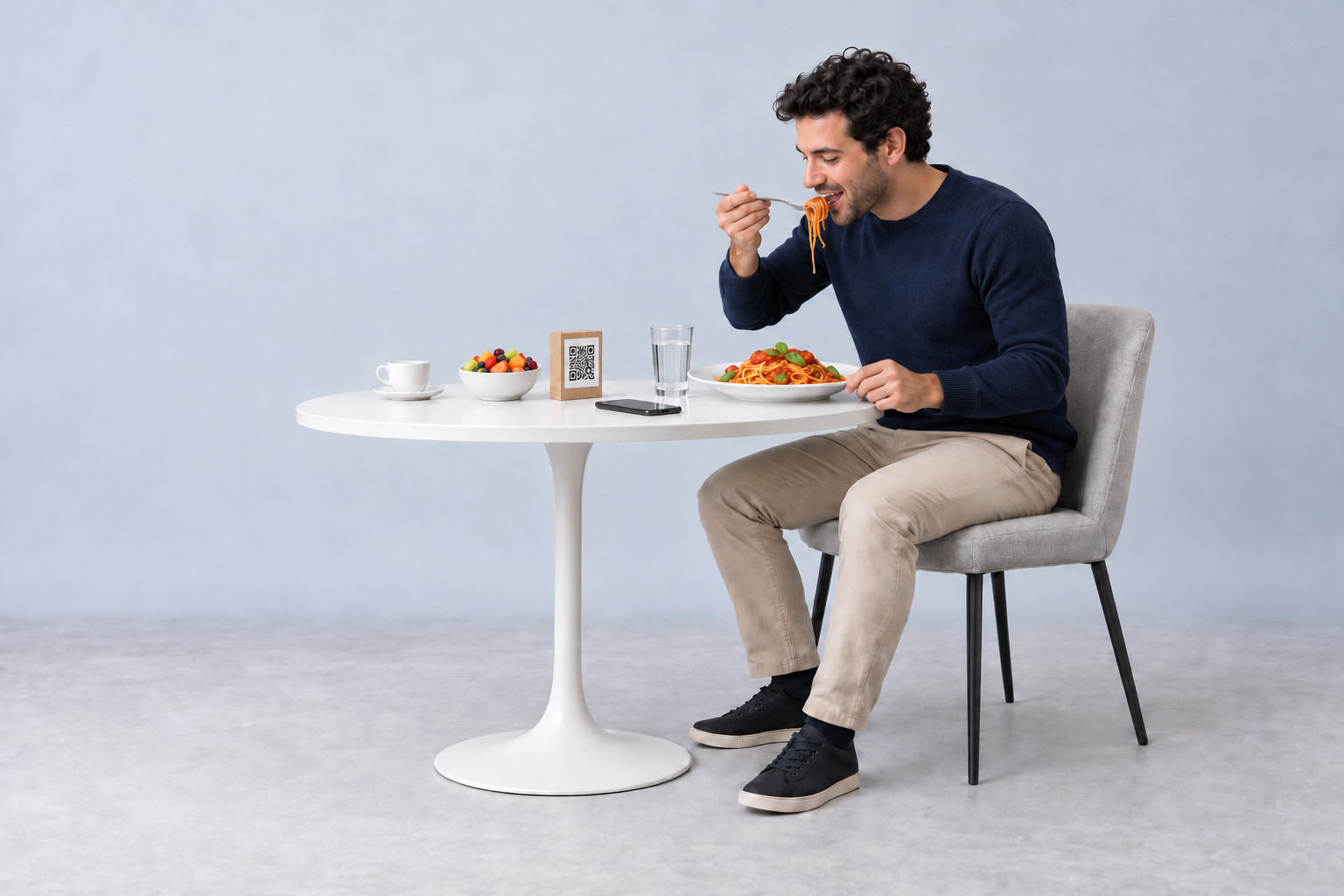
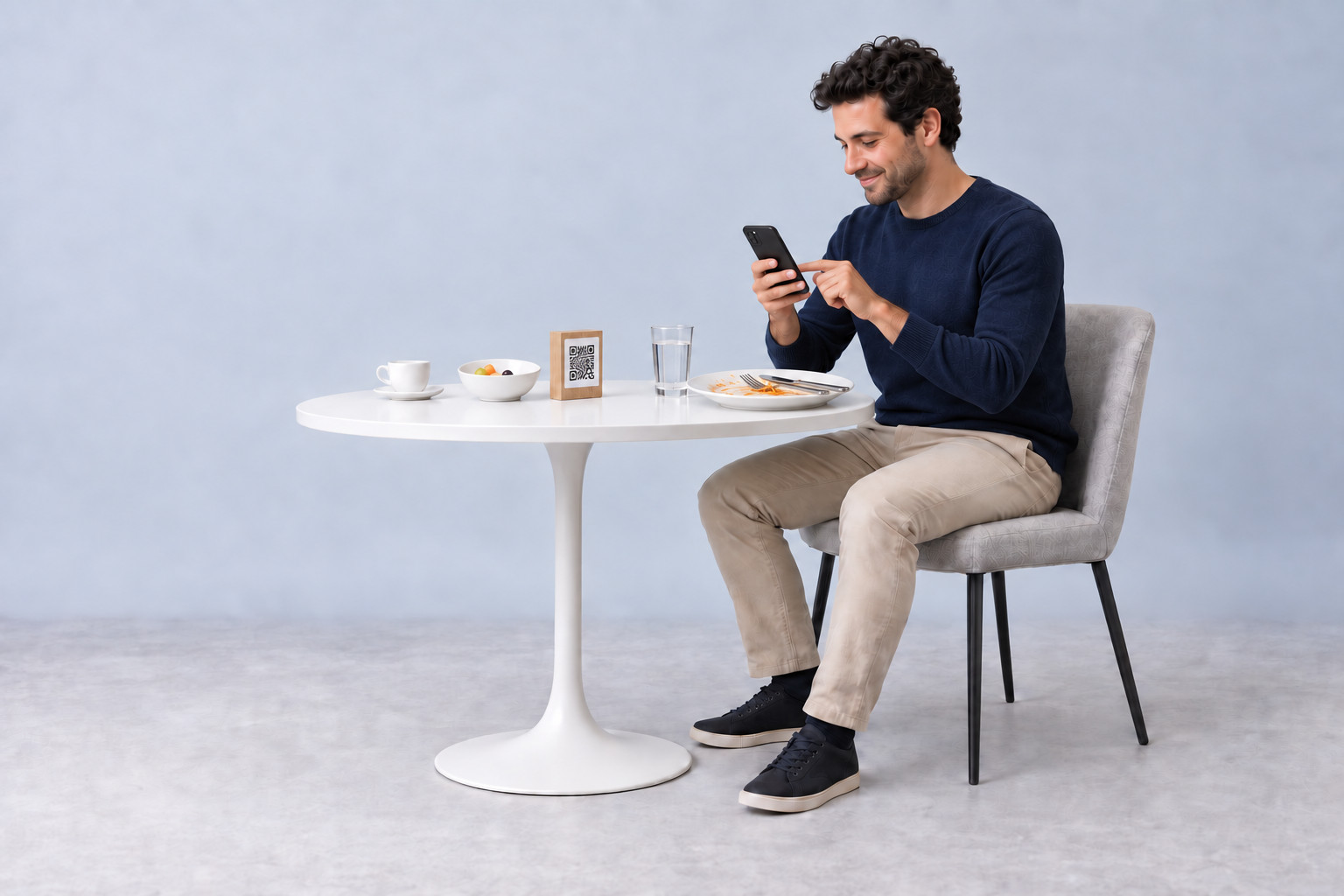
Ordering at the table
Choose on your phone. Served at your table. Enjoy at your leisure.
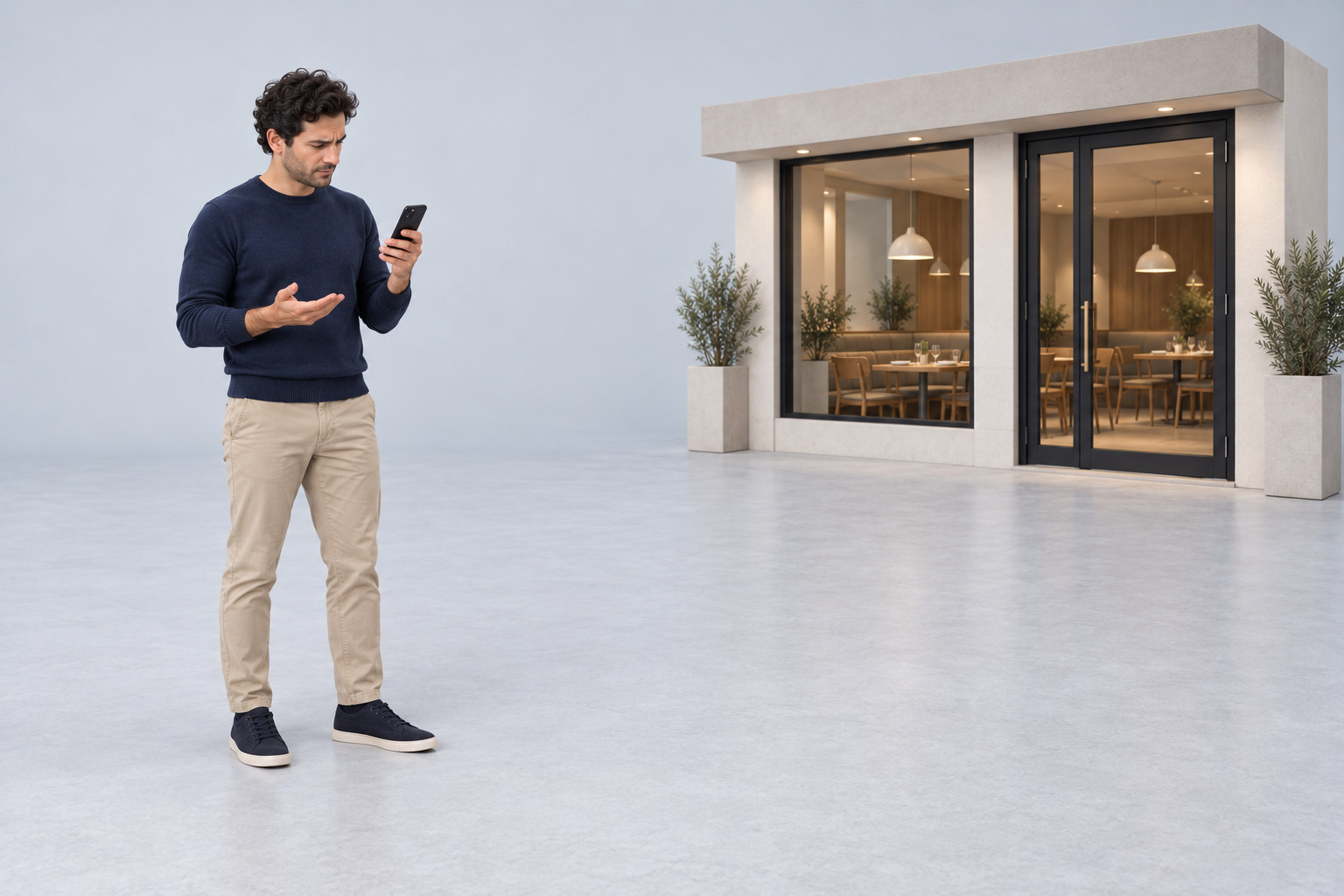
Restaurant ordering areaOutside
Geofencing×
You can't order here yet
You are outside the ordering area.
The business sets the permitted radius.
✓ Arrived at the restaurant
Online storeTable 12
Our menu
Choose right at the table.
PastaWith tomato sauce and basil
Fresh fruit saladFresh fruit served plain
Choose from the menu or get a recommendation.
AI assistant
Chef de Cuisine
Ask by voice
Type your question in the chat
“I'd like some pasta. What do you recommend?”
Chef de Cuisine“How about pasta with tomato sauce and basil?”
And something fresh to finish?
Sample conversation with dishes from the menu.
AI assistant
Chef de Cuisine
Ask by voice
Type your question in the chat
“And what would you recommend for dessert?”
Chef de Cuisine“How about a fresh fruit salad? A light finish after the pasta.”
Fresh fruit saladFresh fruit · served plain
Sample conversation with dishes from the menu.
AI assistant
Chef de Cuisine
Ask by voice
Type your question in the chat
“The pasta and the fruit salad, please.”
Chef de Cuisine“Sure. Both are now in your cart.”
In your cart
1 ×Pasta with tomato sauce and basil
1 ×Fresh fruit salad
Check your selection, then complete the order.
Sample conversation with dishes from the menu.
Allergen filter
Narrow down the choice
Select the allergens to avoid.
✓Milk
Cereals containing gluten
The menu is filtered based on the stored allergen information.
Tip
A thank-you for the team
The guest decides whether to tip and how much.
✓10% tip selected
A custom amount is also possible. The business sets the suggestions.
Payment
Right on the phone
Card
OktoKitchen
The kitchen can get started
The order appears on the kitchen station.
Already paid and postedThe order paid online is posted to the register right away.
Payment pendingThe kitchen receives the order now. It is only posted to the register when payment is made later.
Already paid in the storePay at the register afterwards
Digital invoice
The invoice as a PDF
On the phone after payment.
PDF
Invoice.pdfPDF document
INVOICE
Your order · Table 12
1 ×PastaTomato sauce and basil
1 ×Fresh fruit salad
✓ Paid
01 / 13
Still outside the ordering area: the store won't accept the order here.
Step 1 of 13. Still outside the ordering area: the store won't accept the order here.
Click through the slideshowAI-generated
Which devices you need for this
What is on the table
QR code on the tablePrinted, not a device
Guest's phoneThe guest's own device, not yours
Kitchen stationOne screen per stationOrder
RegisterSales and settlement
Connected to the register
Cash drawer
Customer display
Receipt printer
Card payment terminal
OktoPOS POS systemAll devices run on the same system.
Optional
E-Menu at the tableInstead of the printed QR code, with NFC
Location serverOnly needed in larger venues
For this process, the business needs no ordering device and no payment terminal of its own.
Which software you need for this
Required
Data storage
Keeps all of the venue's data on the server, with hosting. Nothing runs without it.
OktoPOS Manager
The foundation: articles, prices, users and reports are held here.
Mobile Ordering & online store
The guest orders in the browser on their own phone, at the table via the QR code.
Kitchen station
The order appears instantly at the station that prepares it.
Payment / OktoFIN
Takes the payment on the phone and sends the receipt as a PDF.
Register
The sales go into the same register as every other order.
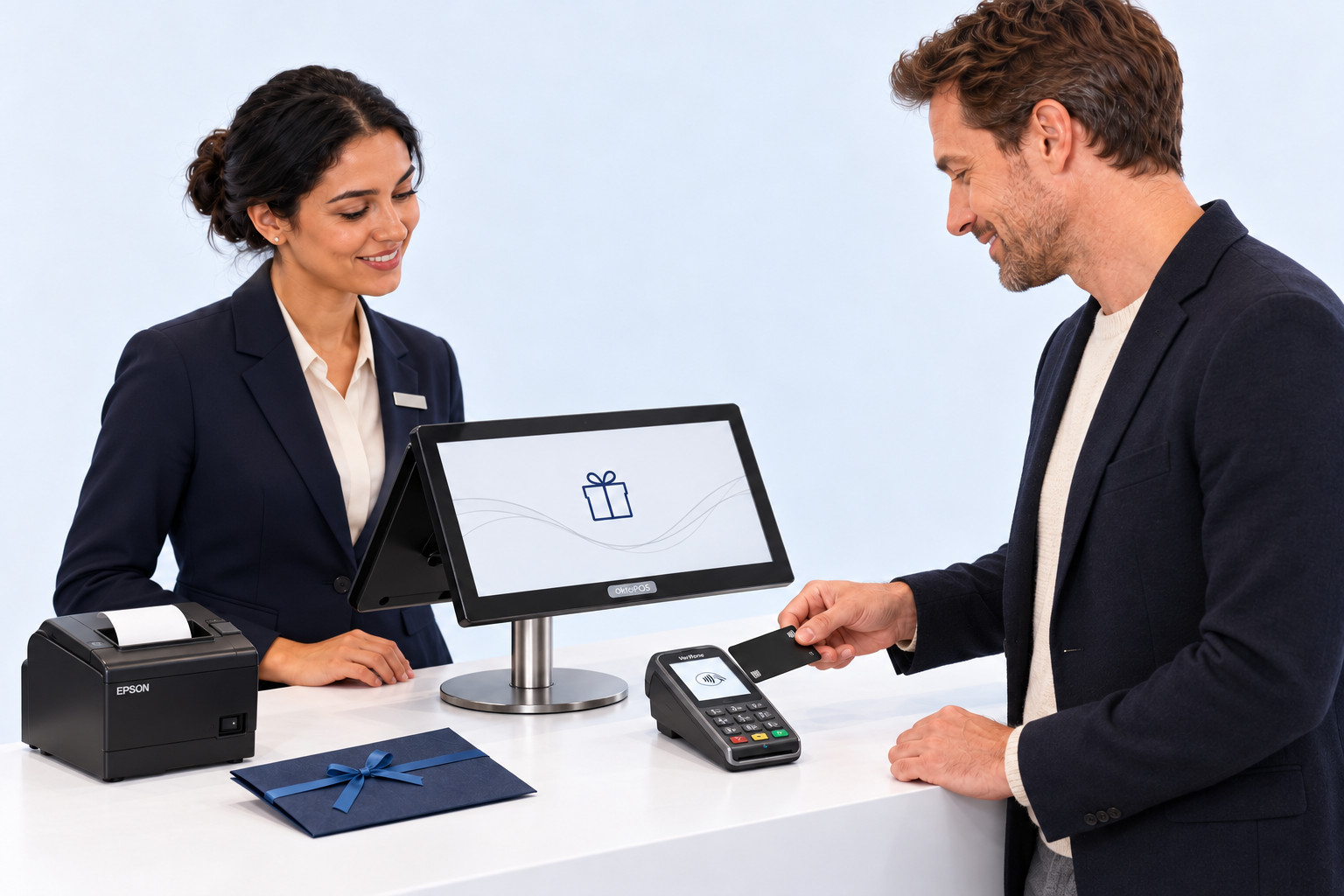
The OktoPOS voucher system
Give joy. Redeem across locations.
One gift voucher. Several purchases. Always the current remaining value.
Location AVoucher sold$100Deposit into the clearing account
Central clearing account$40Open for further redemptions$100 - $35 - $25 = $40
Location B$35credited
Location C$25credited
The credit to each location follows the redemption.
01 / 07
Location AA gift starts at the register.
The customer buys a gift voucher and pays $100.
Step 1 of 7. The customer buys a gift voucher and pays $100.
Voucher value
$100
Revenue on voucher purchase
$0
Balance on the voucher$100
Click through the slideshowAI-generated
Revenue arises when the voucher is redeemed at the respective location.Example model: $100 purchased, $60 redeemed, $40 remaining.
Which devices you need for this
What the customer is handed
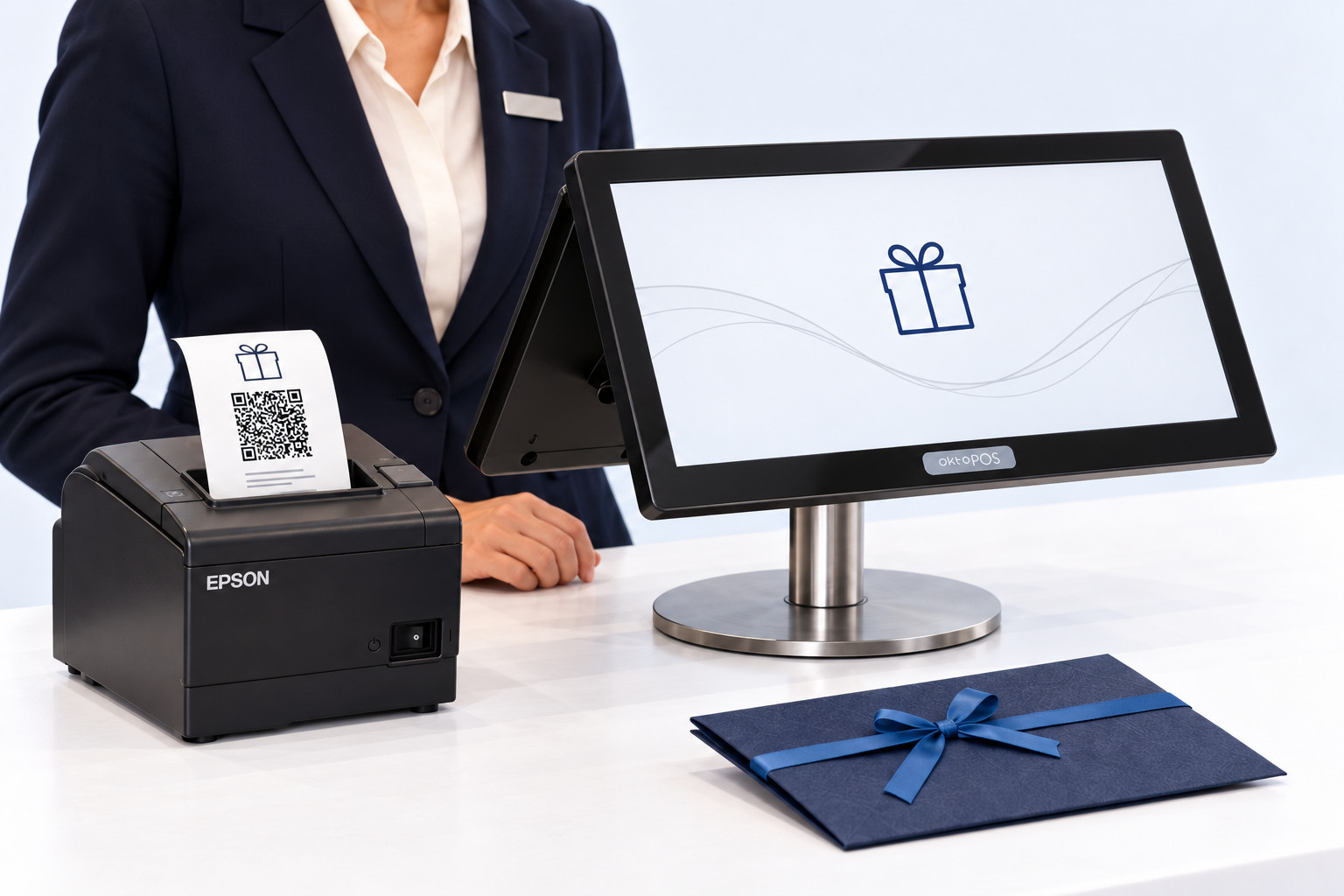
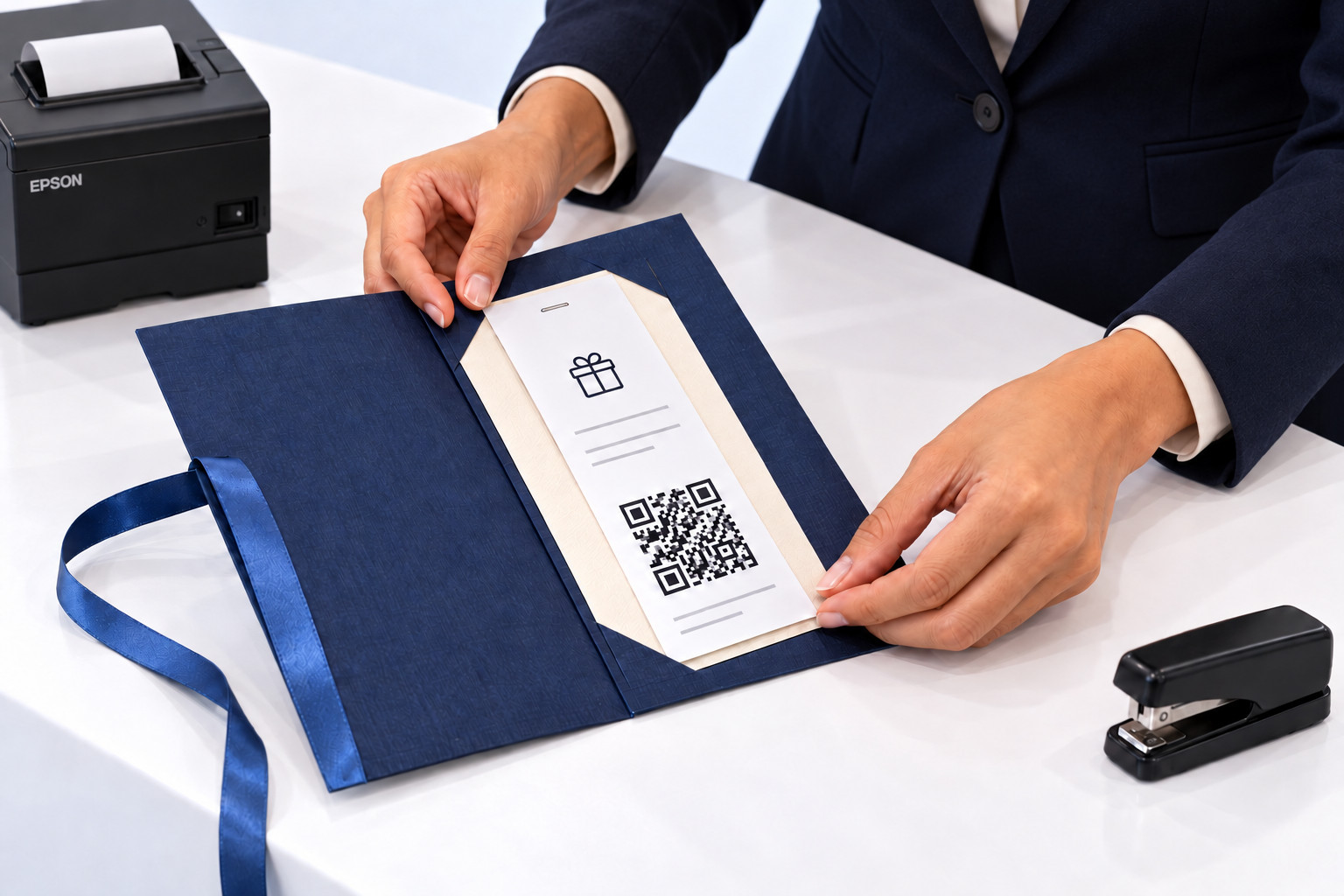
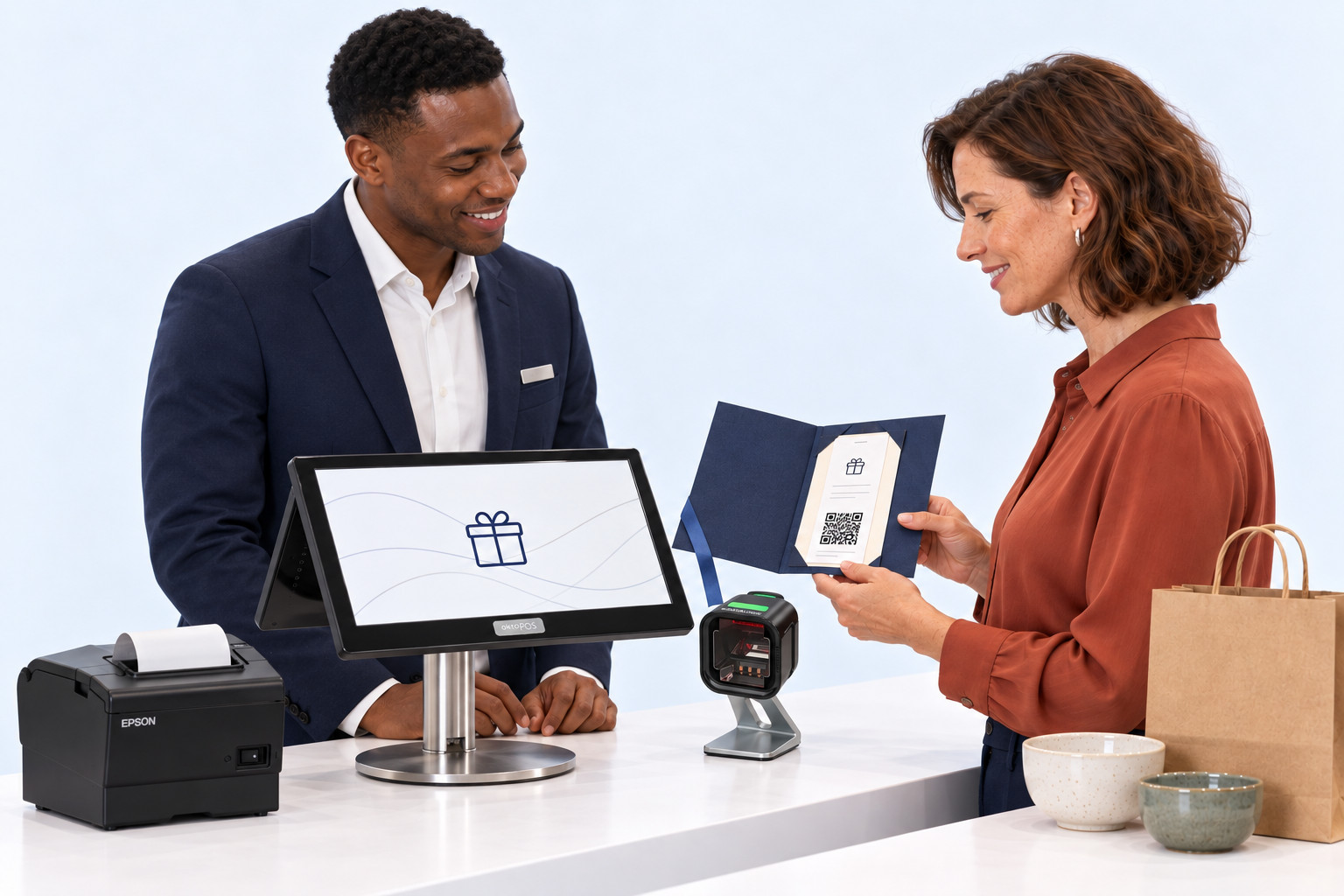
Voucher with QR codeFrom the receipt printer, valid at every location
RegisterAt every locationSale and redemption
Connected to the register
Cash drawer
Customer display
Receipt printer
Card payment terminal
OktoPOS POS systemThe voucher and its remaining value are held centrally, every location sees the same status.
Optional
ScannerReads the QR code, the number can also be entered by hand
Self-checkoutThe customer redeems the voucher themselves
Top-up terminalThe customer tops up the voucher themselves
Location serverOnly needed in larger venues
For this, nothing more is needed than the register that already stands in the location.
Which software you need for this
Required
Data storage
Keeps all of the venue's data on the server, with hosting. Nothing runs without it.
OktoPOS Manager
The foundation: articles, prices, users and reports are held here. This is also where the central clearing account sits, which credits every location for its redemptions.
Value card module
Keeps the vouchers, their remaining value and every redemption across all locations.
Customer module
Links the voucher to the customer when they want it in their name.
Register
Sells the voucher, prints it with a QR code and redeems it when the customer shops.
Payment / OktoFIN
Settles the voucher purchase by card, and the amount still to pay when it is redeemed.
Optional
Online voucher sales
Sells the voucher through your own website as well, not just at the register.
OktoTopUp
Lets the customer top up at the terminal themselves, without staff.
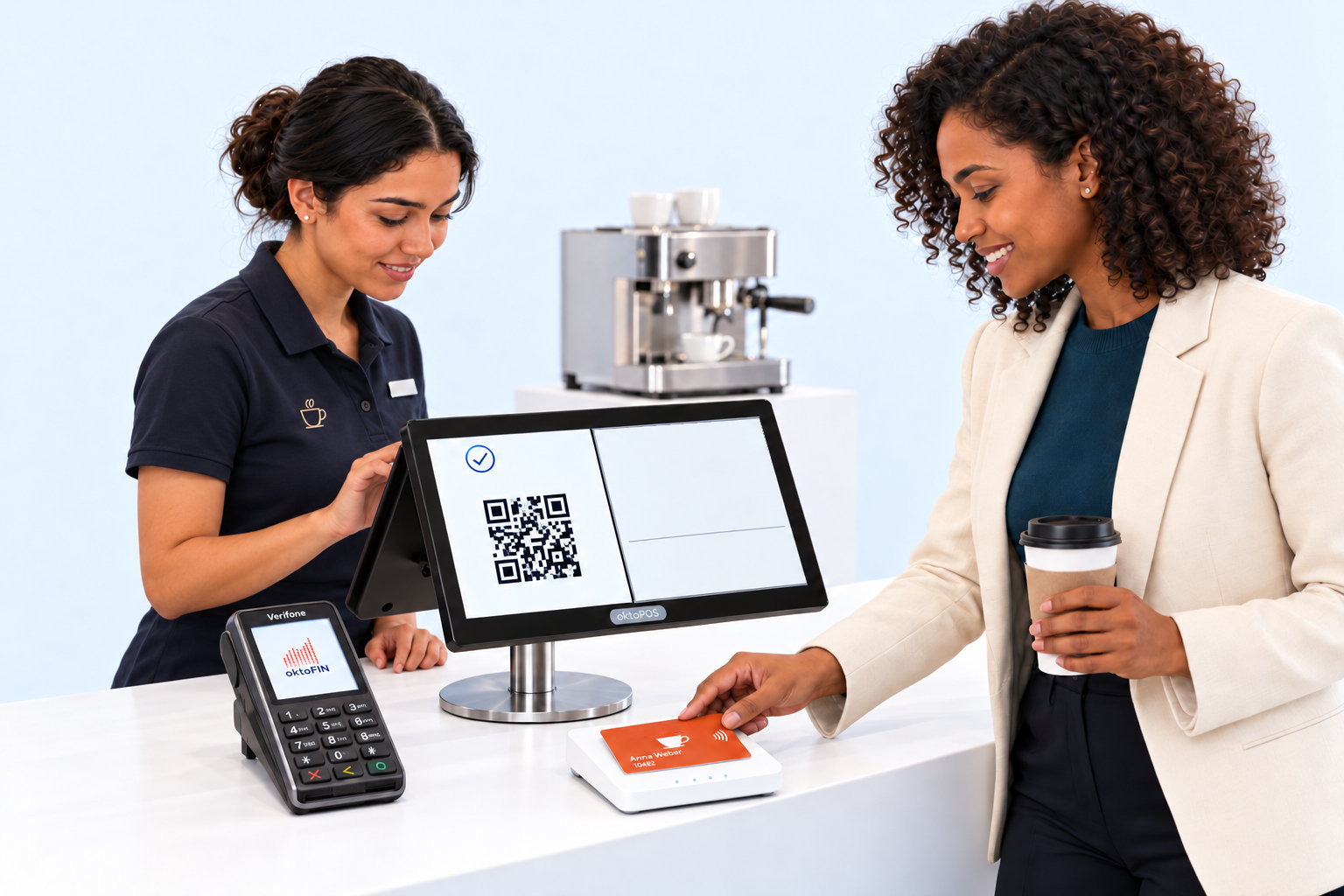
Coffee shop workflow
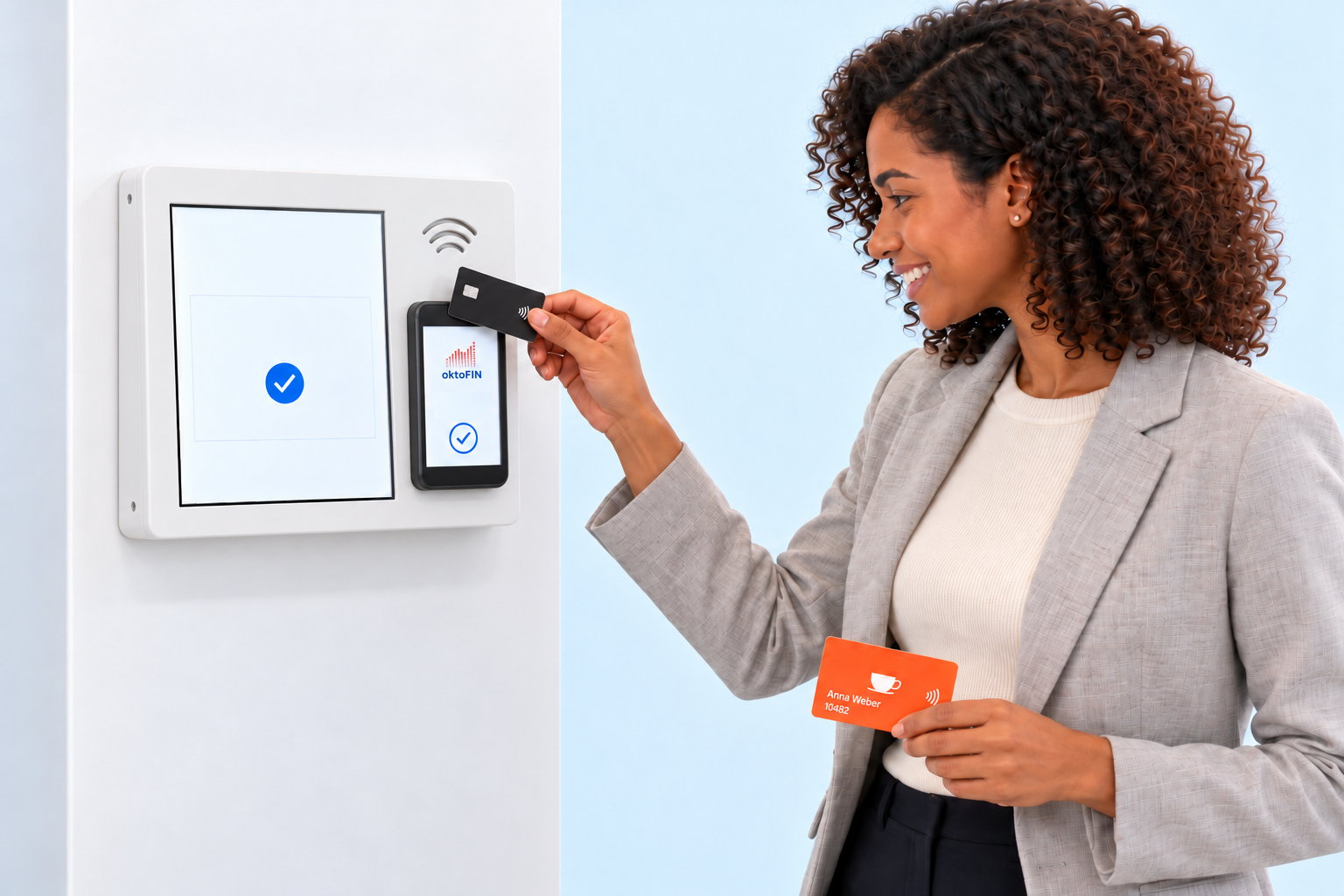
Paying for coffee with the customer card
One balance account, topped up at the register, in the store and at the wall unit.
Balance account in the cloudOktoPOS Manager
Balance account in the cloud, OktoPOS Manager
Time and transaction
Amount
Balance
Monday, top-up at the register
+ $20.00
$20.00
CUSTOMER CARD
Anna WeberCustomer cardTopped upTop-up$20.00Balance$20.00
TOP UP STORED VALUEPlease make sure you have selected the correct account.Back to card number entryCard number: 10482First name: AnnaLast name: WeberBalance: $6.50Pending: $0.00Please enter the amount to top up:$20.00Please choose the payment method:
CUSTOMER CARD
$20.00
Top up balanceAnna WeberCustomer card 10482Top-up$20.00Topped upBalance$46.50
Balance account in the cloudOktoPOS Manager
Balance account in the cloud, OktoPOS Manager
Time and transaction
Amount
Balance
Monday, top-up at the register
+ $20.00
$20.00
Monday, deduction at the register
- $4.50
$15.50
Tuesday, deduction at the register
- $4.50
$11.00
Wednesday, deduction at the register
- $4.50
$6.50
Thursday, top-up in the store
+ $20.00
$26.50
Friday, top-up at the wall unit
+ $20.00
$46.50
Top-ups $60.00 in total, deductions $13.50 in total, balance at the end of the week $46.50.
01 / 08
Monday, at the registerBalance for the next few coffees
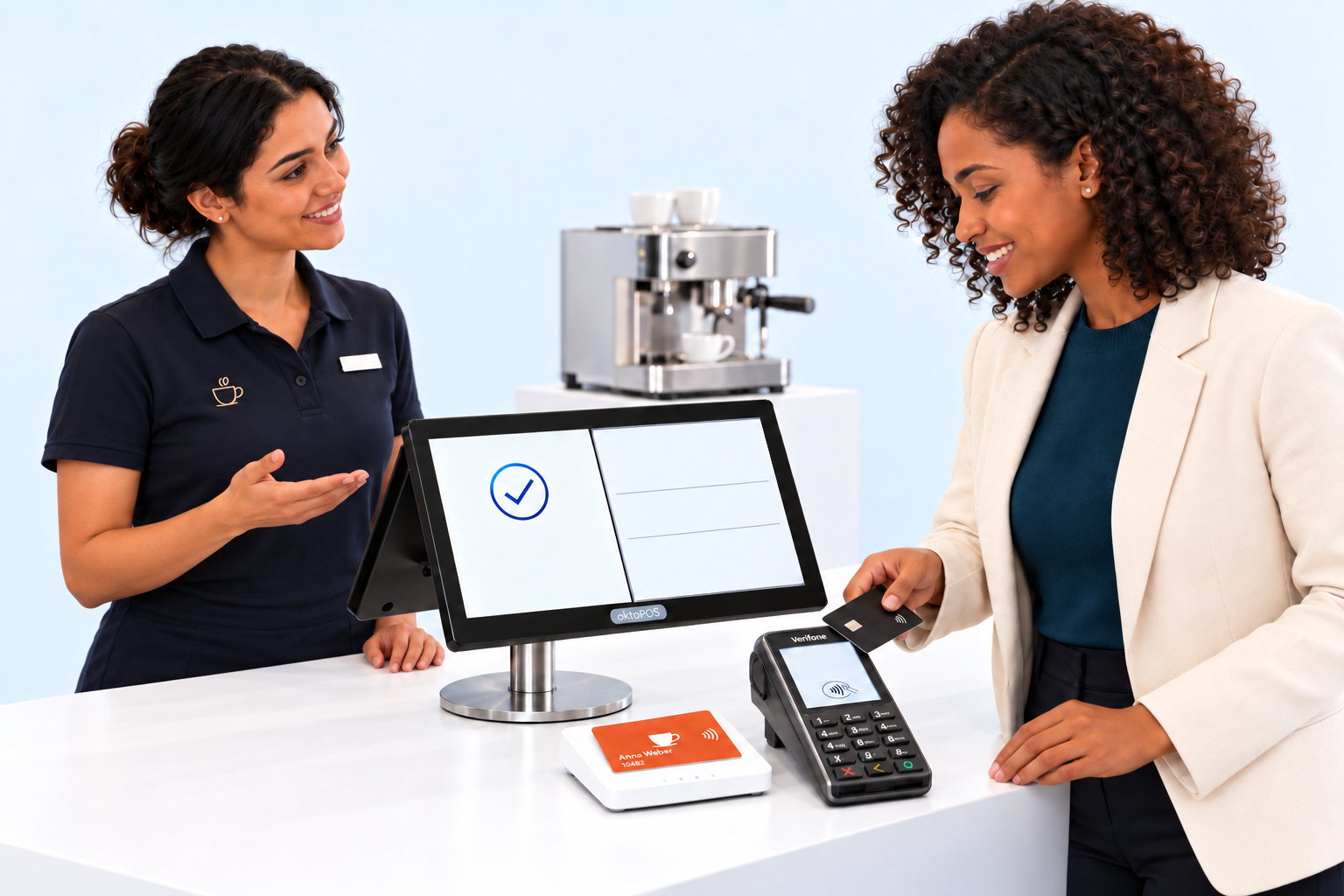
Anna tops up her customer card with $20 and pays for the top-up with her bank card. The amount is credited to her personal balance account in the OktoPOS Manager.
Step 1 of 8. Anna tops up her customer card with $20 and pays for the top-up with her bank card. The amount is credited to her personal balance account in the OktoPOS Manager.
Click through the slideshowAI-generated
The OktoPOS Manager keeps the balance account. The register queries the balance and reports the amount to be deducted.Amounts and names in this example are fictitious. The customer card identifies the account, it is not a bank card.
Which devices you need for this
This is what the customer carries with them
Customer cardThey present it at the register, at the wall unit and at the self-checkout
RegisterDebit and balance
Card reader at the registerReads the card when topping up and when payingCard number
Connected to the register
Cash drawer
Customer display
Receipt printer
Card payment terminal
OktoPOS POS systemThe balance is held centrally, every location debits from the same account.
Optional
Top-up terminalThe wall unit where the customer tops up themselves
Self-checkoutThere, too, the customer pays with their card
Location serverOnly needed in larger venues
Whether the top-up happens at the register, in the store or at the wall unit, it is always the same account.
Which software you need for this
Required
Data storage
Keeps all of the venue's data on the server, with hosting. Nothing runs without it.
OktoPOS Manager
The foundation: articles, prices, users and reports are held here.
Value card module
Keeps the balance account, every top-up and every debit with time and balance.
Customer module
Holds the customer behind the card so that the account runs in their name.
Register
Queries the balance and reports the amount to be debited.
Payment / OktoFIN
Settles the top-up by card, at the register as well as at the wall unit.
Optional
Online top-up
Lets the customer top up from home in your own store.
OktoTopUp
Lets the customer top up at the wall unit themselves, without staff.
Combos
Sold as a meal. Posted per item.
One package price for the guest. The kitchen sees the components. OktoPOS calculates the item shares automatically. Every item keeps its own tax rate.
The guest orders the fixed meal. The items it contains are stored in the combo.
Step 1 of 5. The guest orders the fixed meal. The items it contains are stored in the combo.
Click through the slideshowAI-generated
Sample calculation with freely chosen prices, all components can be discounted.The tax rates are an example for takeout sales in the selected country.
The regular prices add up to $15.00. The combo price of $12.00 is distributed proportionally in a ratio of 8:4:3. This method is called pro rata valoris. What counts are the regular prices of the selected location and the selected sales channel.
RegisterPosts the combo as a single itemPackage price
Kitchen stationOne screen per stationThe individual articles
Connected to the register
Cash drawer
Customer display
Receipt printer
Card payment terminal
OktoPOS POS systemThe combo is set up once and applies in every location.
Optional
Self-Order TerminalThe guest puts the combo together themselves
E-Menu at the tableShows the combo with its components
Location serverOnly needed in larger venues
Nothing is needed for this beyond the register and the kitchen stations that are on site anyway.
Which software you need for this
Required
Data storage
Keeps all of the venue's data on the server, with hosting. Nothing runs without it.
OktoPOS Manager
This is where the combo is put together: which articles it contains and what price it costs.
Register
Posts the package price and distributes it across the individual articles in the same step.
Kitchen station
Shows every article at the station that prepares it, even when it comes from a combo.
Payment / OktoFIN
Settles the card payment at the register.
Optional
Self-Order Terminal
Shows the combo at the terminal and lets the guest choose its components.
E-Menu
Shows at the table what is inside the combo, with allergens and nutritional values.
Inventory
One coffee sold. Three ingredients posted.
The recipe determines the consumption per drink. OktoPOS posts delivery, sale and breakage where they happen. The inventory count counts packs and brings the inventory into line. At month end, the change in inventory shows its effect on the cost of goods.
Recipe
IngredientsBook
Beans
Milk
Cups
Book inventory
Recipe assignment
Beans18 g
Milk250 ml
Paper cup1 unit
OktoPOS ManagerLatte Macchiato to goRecipe per drink
Delivery
IngredientsBook
Beans
Milk
Cups
Not yet posted
Check
IngredientsBook
Beans
Milk
Cups
Not yet posted
↑Increase
IngredientsBook
Beans
Milk
Cups
Book inventory rises
Book inventory
IngredientsBook
Beans
Milk
Cups
Goods receipt posted
↓Sale
IngredientsBook
Beans
Milk
Cups
Book inventory falls
Preparation
IngredientsBook
Beans
Milk
Cups
Already posted at the sale
Handover
IngredientsBook
Beans
Milk
Cups
Book inventory unchanged
Mishap
IngredientsBook
Beans
Milk
Cups
Not yet written off
↓Breakage
IngredientsBook
Beans
Milk
Cups
Book inventory falls
Count
IngredientsBookActual
Beans
Milkpending
Cupspending
Beans recorded
Count
IngredientsBookActual
Beans
Milk
Cupspending
Milk recorded
Count
IngredientsBookActual
Beans
Milk
Cups
Cups recorded
Actual recorded
IngredientsBookActual
Beans
Milk
Cups
Book stays unchanged
Difference
IngredientsBookActual
BeansLess
MilkMore
CupsLess
Counted against book
Reconciliation
IngredientsBookActual
Beans↓ Deduction
Milk↑ Addition
Cups↓ Deduction
Book adjusted to actual
Actual comparison
IngredientsActual last monthActual this month
Valued inventory
BeansLess
MilkMore
CupsLess
At each month end
Accounting
Supplier invoices
Cost of goods
Initially posted as expense
Inventory change
Inventory valuerises
Cost of goodsfalls
Inventory valuefalls
Cost of goodsrises
Effect on cost of goods
01 / 19
One Latte Macchiato, three ingredients
The shop owner assigns its ingredients to the Latte Macchiato to go in the OktoPOS Manager. The recipe determines the consumption per drink.
Step 1 of 19. The shop owner assigns its ingredients to the Latte Macchiato to go in the OktoPOS Manager. The recipe determines the consumption per drink.
Click through the slideshowAI-generated
The bars show more or less inventory. A segment is neither a pack nor a fixed quantity.The recipe quantities apply per drink.
Scale
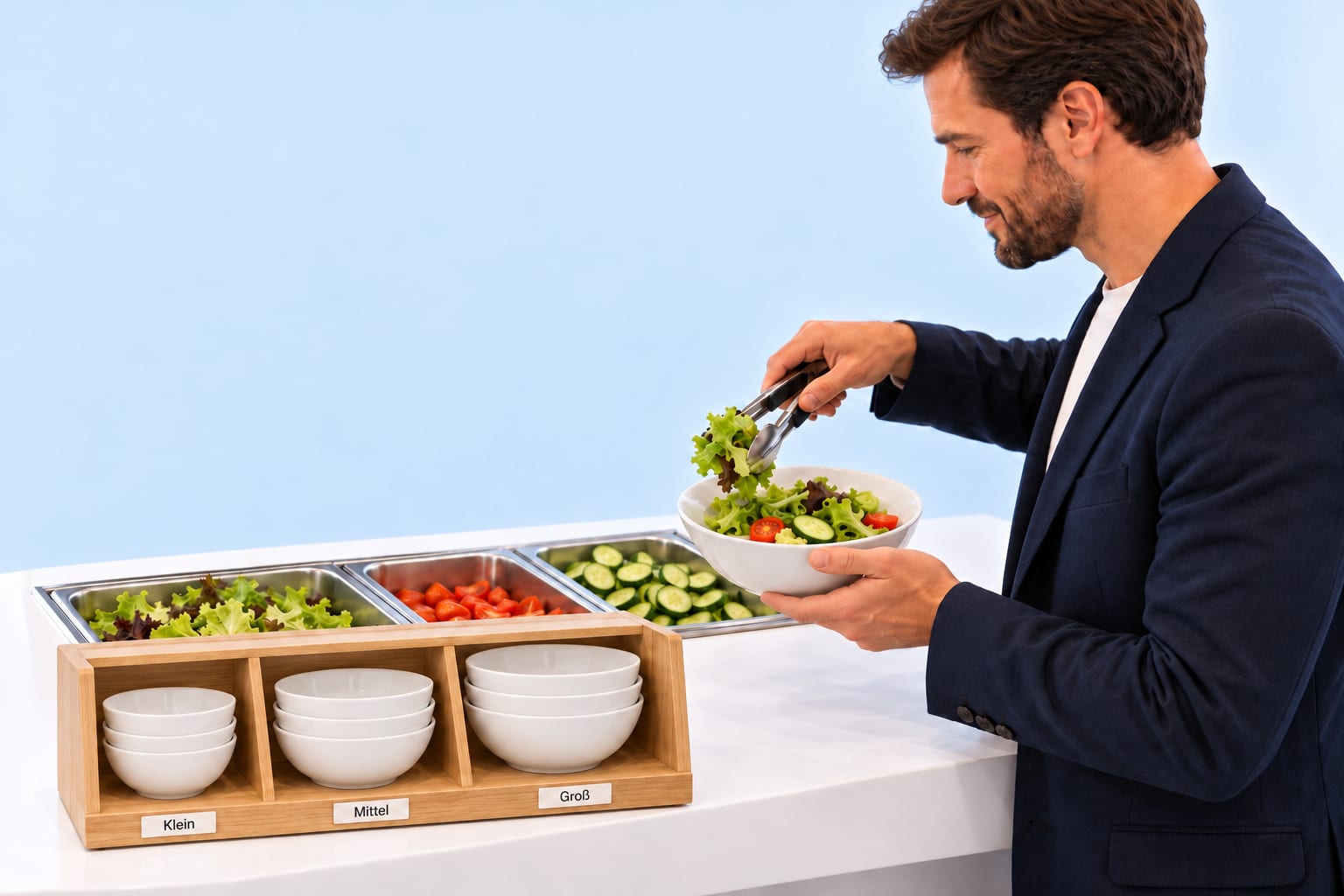
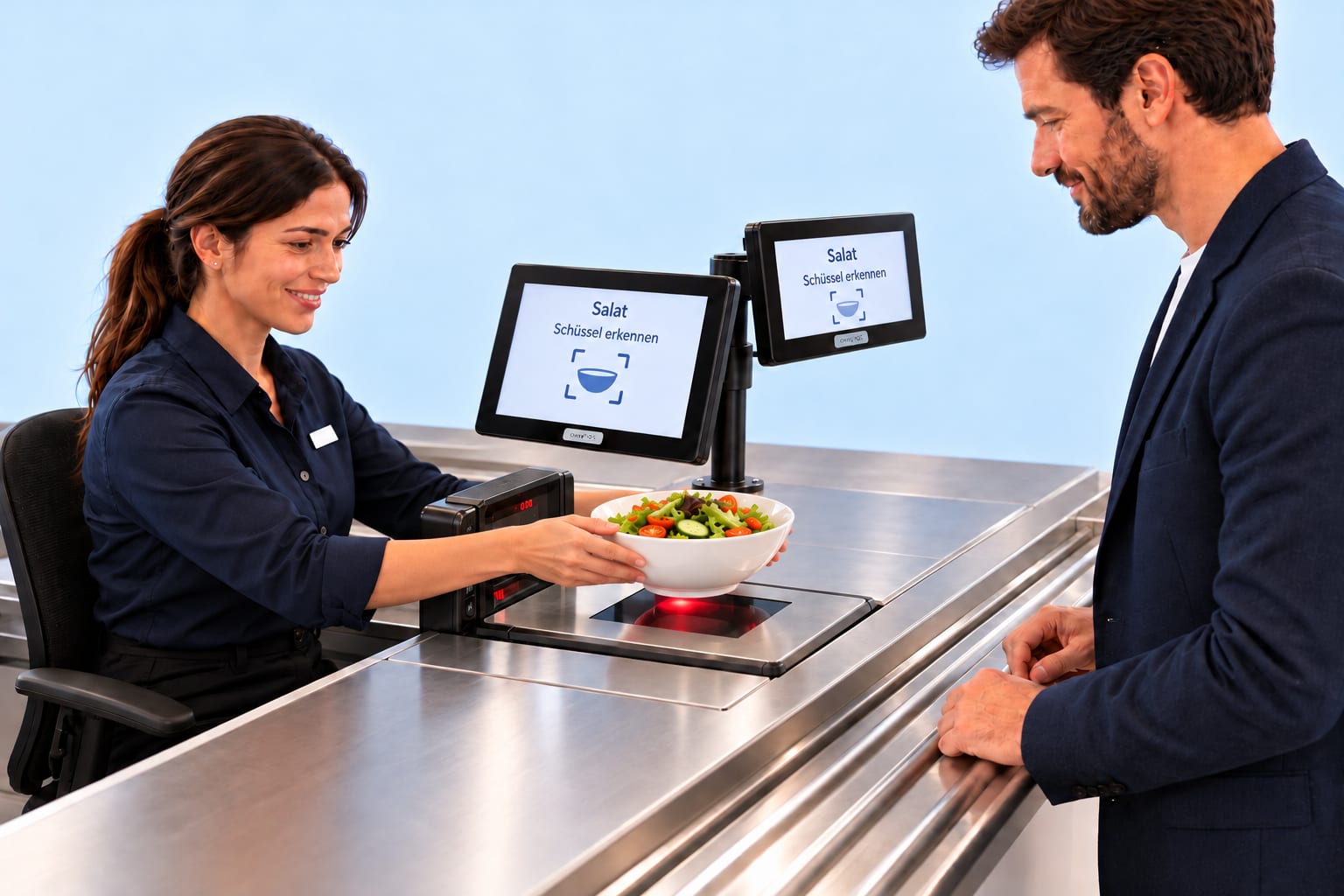
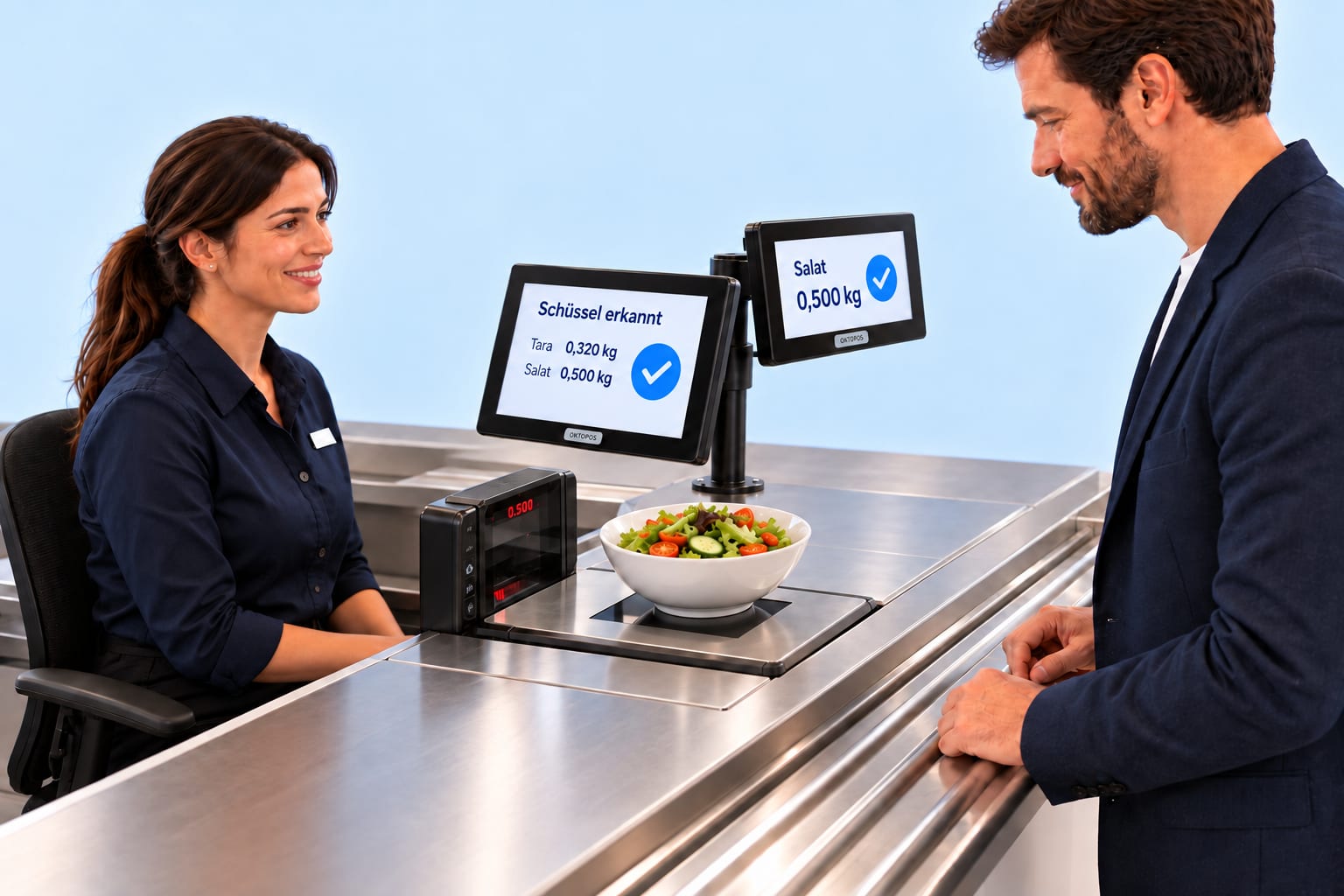
Weigh the salad. Deduct the bowl.
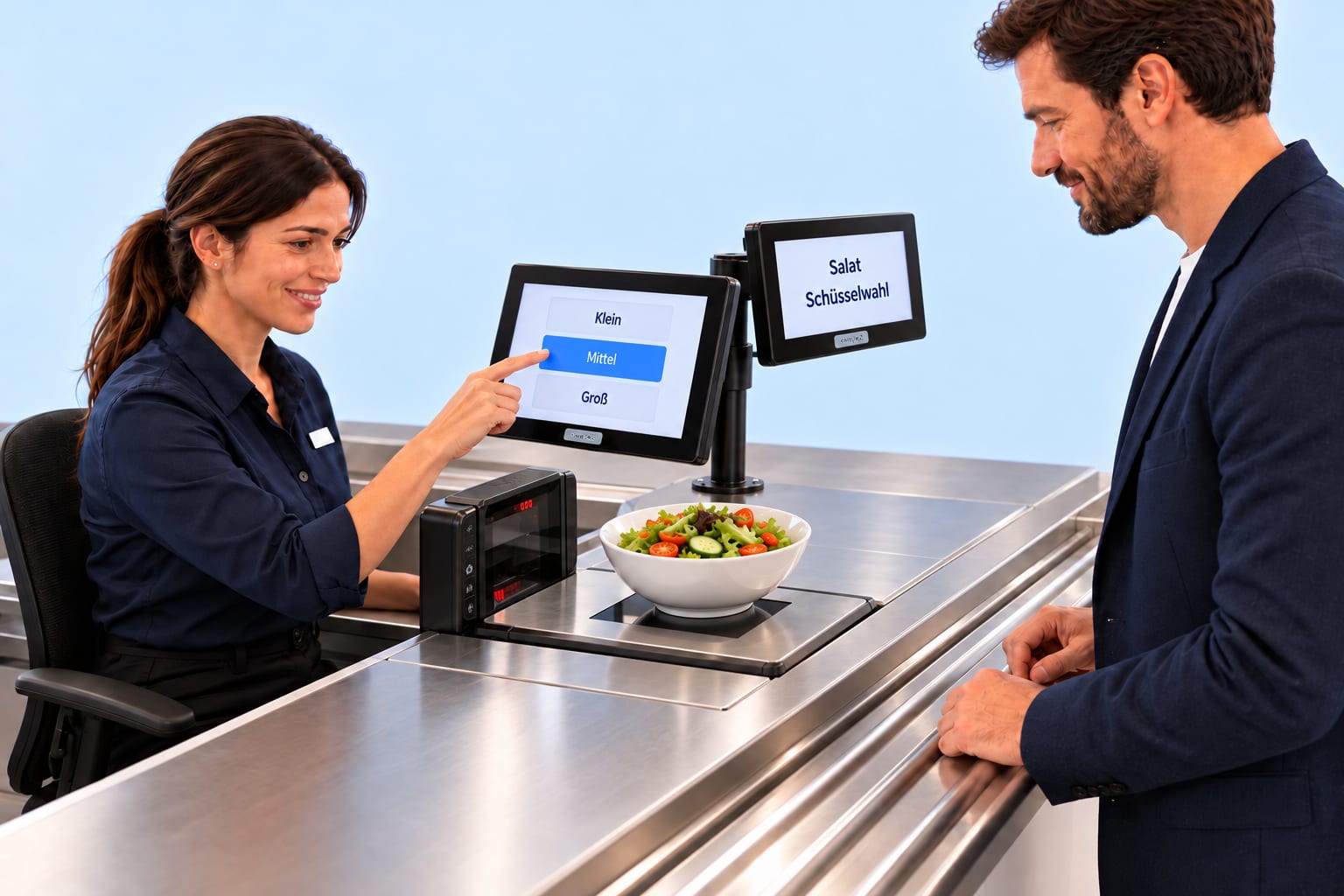
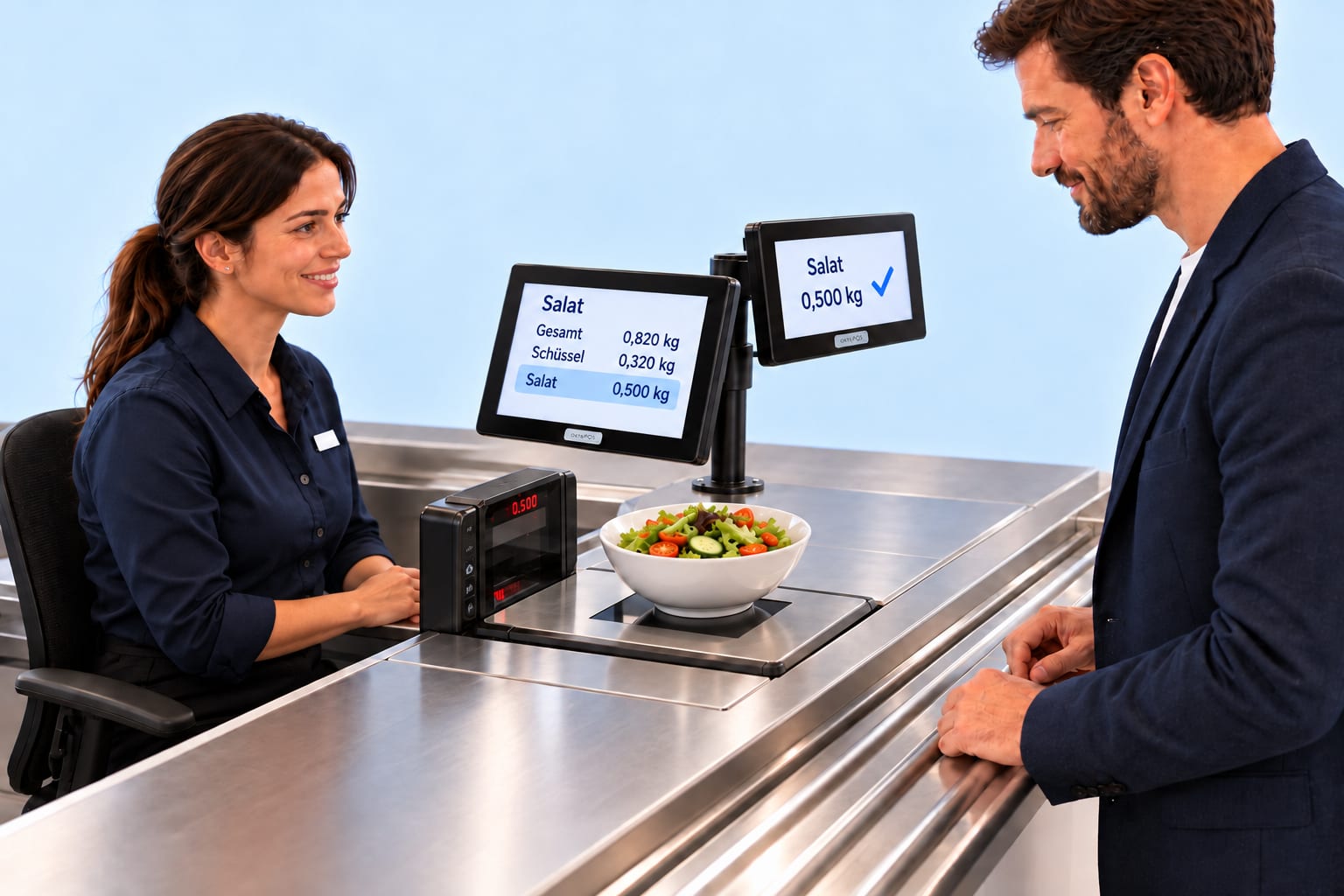
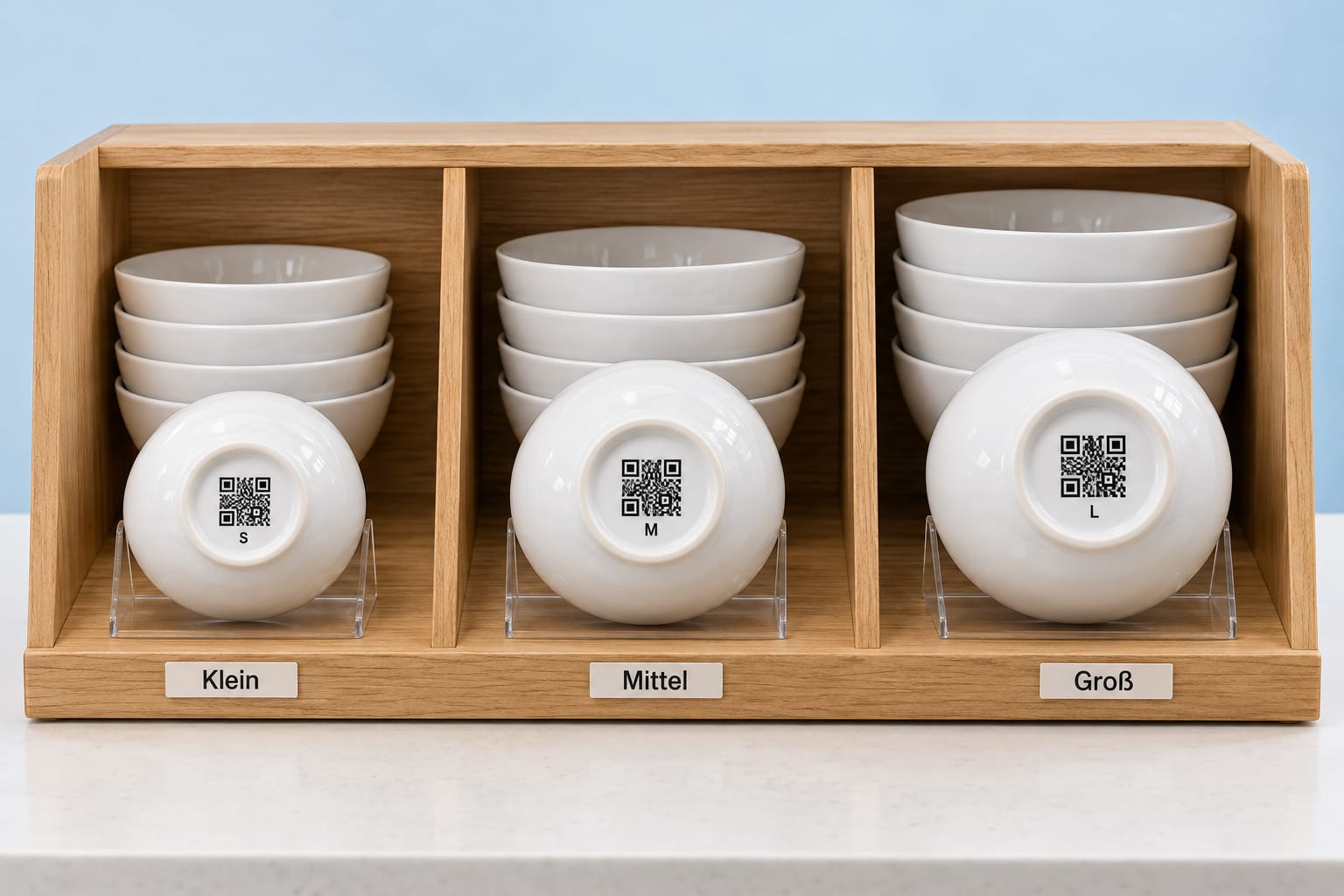
Every salad bowl has its own empty weight. The cashier selects the size at the checkout, or the scanner scale reads the code on the underside and identifies the bowl itself. Either way, the sale is based on the net weight of the salad.
Small
Medium
Large
SmallMediumLarge
SaladBowl selection
SaladTotal0,820 kgBowl0,320 kgSalad0,500 kg
Salad0,500 kg✓
Small
Medium
Large
Identify bowlSalad
SaladIdentify bowl
Bowl identifiedTare0,320 kgSalad0,500 kg✓
Salad0,500 kg✓
01 / 06
At the salad barChoose and fill a bowl
The guest chooses one of the three bowl sizes and puts together their salad.
Step 1 of 6. The guest chooses one of the three bowl sizes and puts together their salad.
Click through the slideshowAI-generated
The weights are examples. The business stores the empty weight for each bowl size in OktoPOS Manager.
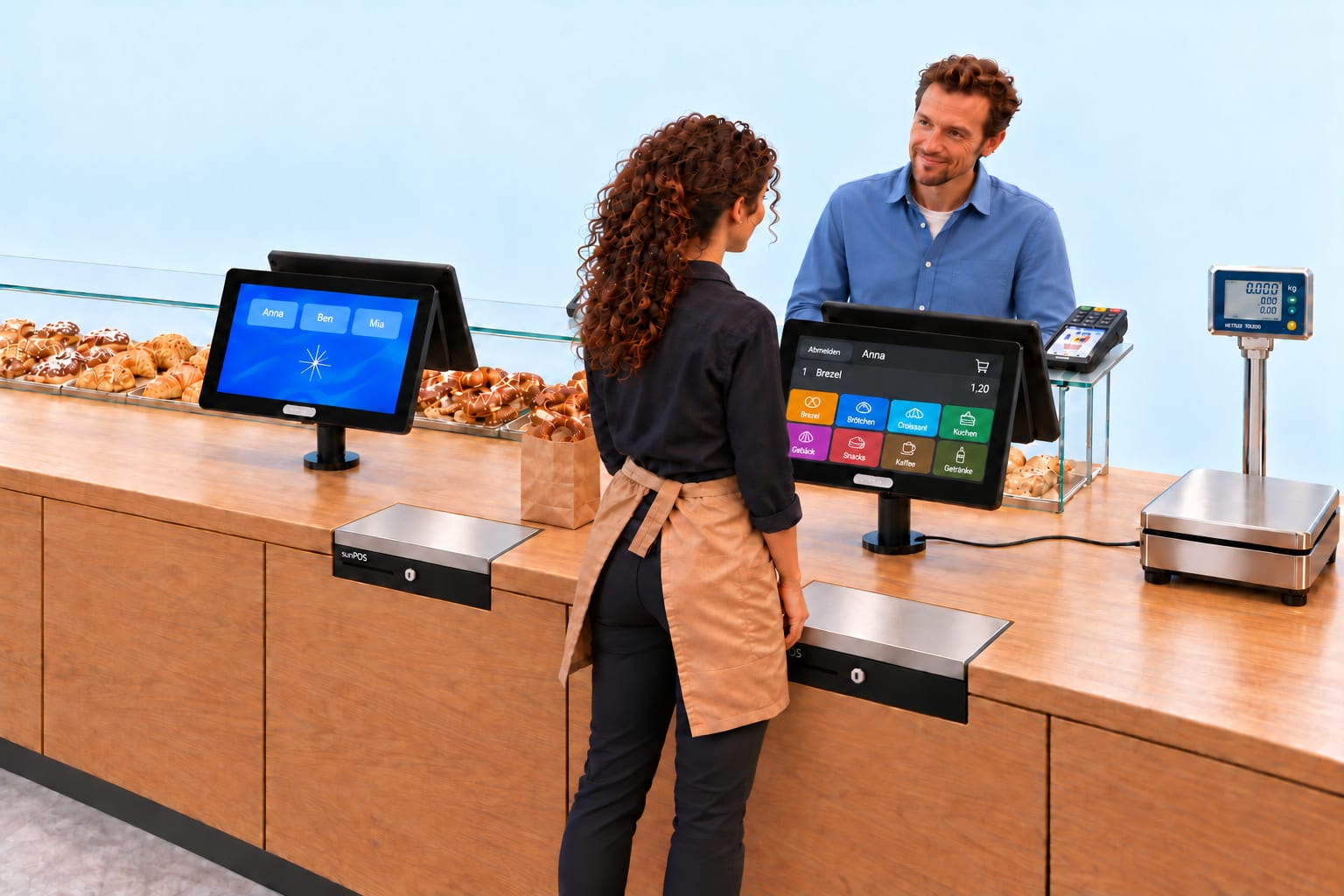
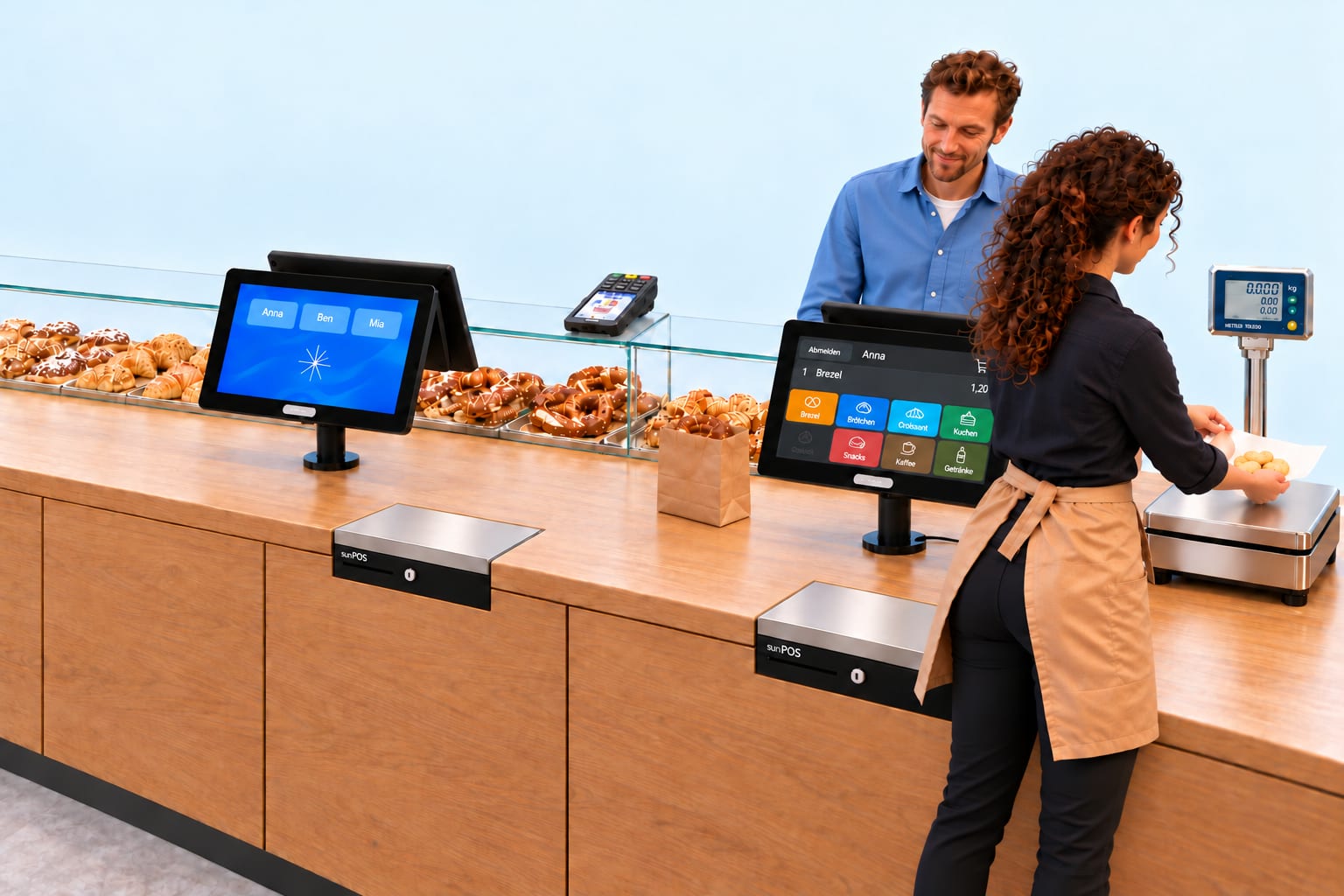
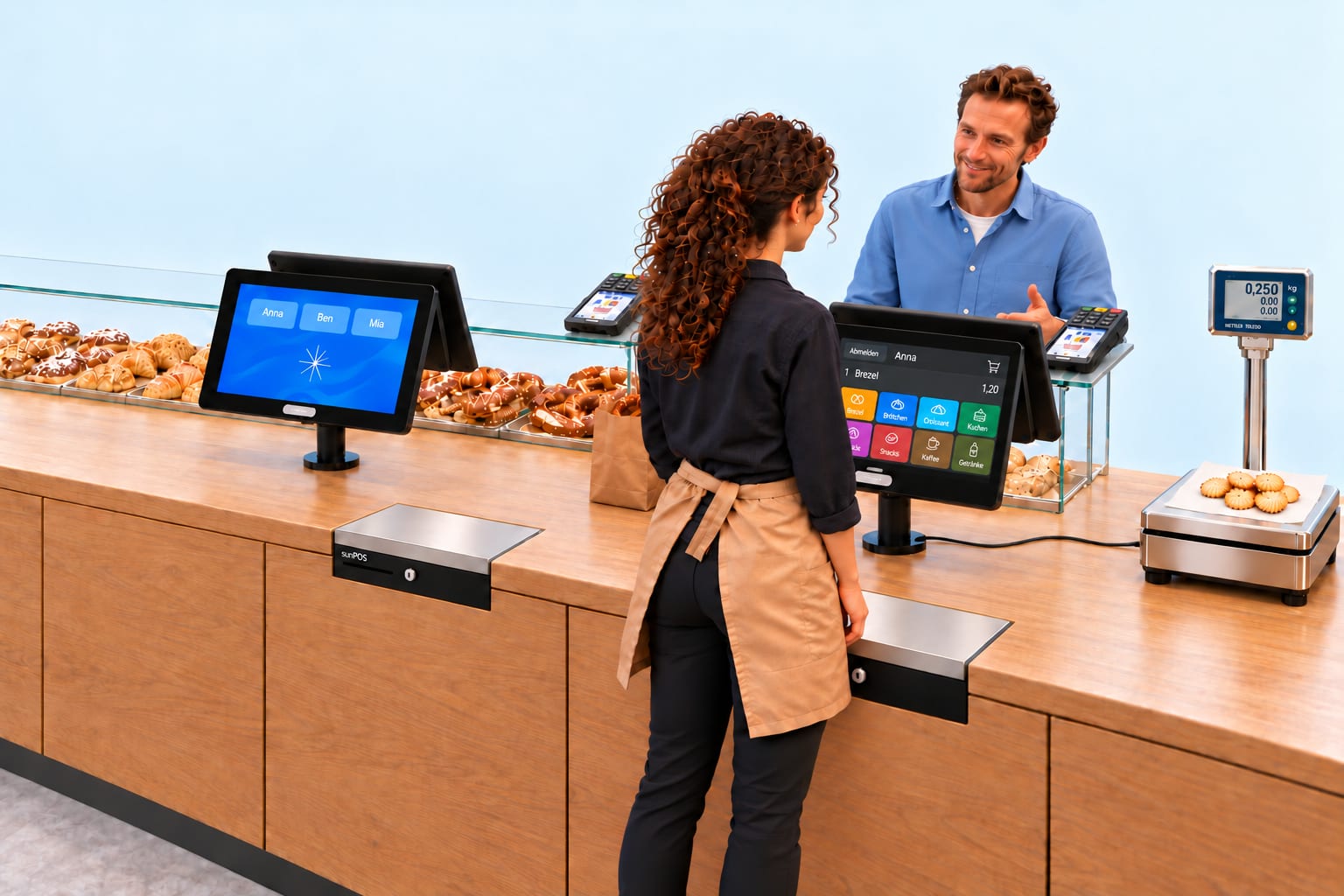
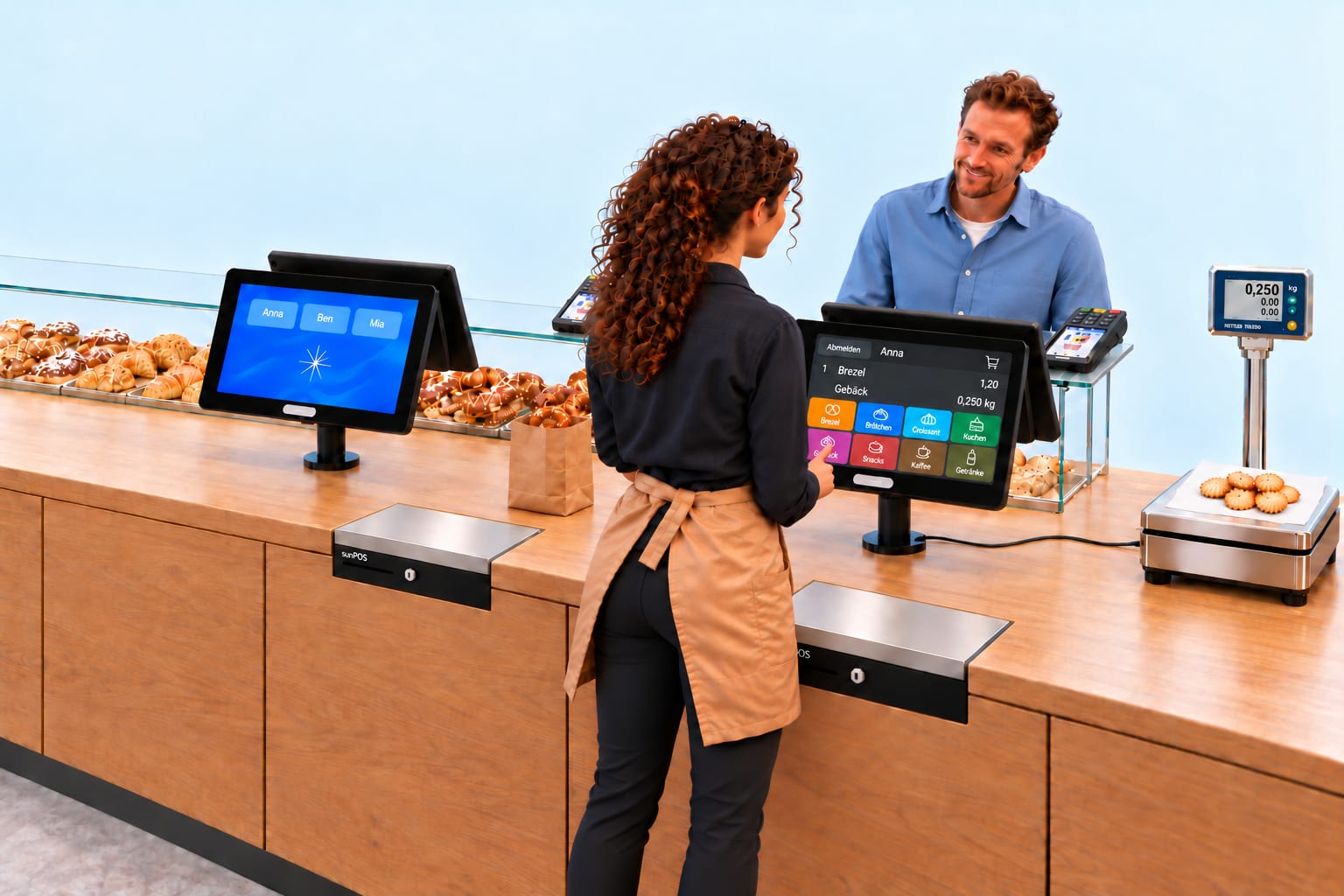
Switching checkouts
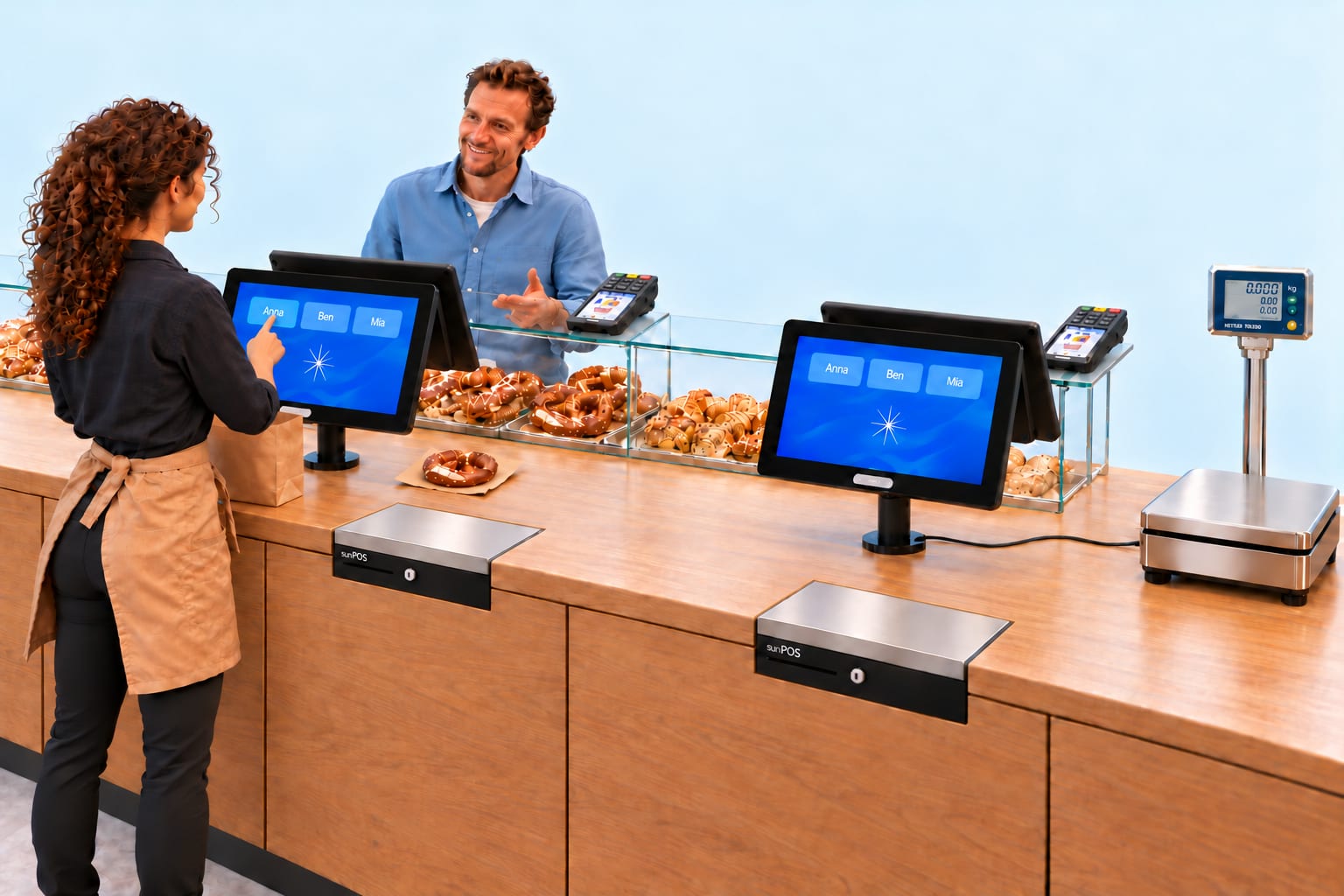
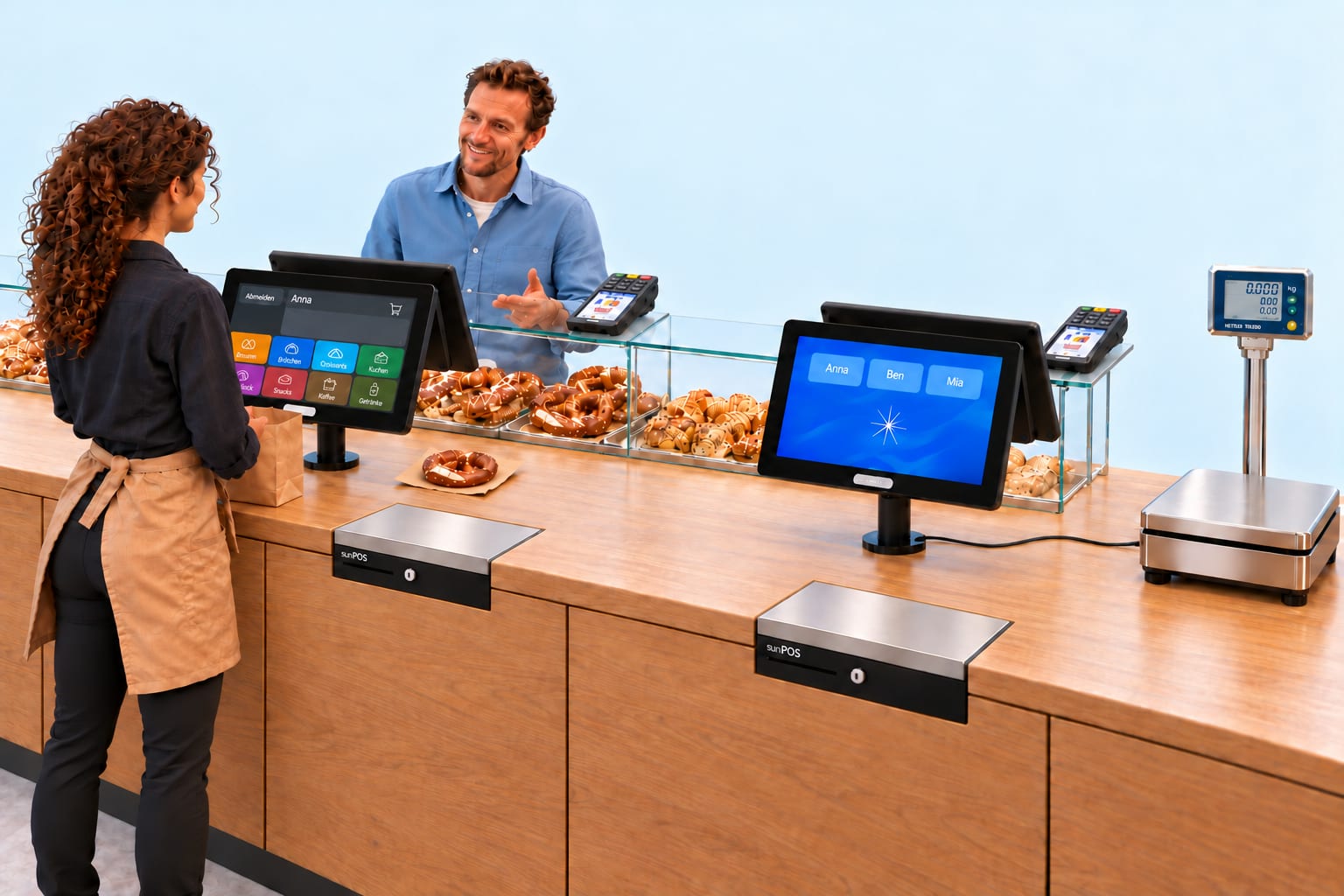
The open basket comes along.
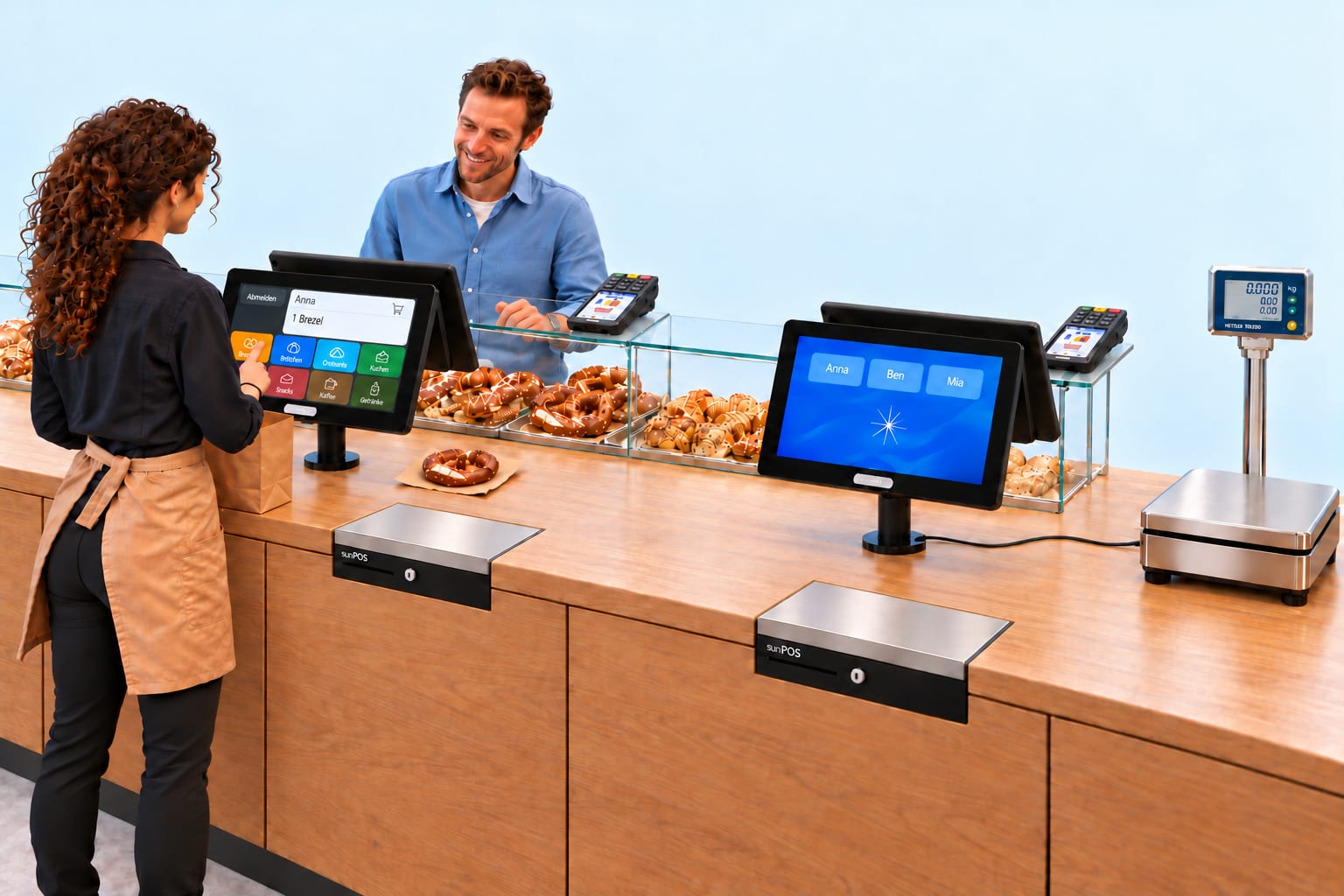
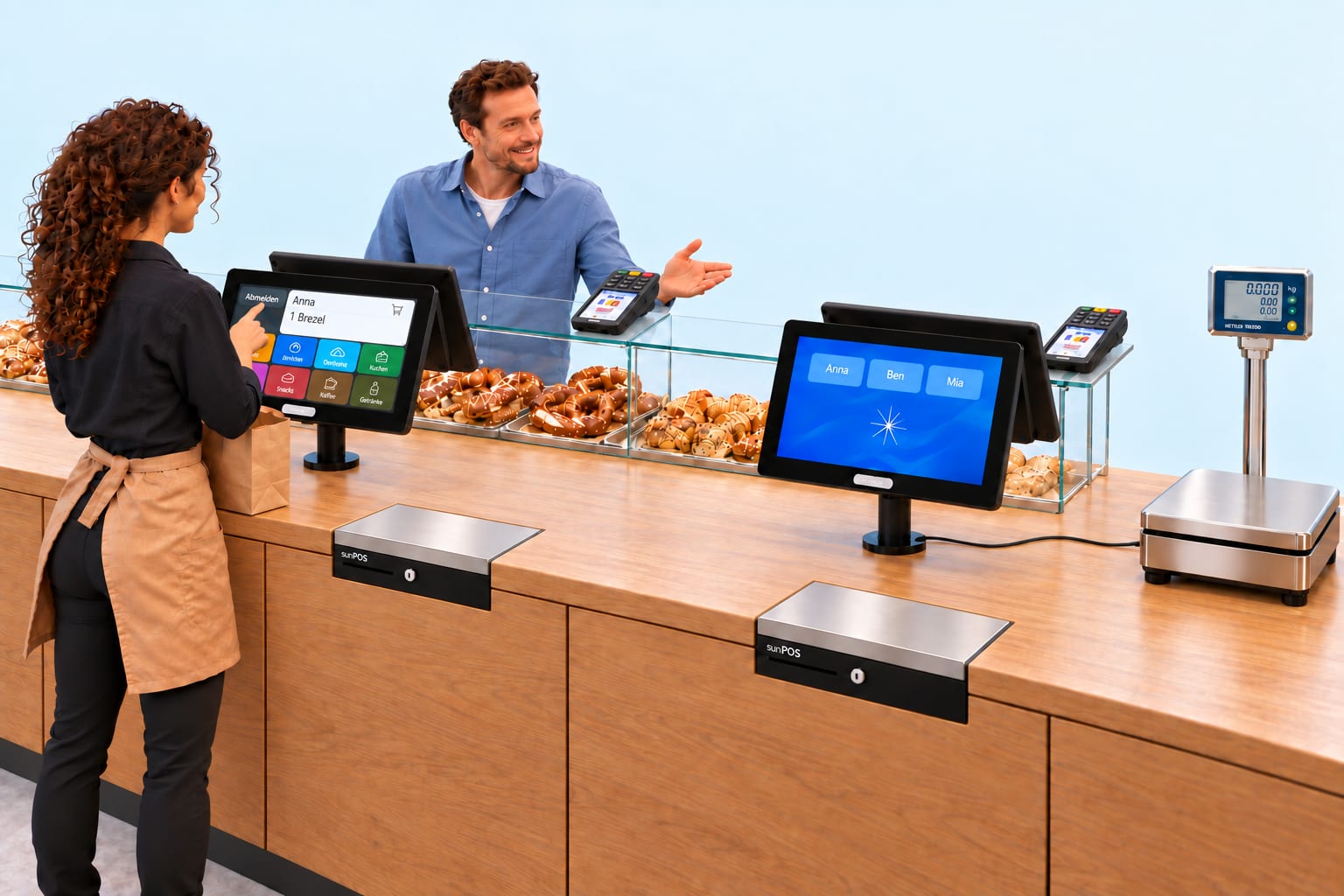
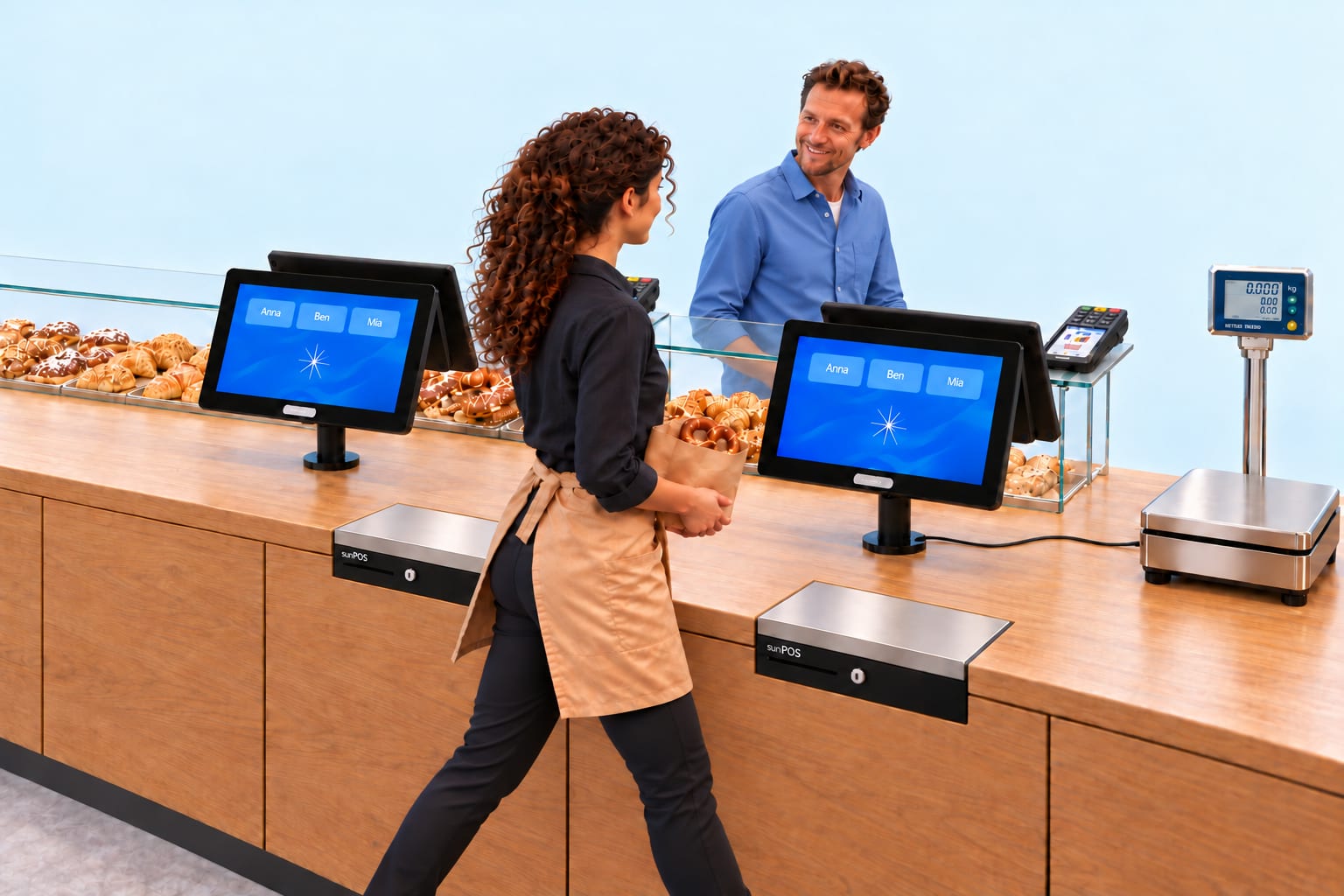
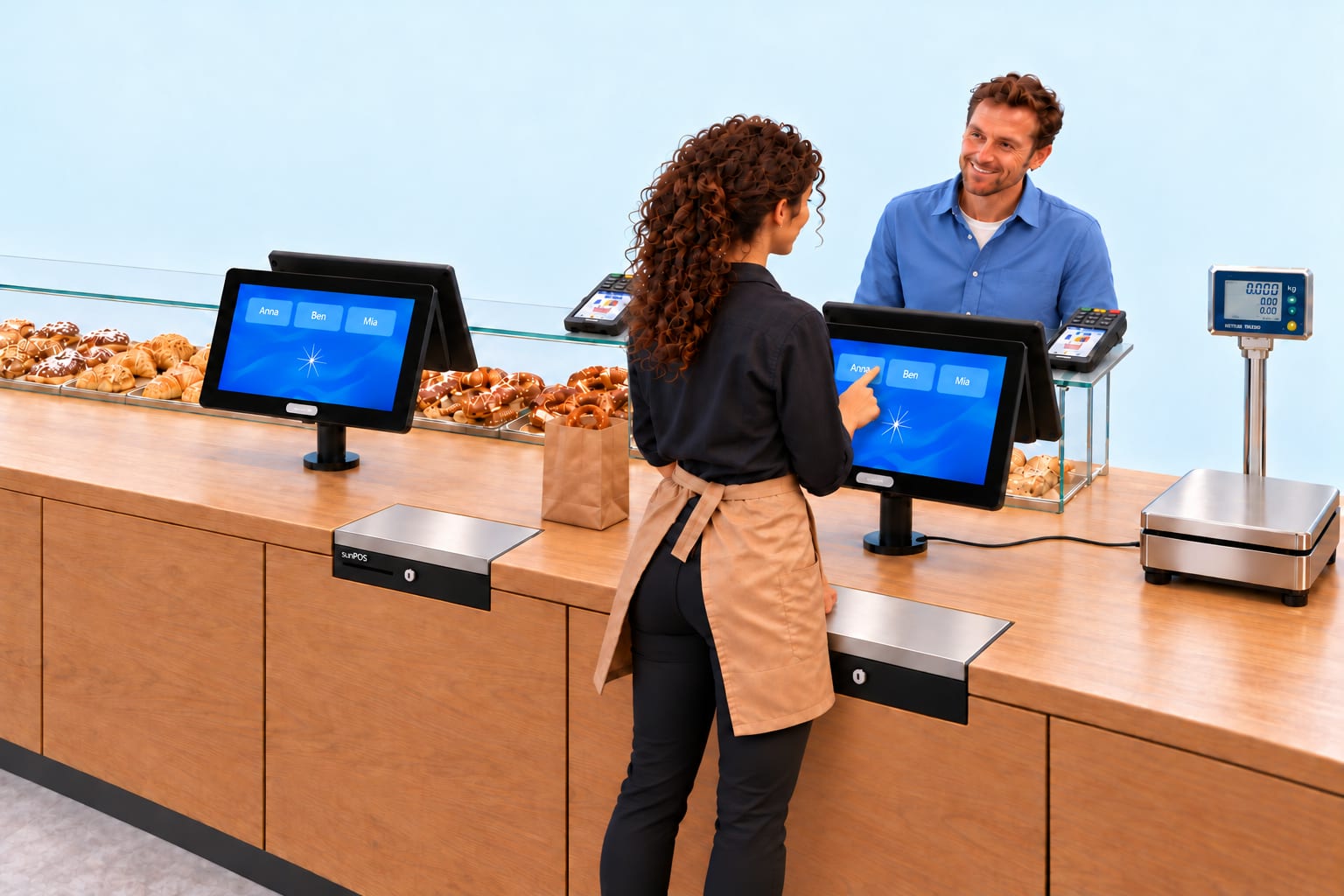
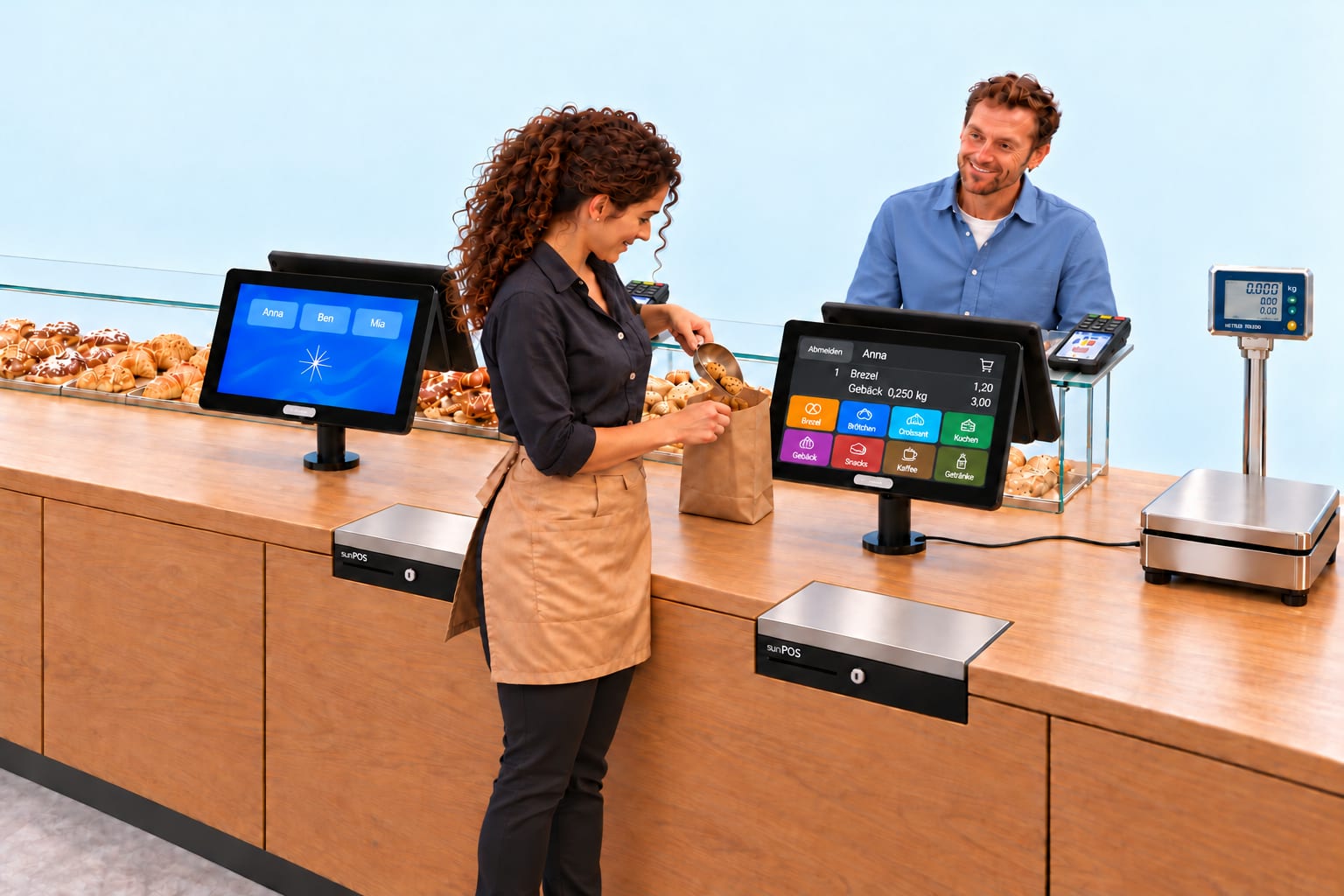
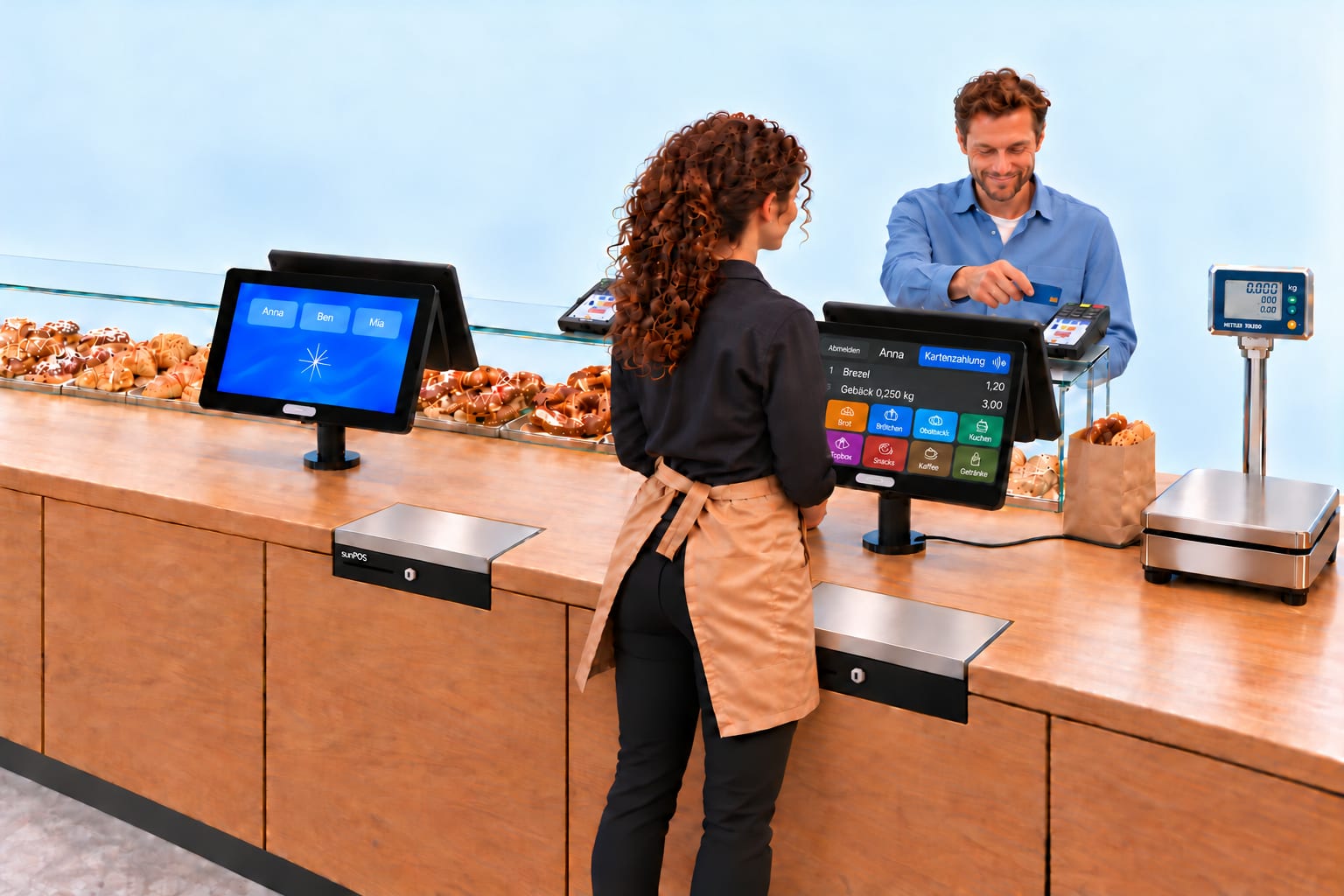
The server starts at the first checkout and walks to the second service position to weigh the goods. There she logs in by tapping her name. The basket she began is back immediately, and nothing has to be entered again.
The till displays the employees' names. Anna taps “Anna” and is logged in.
Step 1 of 12. The till displays the employees' names. Anna taps “Anna” and is logged in.
Click through the slideshowAI-generated
Prices and weights are examples.
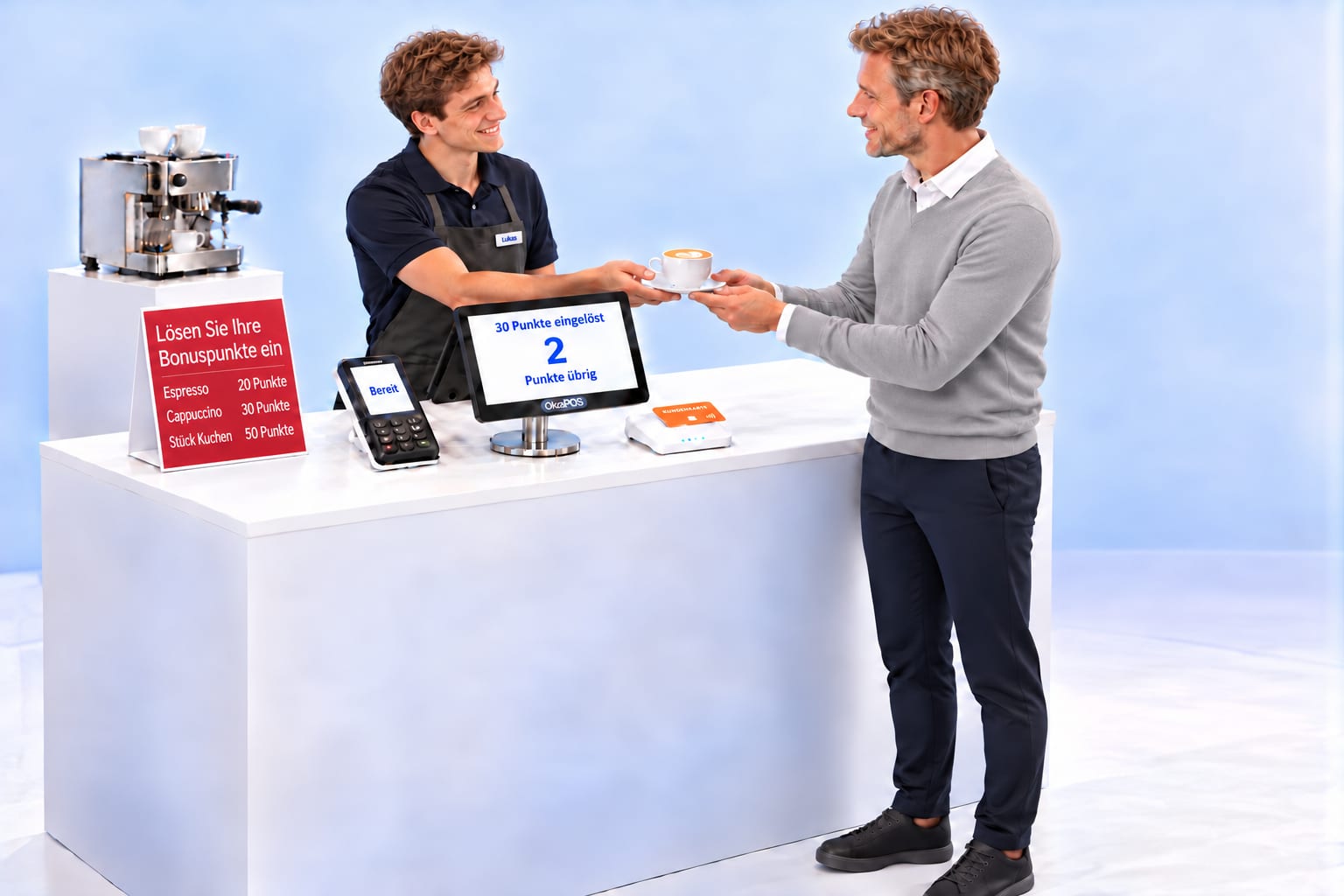
Loyalty points
Collect points. Redeem at every branch.
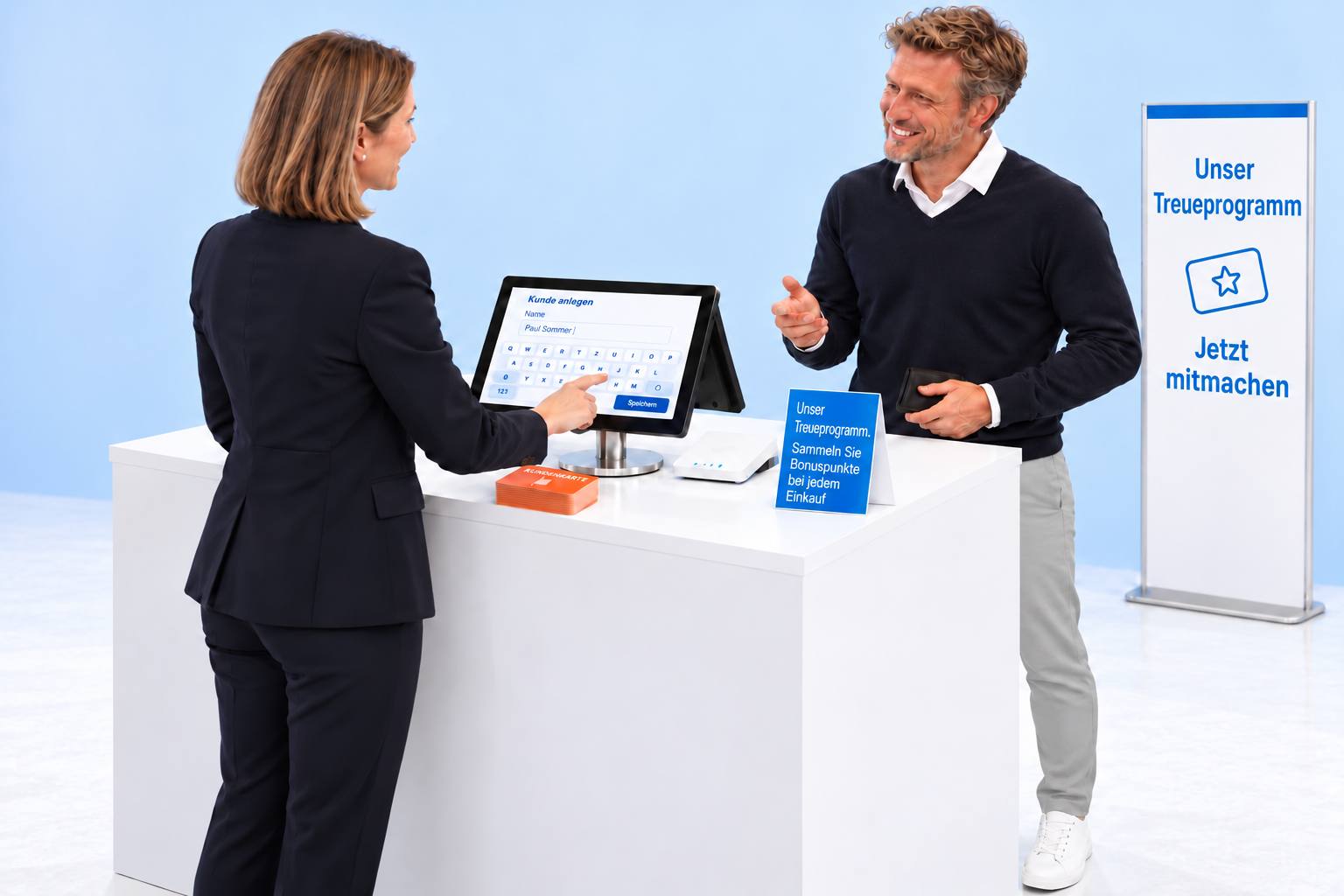
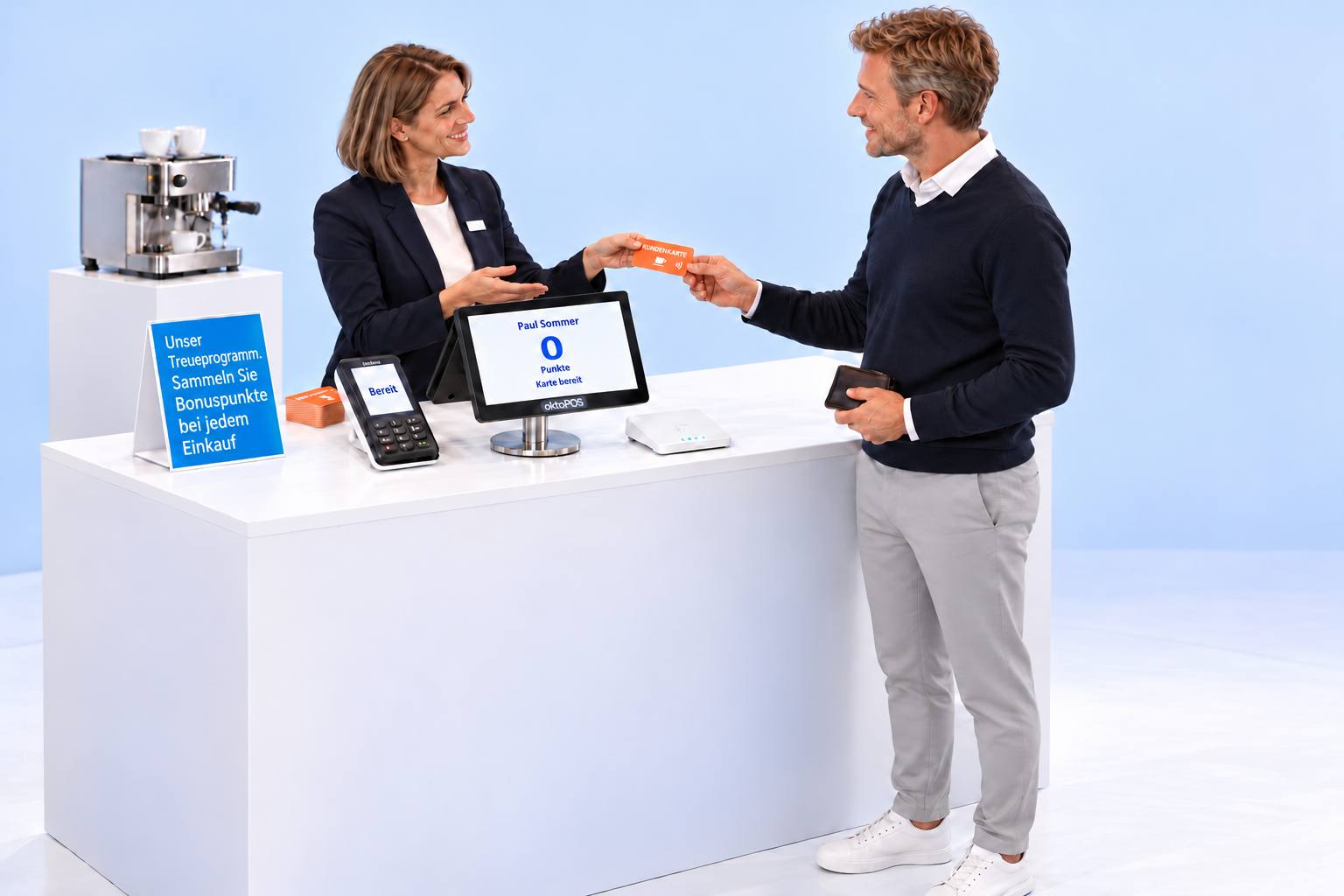
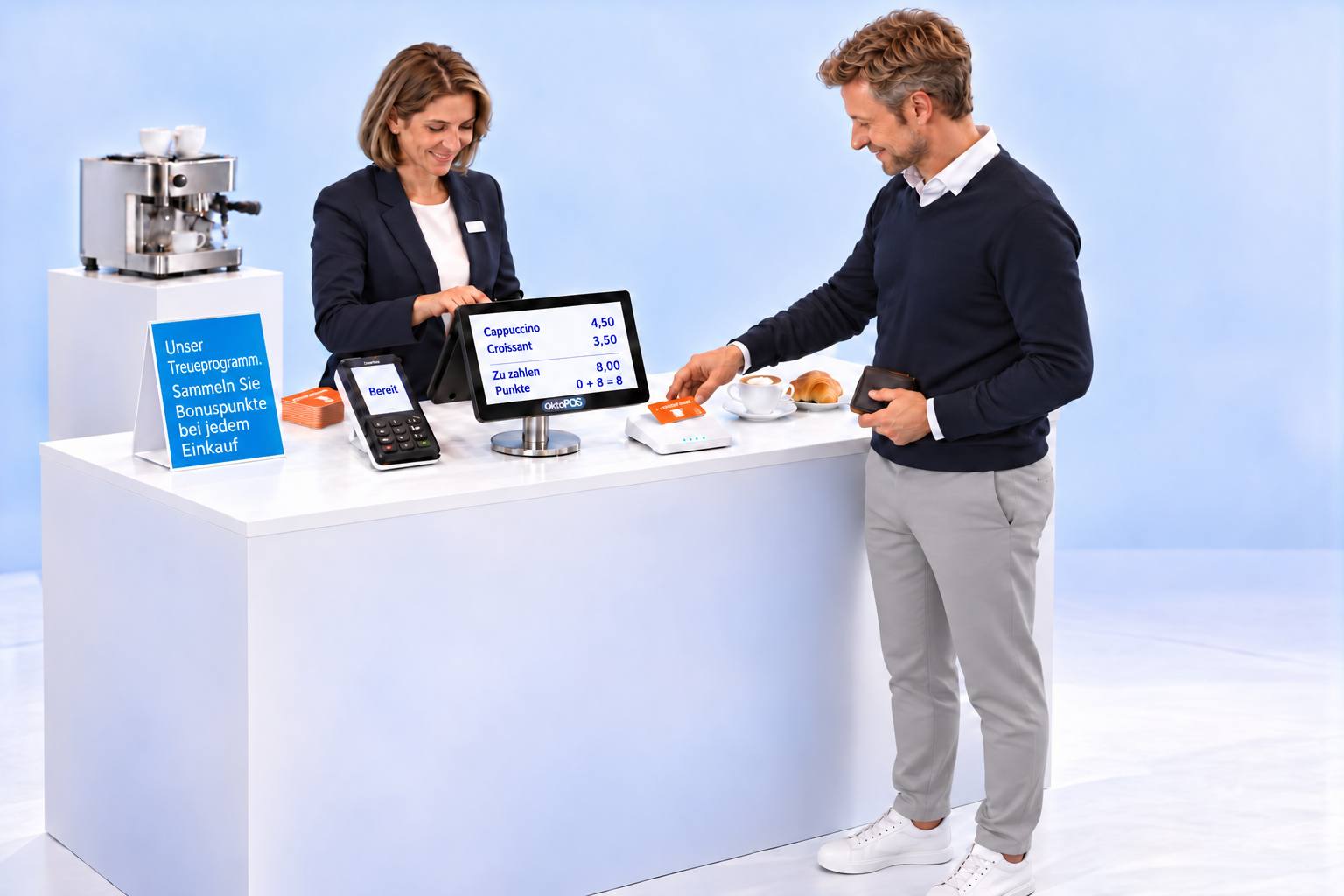
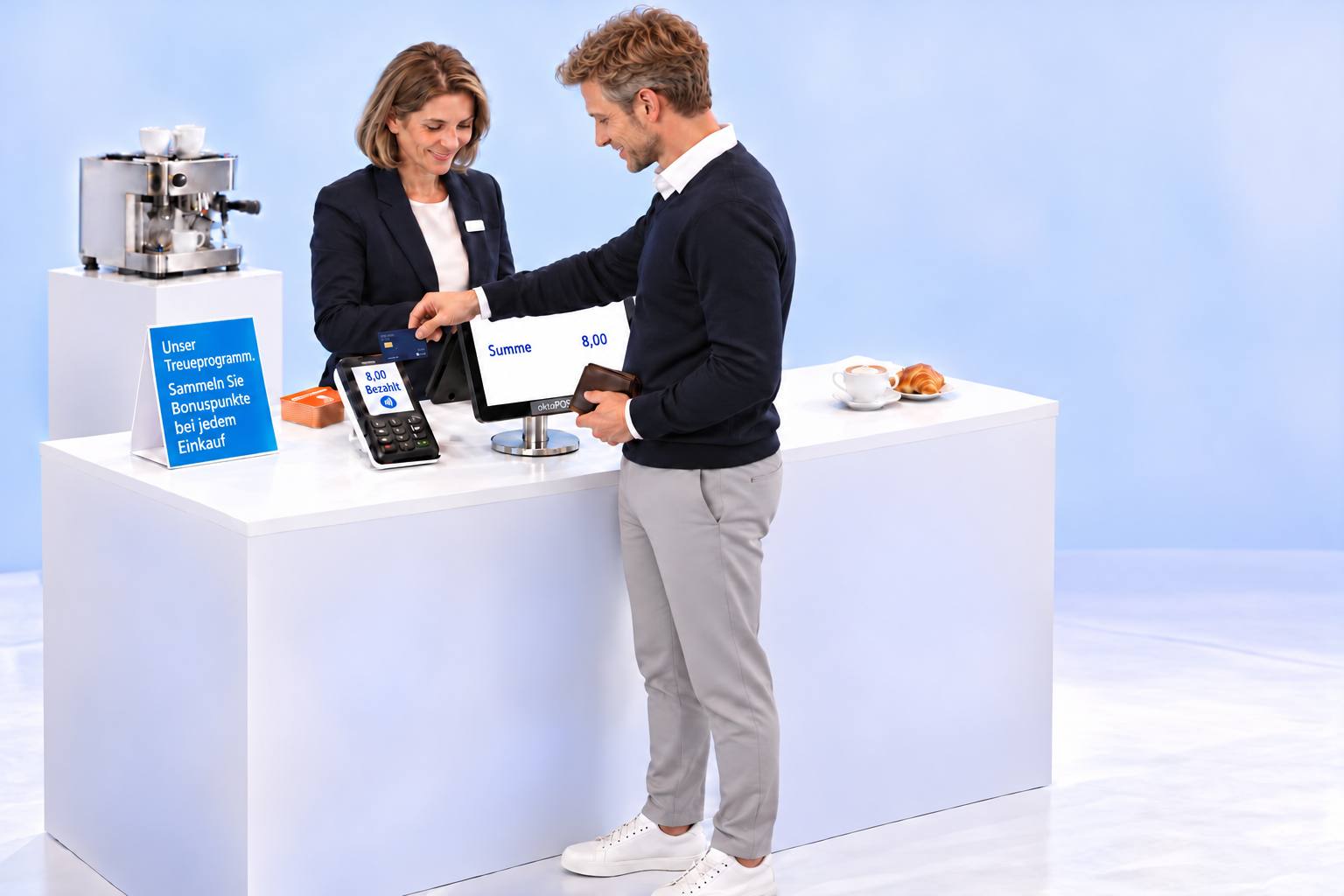
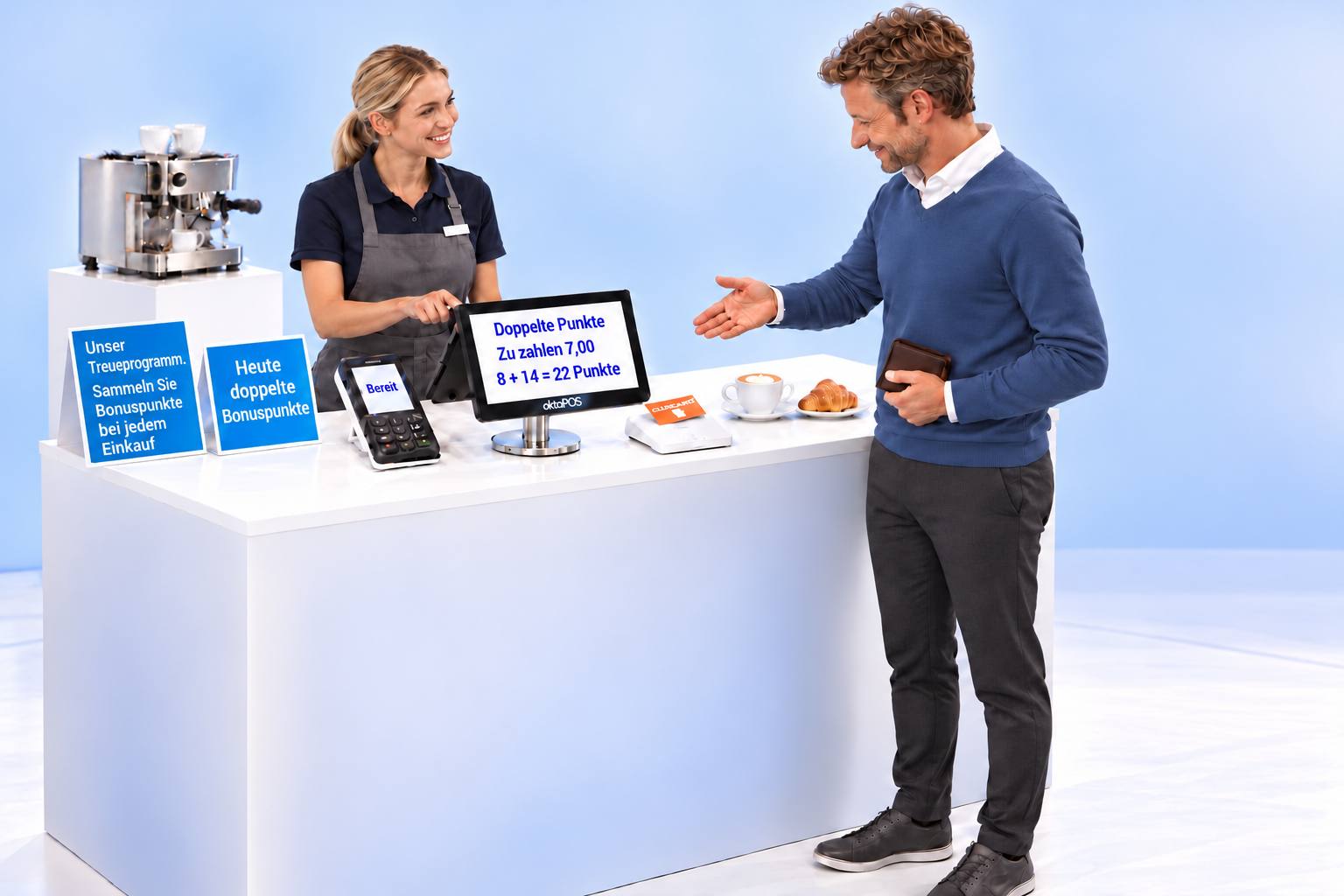
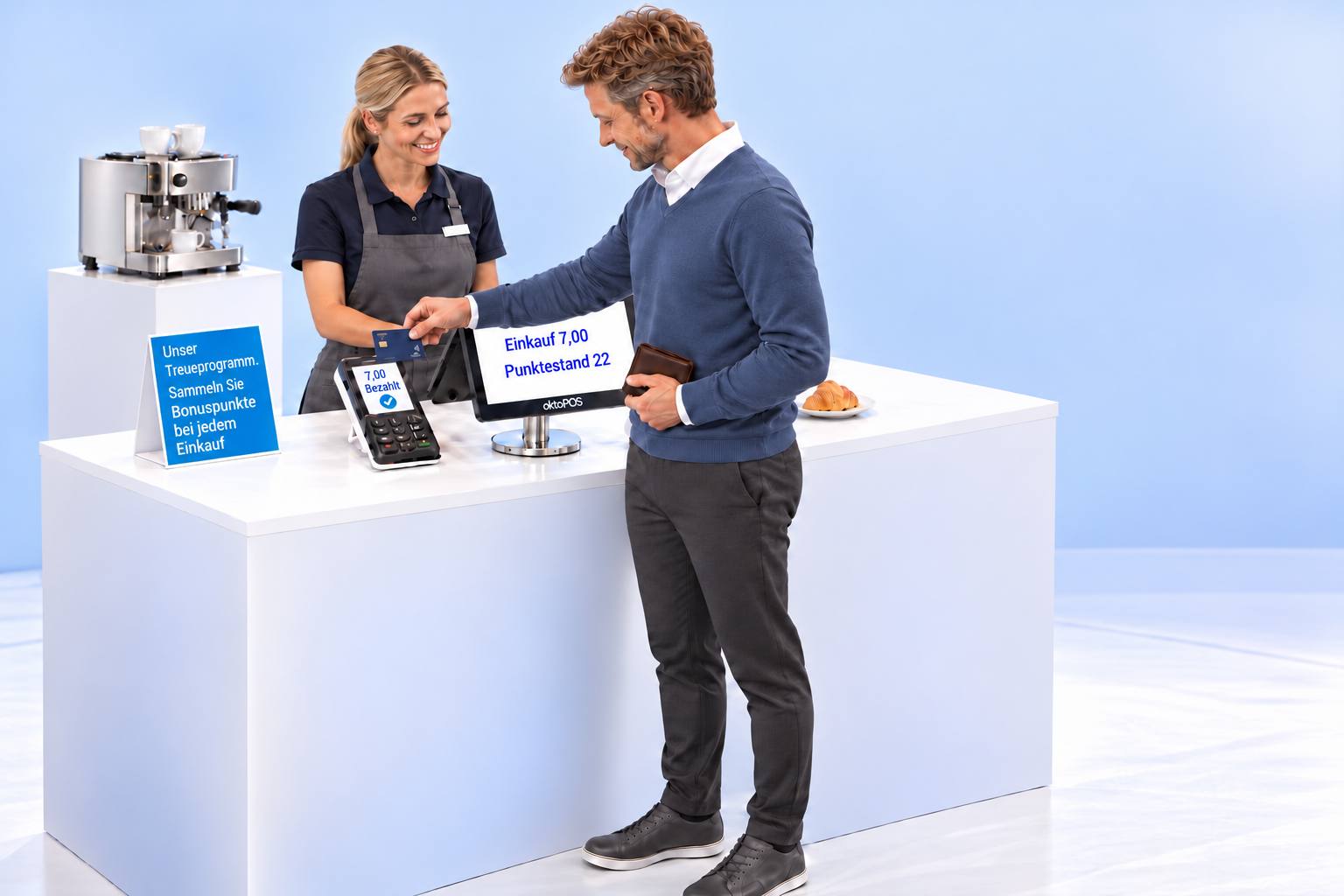
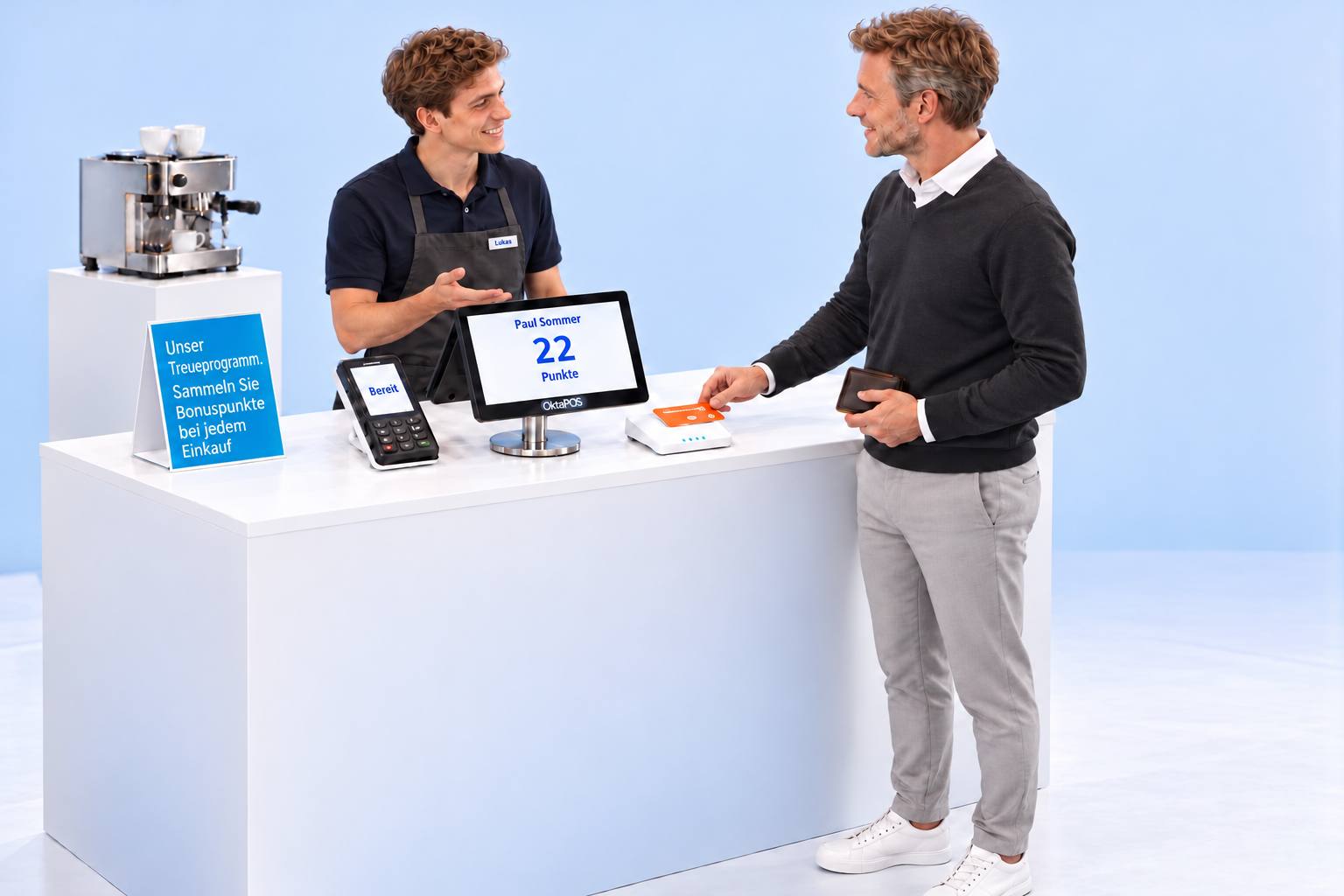
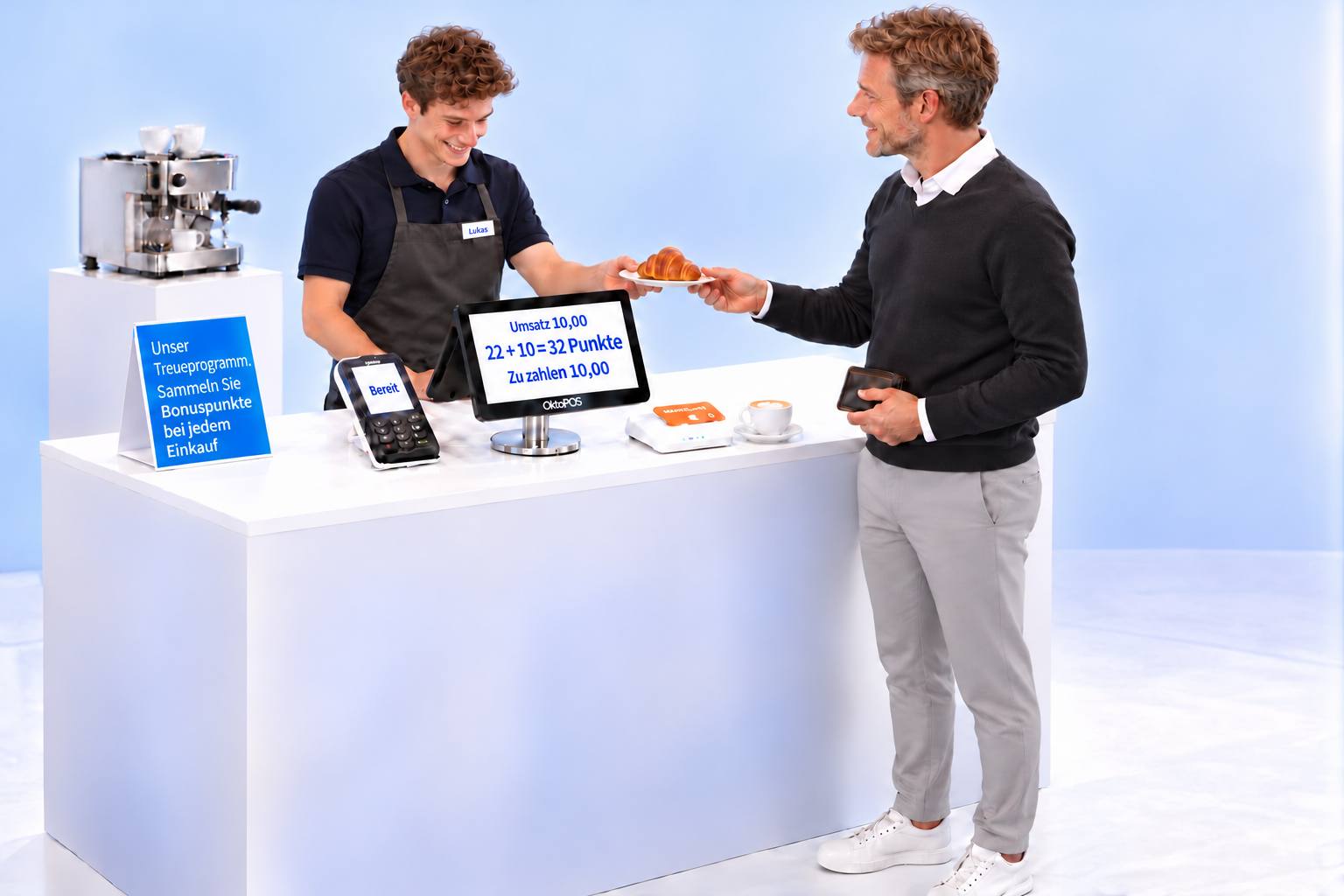
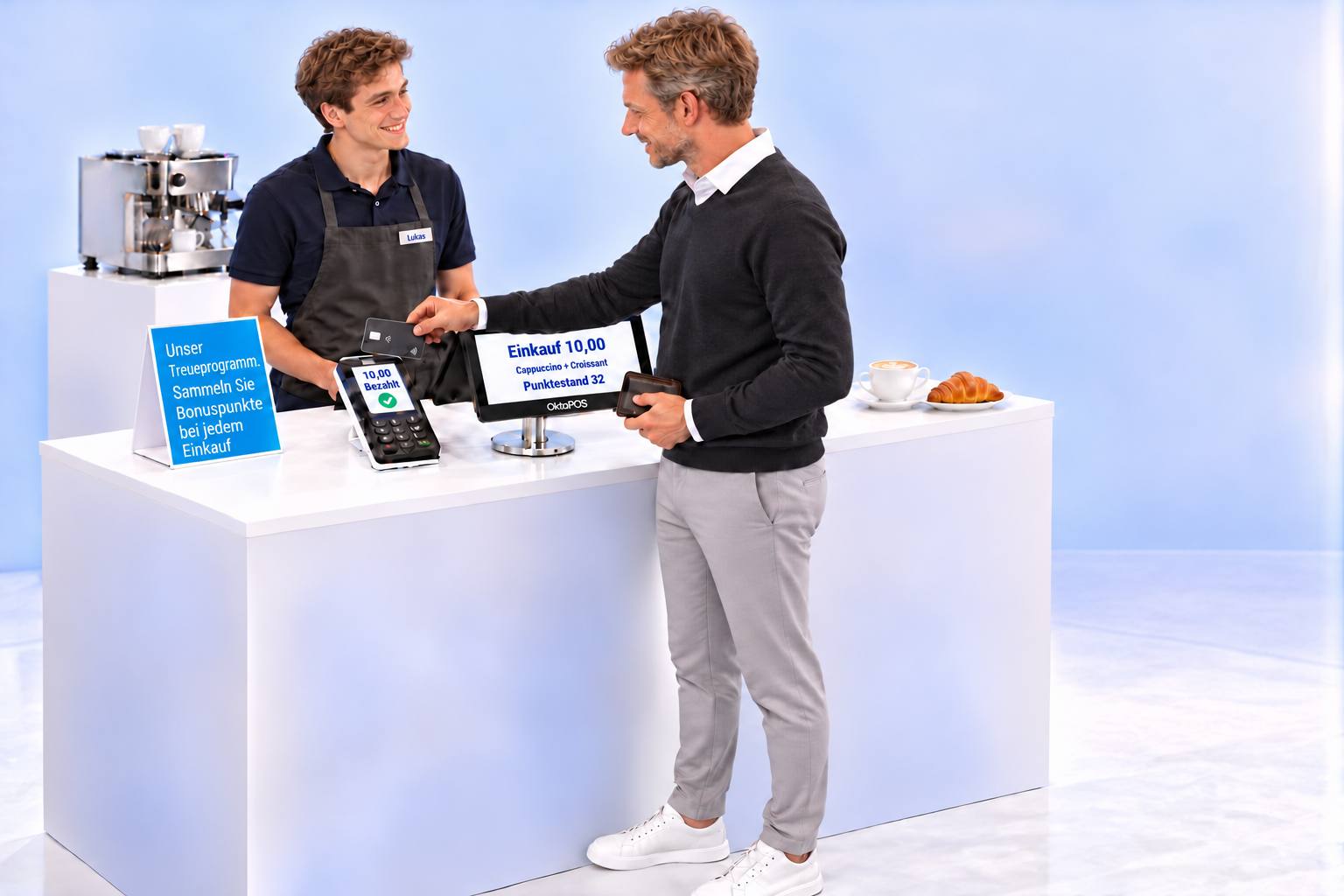
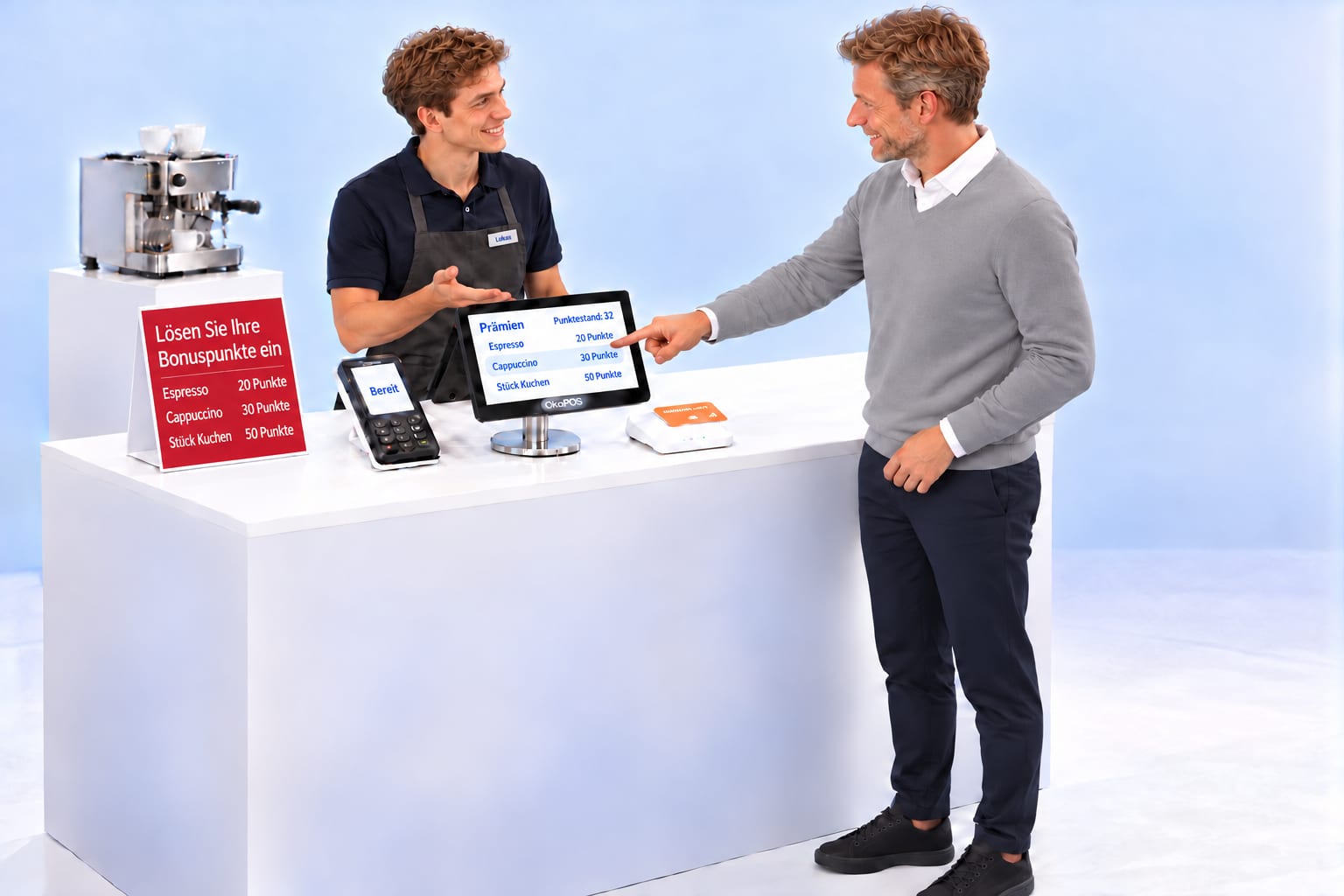
One point per $1 of sales, credited as soon as the sale is recorded. On promotion days the purchase counts double. The account is held centrally in OktoPOS Manager and applies at every branch. Points are redeemed against products that the business defines itself.
Our loyalty programme.Collect 1 loyalty point for every $1.00.
Our loyalty programme.
Join now
LOYALTY CARD
Day 1Loyalty points0before±0unchanged0balance
Paul Sommer0PointsCard ready
Ready
Our loyalty programme.Collect 1 loyalty point for every $1.00.
Anna
LOYALTY CARD
LOYALTY CARD
Day 1Loyalty points0before+8added8balance
+8
Cappuccino$4.50Croissant$3.50Amount due $8.000 + 8 = 8
Ready
Our loyalty programme.Collect 1 loyalty point for every $1.00.
Anna
LOYALTY CARD
LOYALTY CARD
Day 1Loyalty points8before±0unchanged8balance
Purchase $8.00Point balance 8
$8.00Paid
Our loyalty programme.Collect 1 loyalty point for every $1.00.
Anna
LOYALTY CARD
Day 2Loyalty points8before+14added22balance
+14
Double points8 + 14 = 22Amount due $7.00
Ready
Our loyalty programme.Collect 1 loyalty point for every $1.00.
Double loyalty points today
Mia
LOYALTY CARD
Day 2Loyalty points22before±0unchanged22balance
Purchase $7.00Point balance 22
$7.00Paid
Our loyalty programme.Collect 1 loyalty point for every $1.00.
Mia
Day 3Loyalty points22before±0unchanged22balance
Paul Sommer22Points
Ready
Our loyalty programme.Collect 1 loyalty point for every $1.00.
Lukas
LOYALTY CARD
Day 3Loyalty points22before+10added32balance
+10
Sale recorded: $10.0022 + 10 = 32Amount due $10.00
Ready
Our loyalty programme.Collect 1 loyalty point for every $1.00.
Lukas
LOYALTY CARD
Day 3Loyalty points32before±0unchanged32balance
Purchase $10.00Point balance 32
$10.00Paid
Our loyalty programme.Collect 1 loyalty point for every $1.00.
Lukas
Day 4Loyalty points32before±0unchanged32balance
RewardsPoint balance 32Espresso20 pointsCappuccino30 pointsSlice of cake50 points
Ready
Redeem your loyalty pointsEspresso20 pointsCappuccino30 pointsSlice of cake50 points
Lukas
LOYALTY CARD
Day 4Loyalty points32before−30redeemed2balance
−30
30 points redeemed2Points remaining
Ready
Redeem your loyalty pointsEspresso20 pointsCappuccino30 pointsSlice of cake50 points
Lukas
LOYALTY CARD
01 / 11
Registration at the tillName and account
Paul Sommer joins the café's loyalty programme at the till. The loyalty points account is created in OktoPOS Manager in the cloud.
Step 1 of 11. Paul Sommer joins the café's loyalty programme at the till. The loyalty points account is created in OktoPOS Manager in the cloud.
Click through the slideshowAI-generated
Amounts, point values and the reward table are examples. The business sets the products and point values.
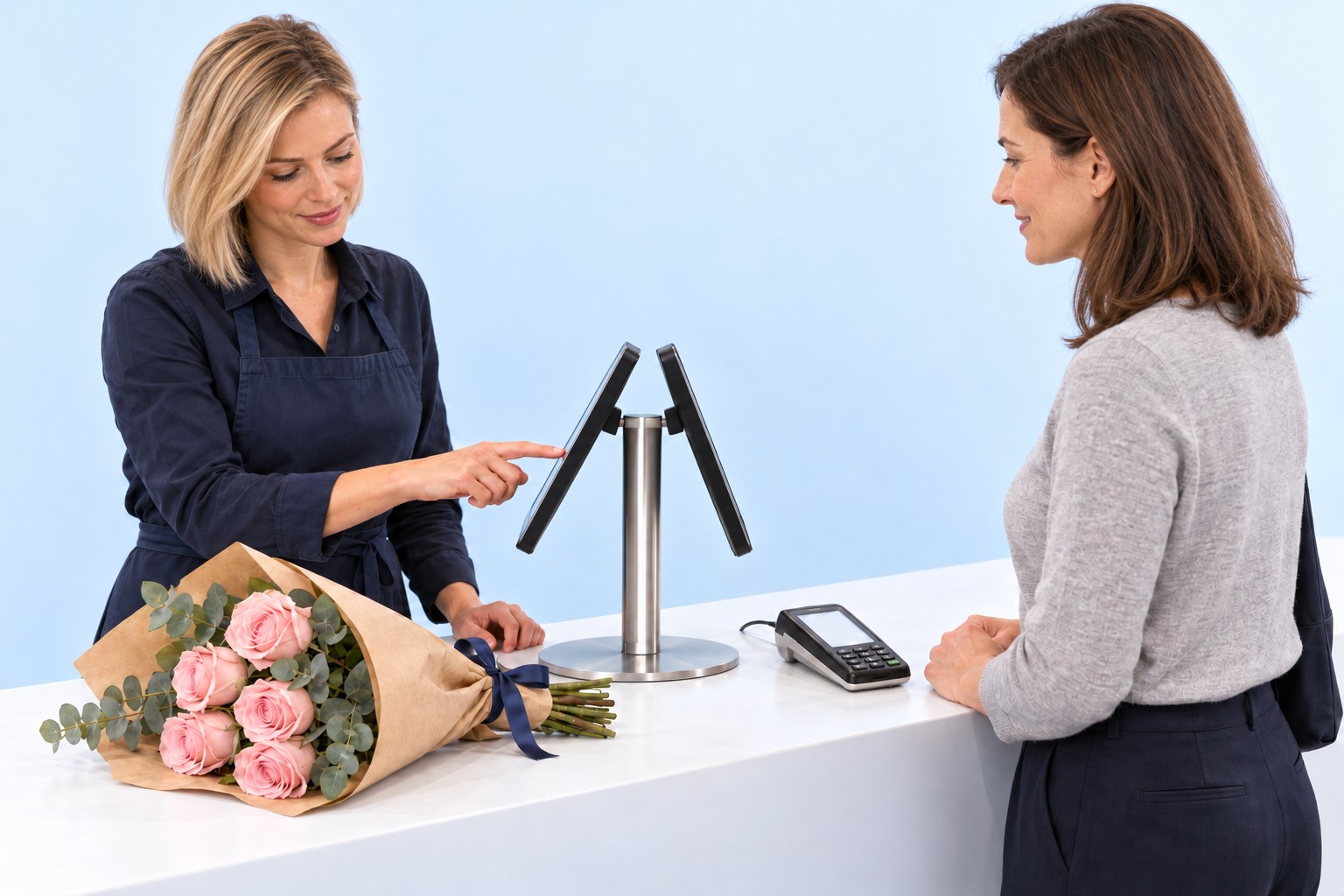
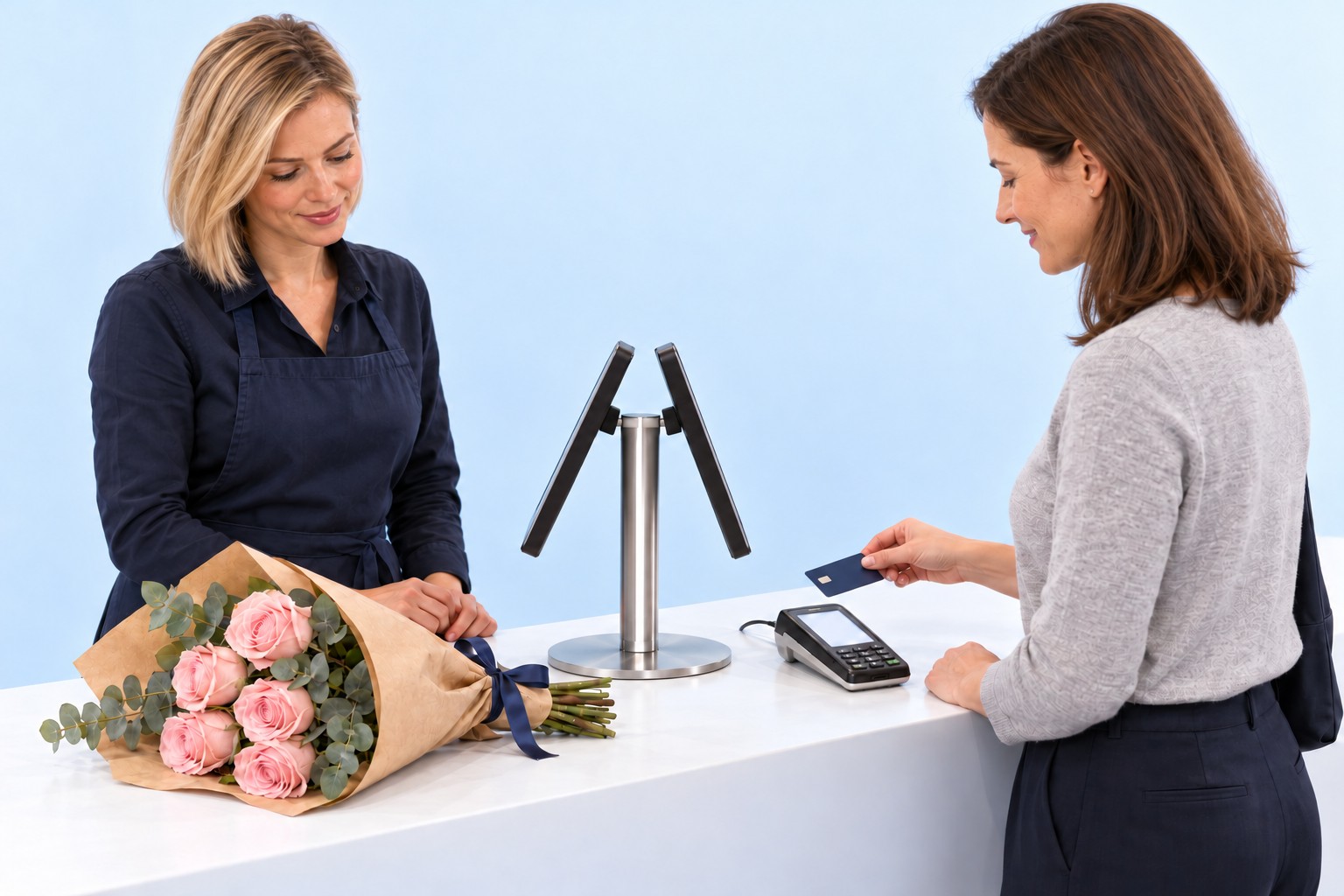
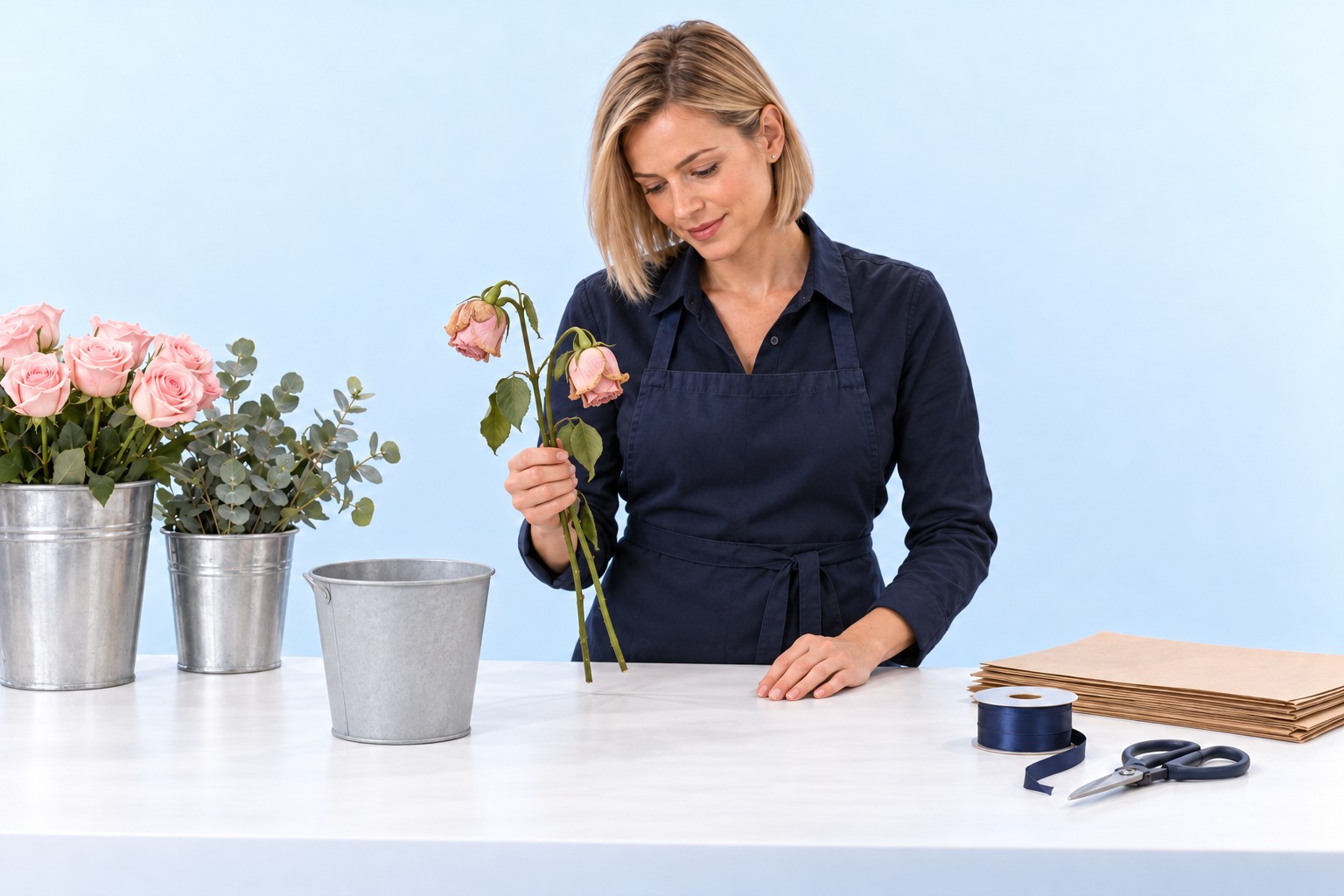
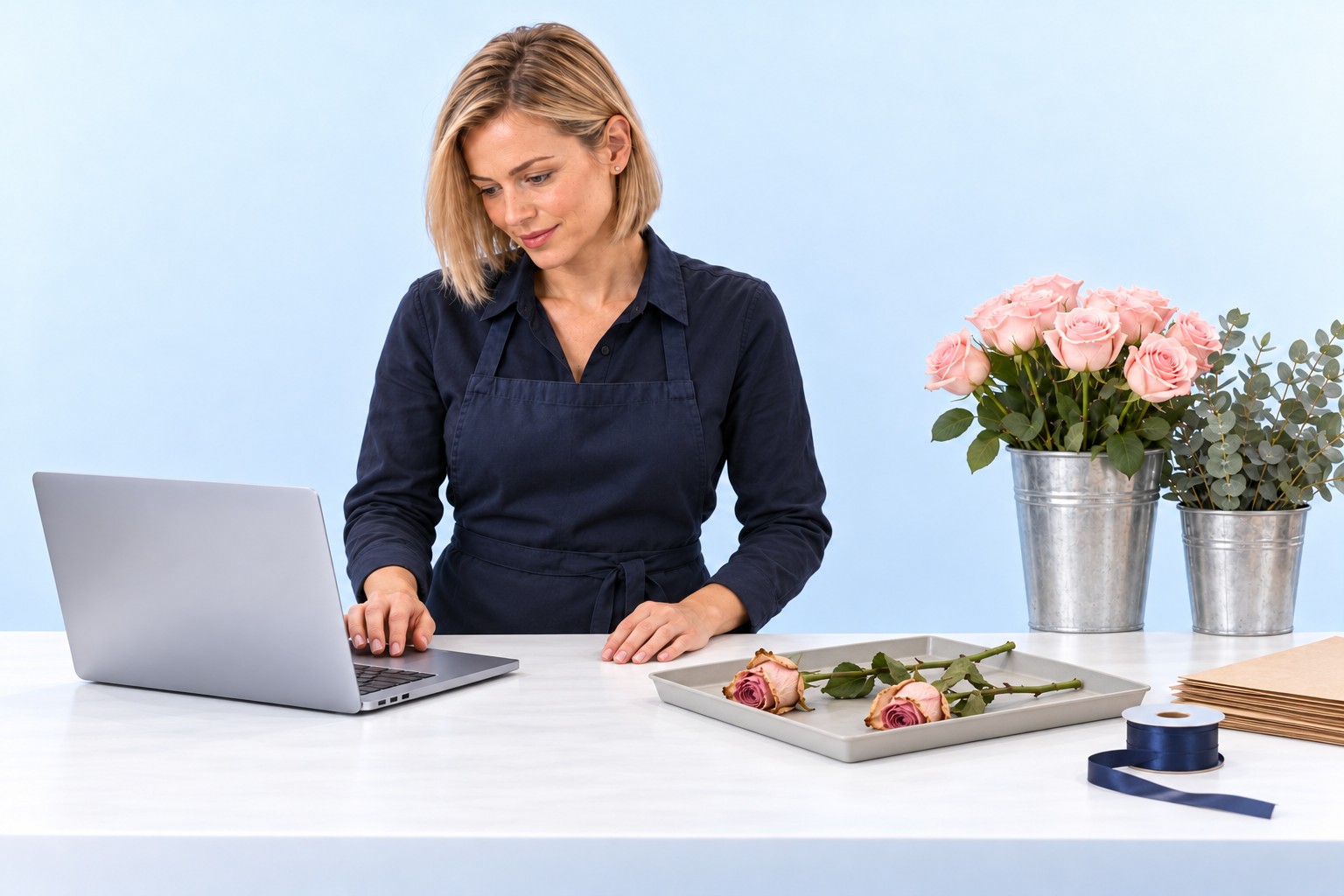
Bills of materials
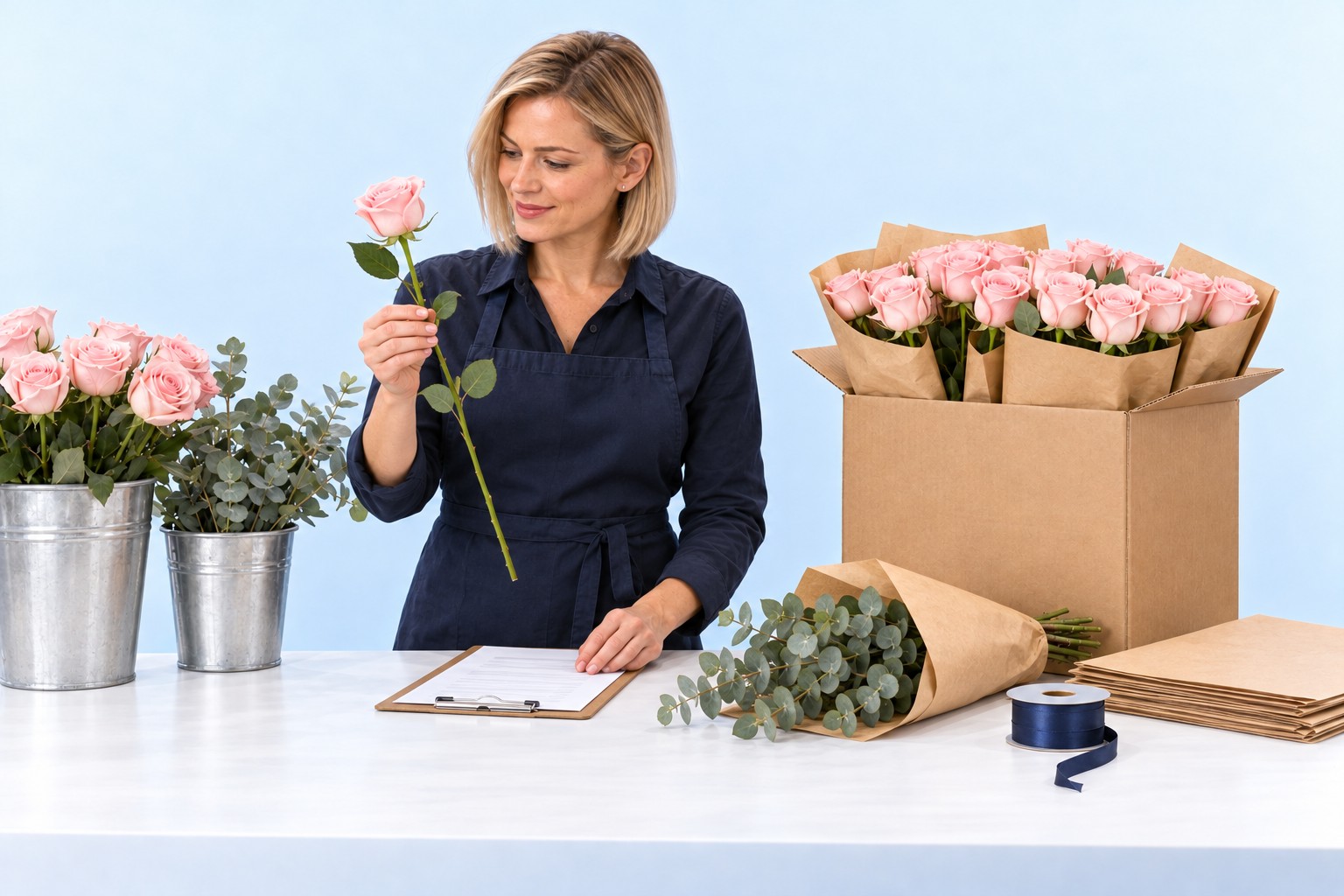
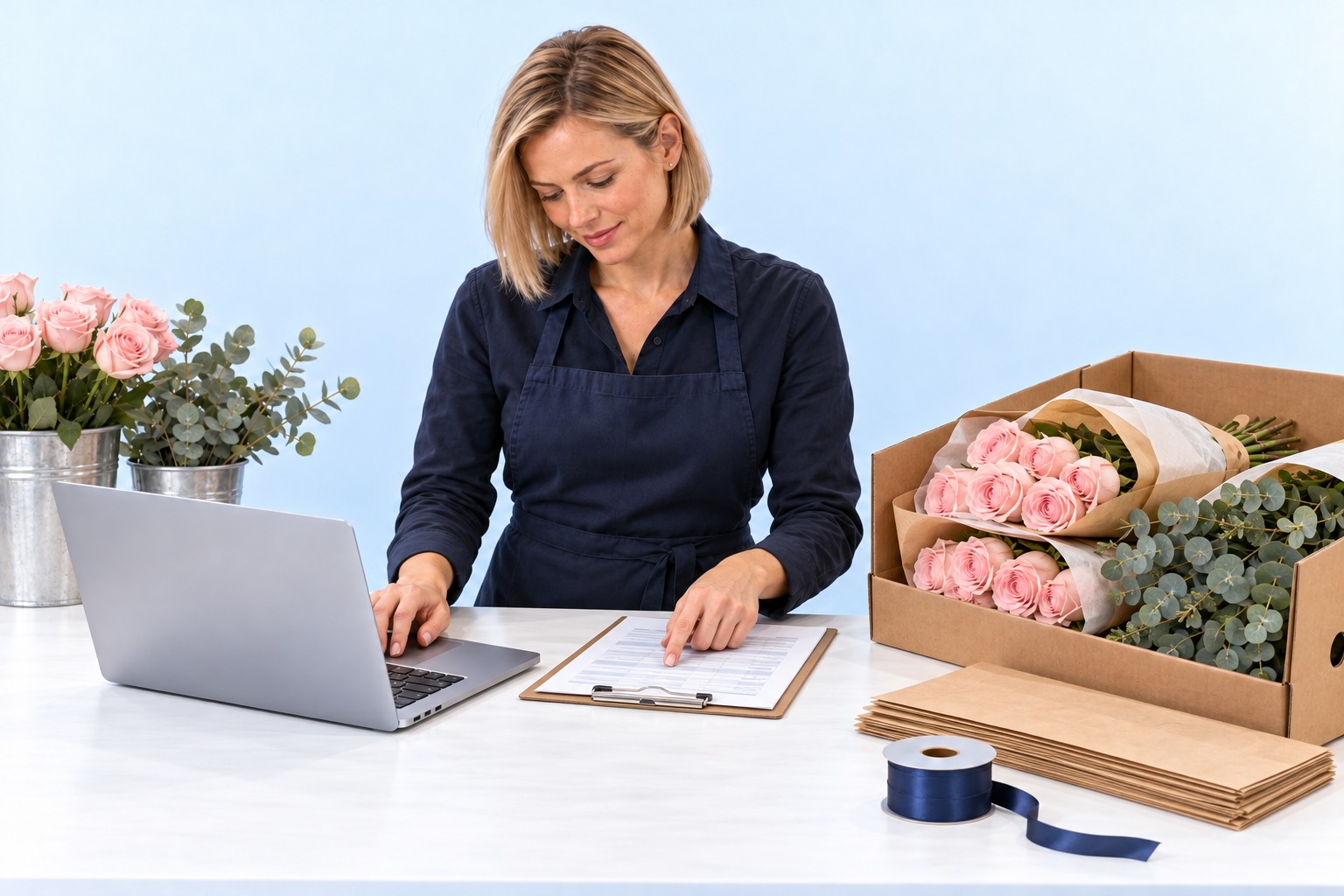
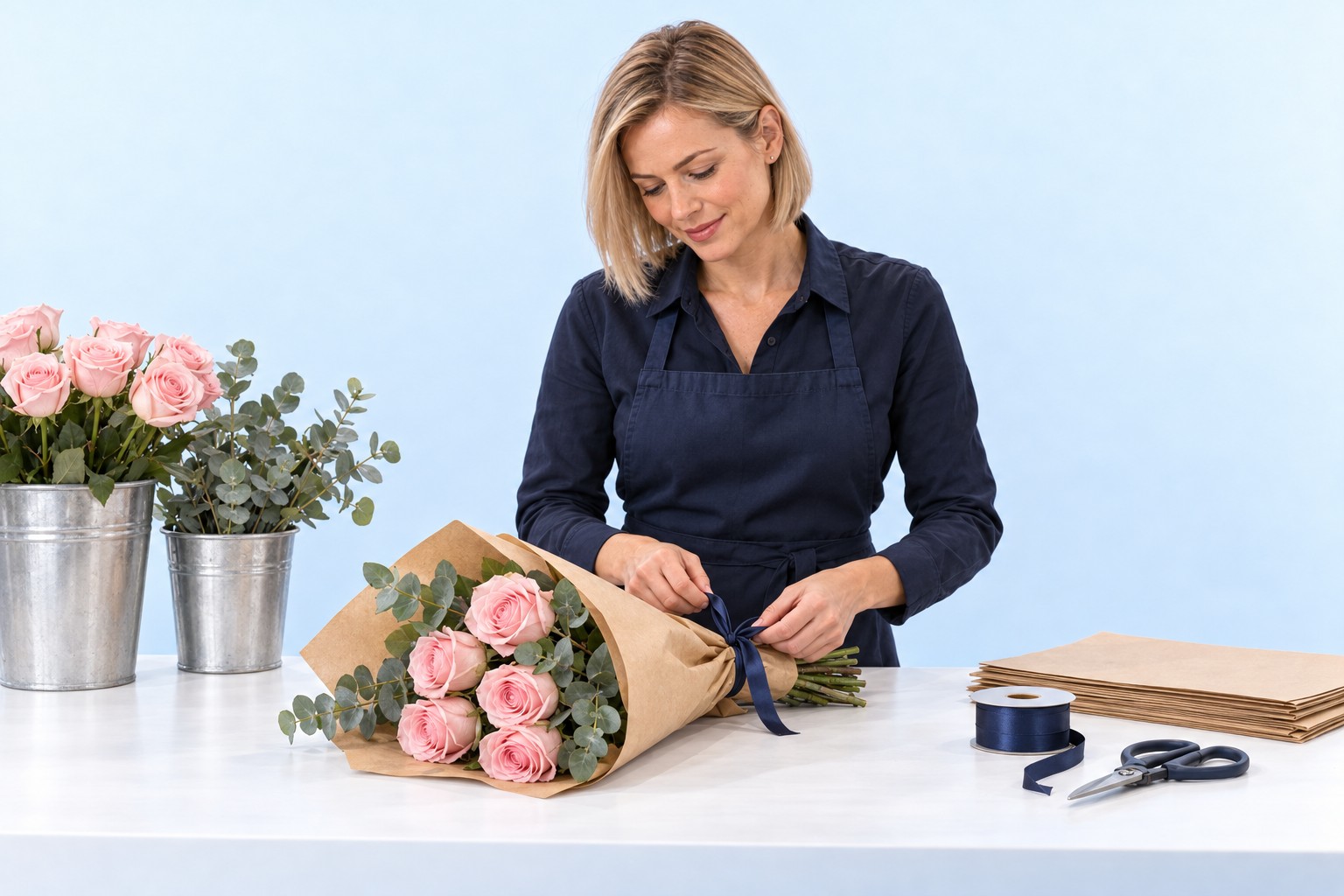
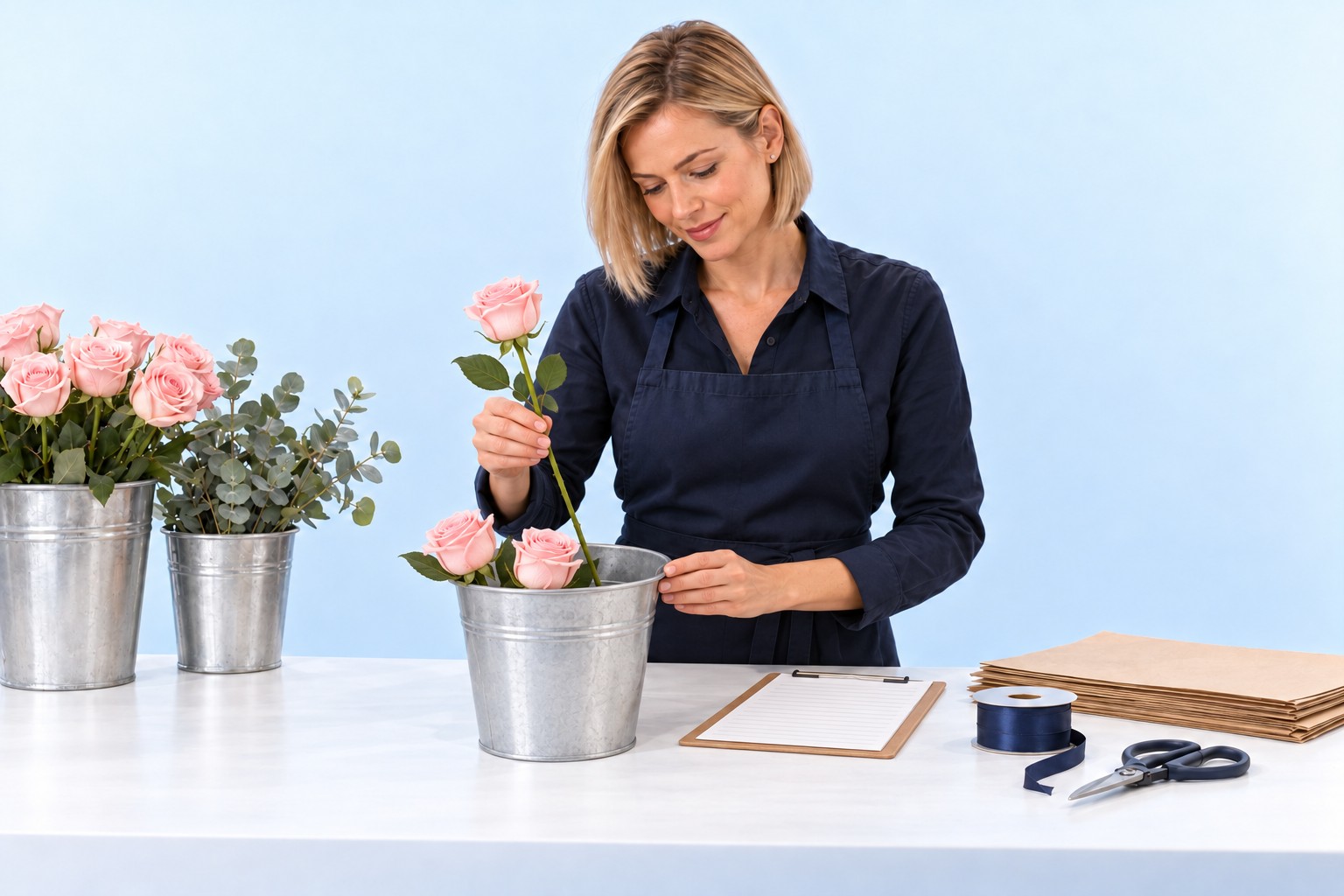
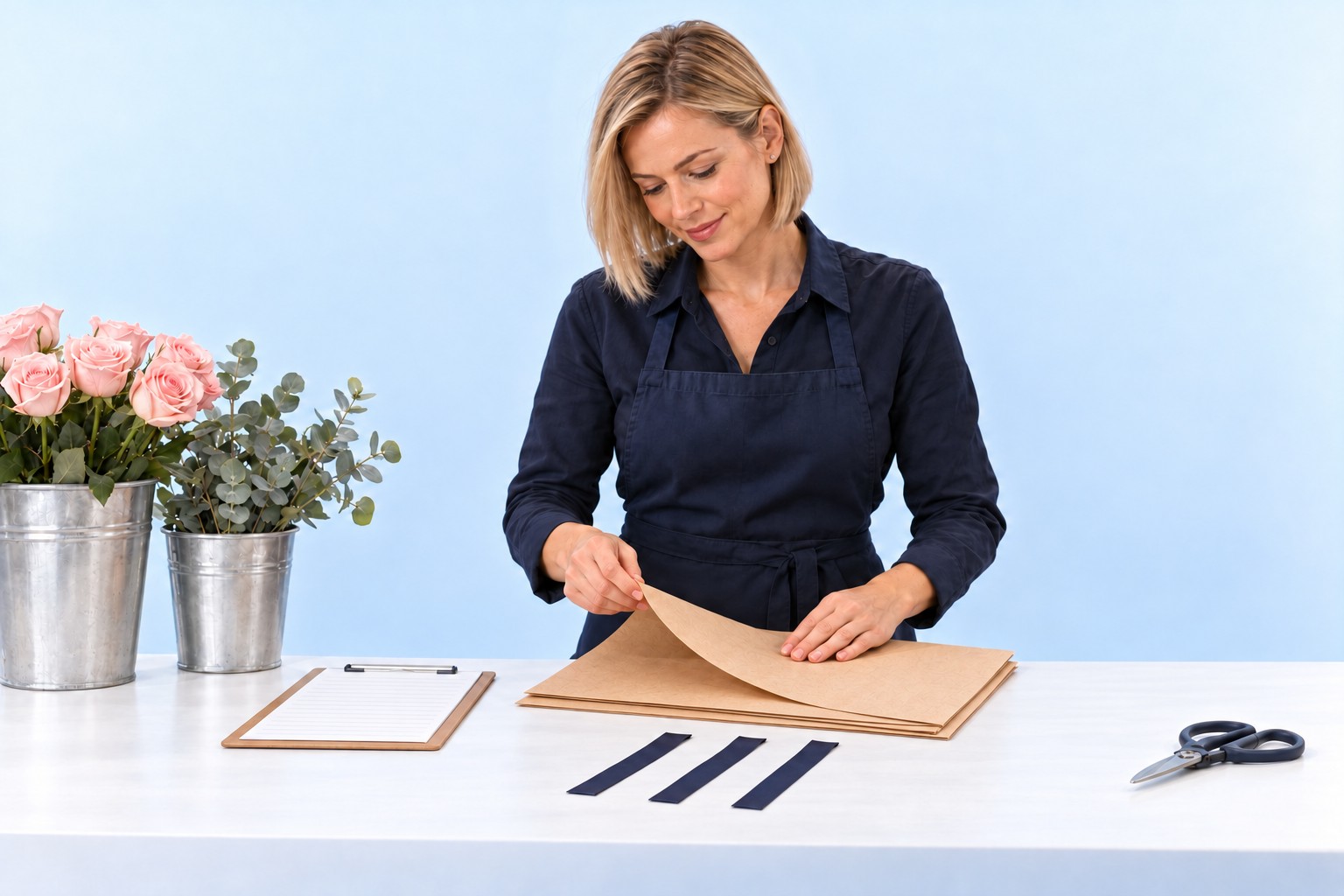
One bouquet sold. Four materials posted.
The bill of materials defines what a bouquet consists of. When the sale is posted, OktoPOS deducts each material from inventory exactly once. Losses and inventory differences are posted separately. At month end, the change in inventory shows its effect on the cost of goods.
Bill of materials
5 Roses
3 Green stems
1 Paper sheet
1 Ribbon
How the bouquet is planned
Inventorypcs
No goods receipt yet
Roses0
Greens0
Paper0
Ribbon0
Opening inventory: 0
Inventorypcs
Delivery arrived
Roses0
Greens0
Paper0
Ribbon0
Goods receipt pending
Inventorypcs
Checking the delivery
Roses0
Greens0
Paper0
Ribbon0
Goods receipt pending
Inventorypcs
Recording goods receiptGoods receipt posted
Roses020
Greens012
Paper04
Ribbon04
Material inventory rises
+20Roses+12Greens+4Paper+4RibbonDelivery
Inventorypcs
Tying the bouquet
Roses20
Greens12
Paper4
Ribbon4
Usage is posted with the sale
Inventorypcs
Posting bill of materialsUsage per bill of materials
MaterialActual last monthPreviousActual this monthCurrent
Roses012
Greens09
Paper03
Ribbon03
Inventory value$0.00$13.20
Both month ends at the same unit values
Supplier invoices
During the month
Supplier invoicesAlready recorded$20.80
Cost of goodsInitially posted$0.00$20.80
Material inventory unchanged
Roses12
Greens9
Paper3
Ribbon3
$20.80
Inventory change
Month-end posting
Inventory value before$0.00
Inventory value now$13.20
Cost of goods before$20.80
Inventory increase−$13.20
Cost of goods adjusted$20.80$7.60
Inventory+$13.20Cost of goods−$13.20
If the inventory value rises, the expense falls. If it falls, the expense rises.
Material inventory unchanged
Roses12
Greens9
Paper3
Ribbon3
−$13.20
01 / 17
At the worktablePlan the bouquet first
The florist creates the bill of materials for the rose bouquet M: five roses, three eucalyptus stems, one sheet of paper and one ribbon. This is only a plan. Nothing is in inventory yet.
Step 1 of 17. The florist creates the bill of materials for the rose bouquet M: five roses, three eucalyptus stems, one sheet of paper and one ribbon. This is only a plan. Nothing is in inventory yet.
Click through the slideshowAI-generated
Quantities, unit values and prices are examples. The business stores the bill of materials for each item in OktoPOS Manager.The bars show the inventory of each material relative to the quantity after the goods receipt.
Price by measure
The measurement determines the price. The sales quantity remains one item.
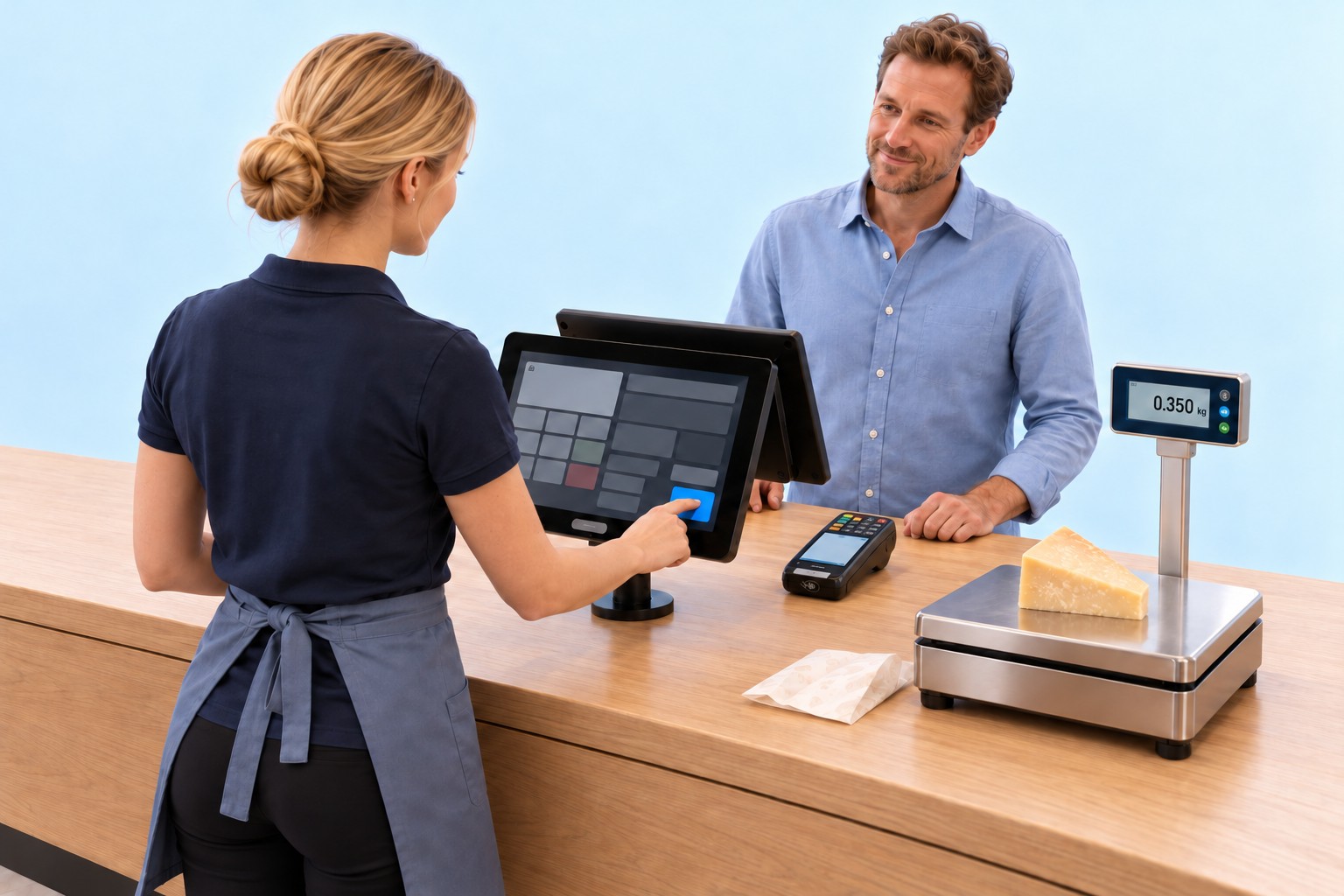
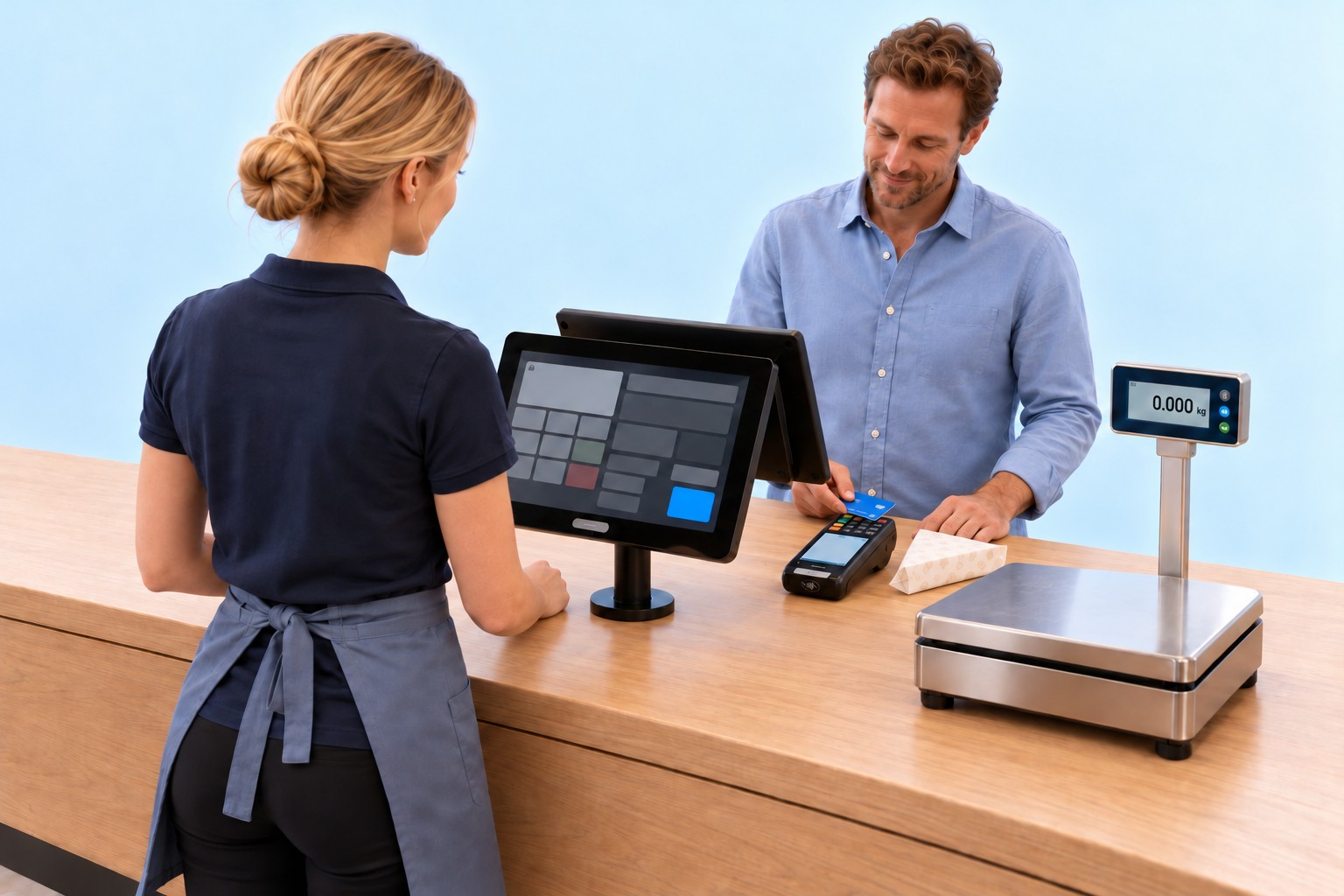
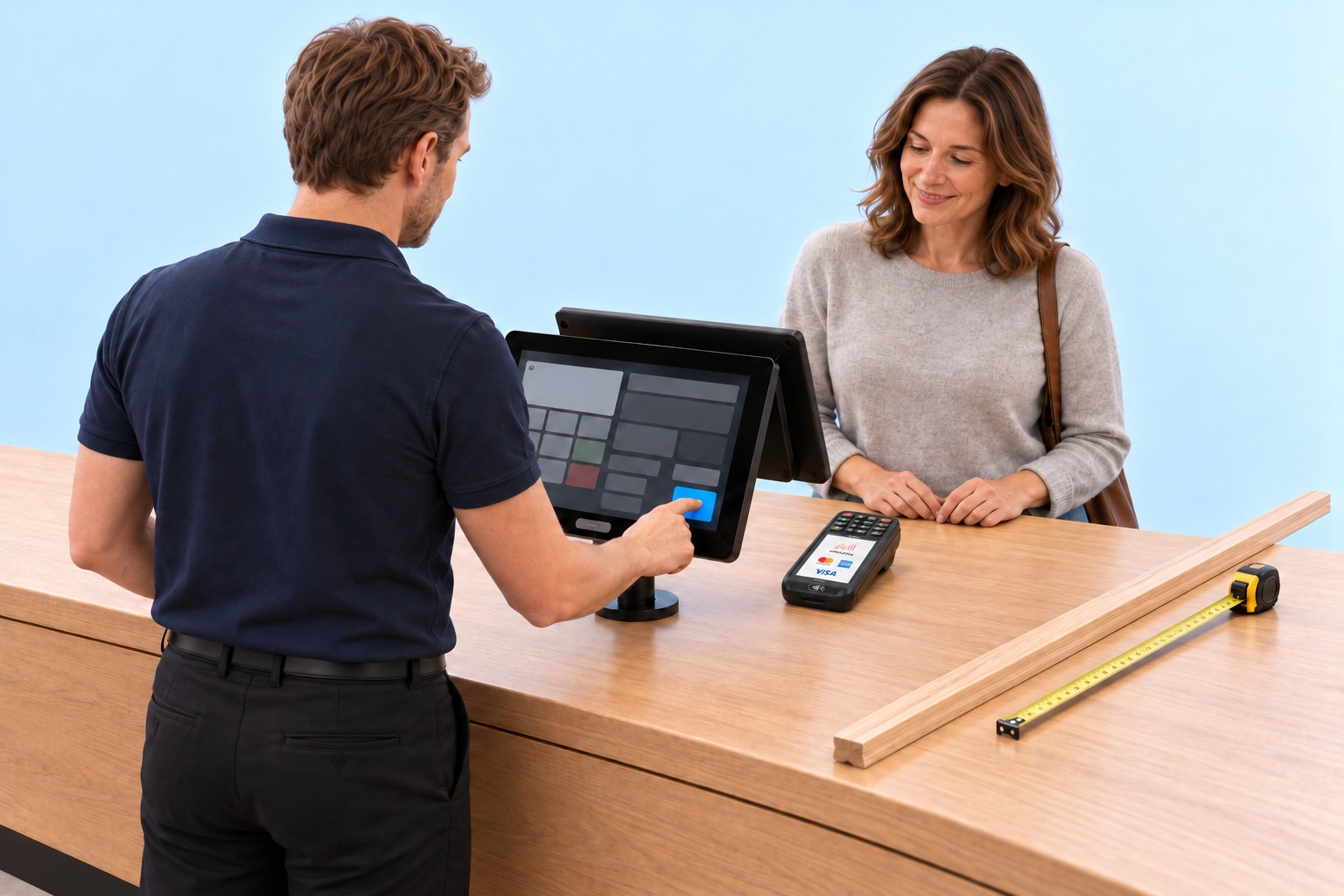
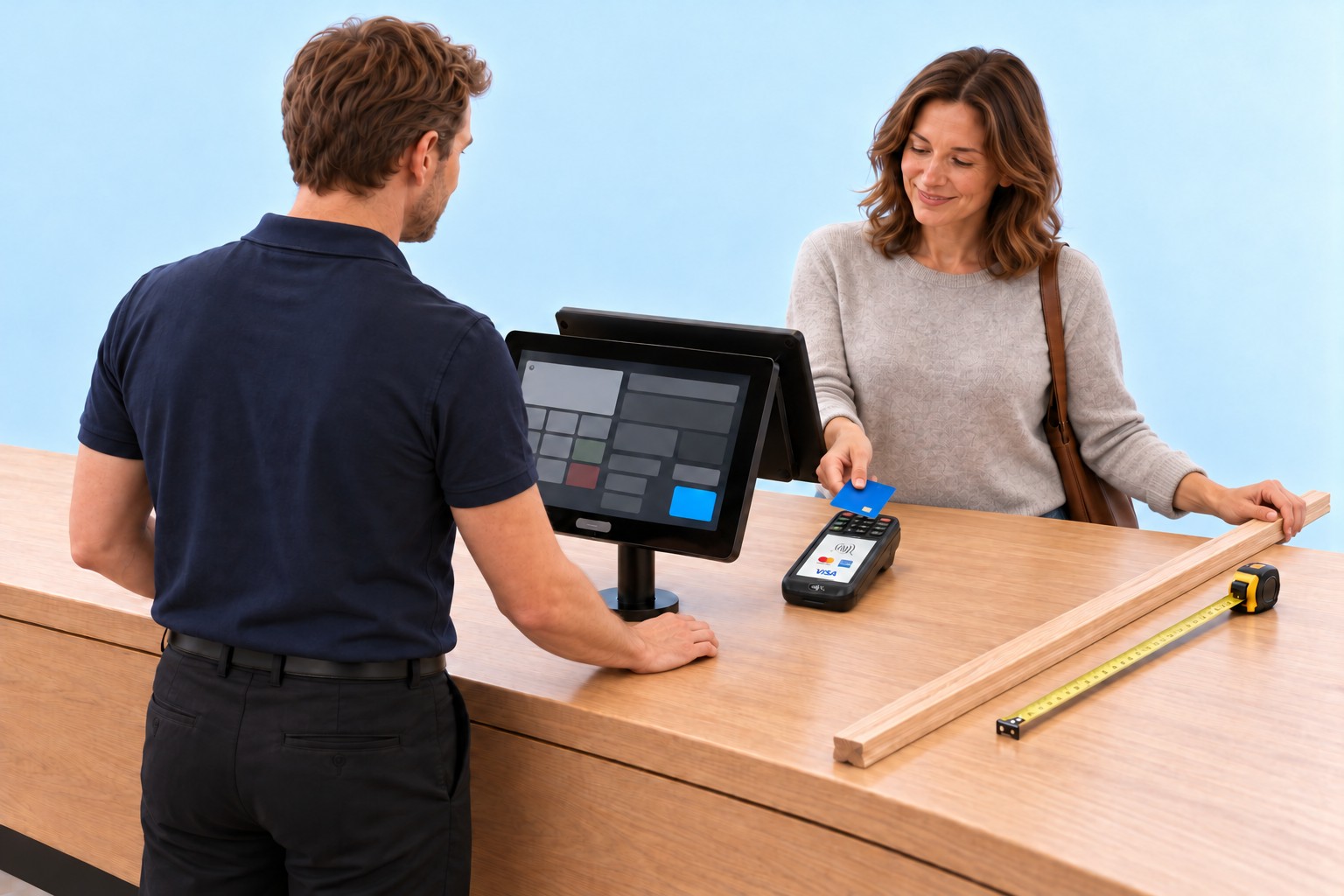
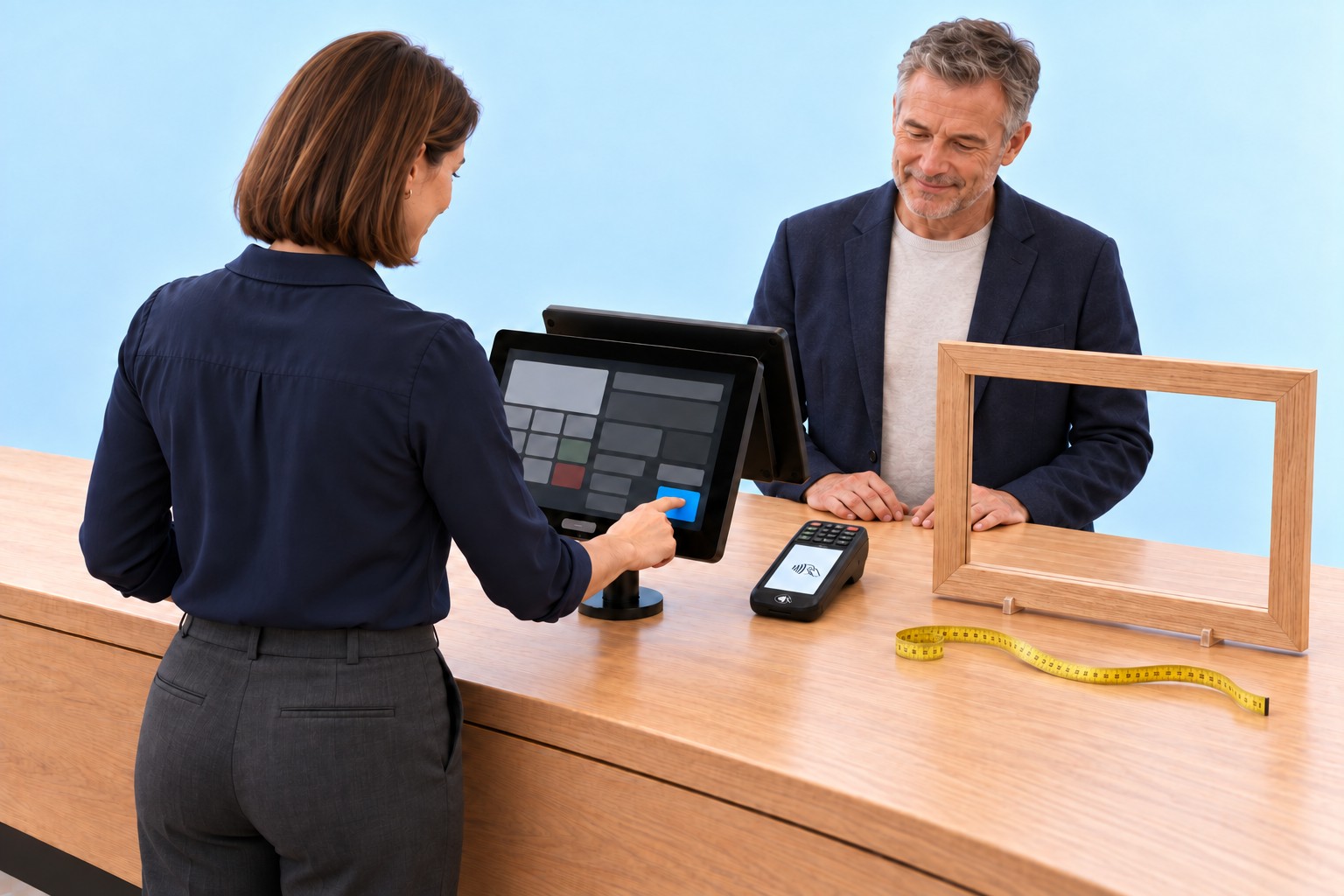
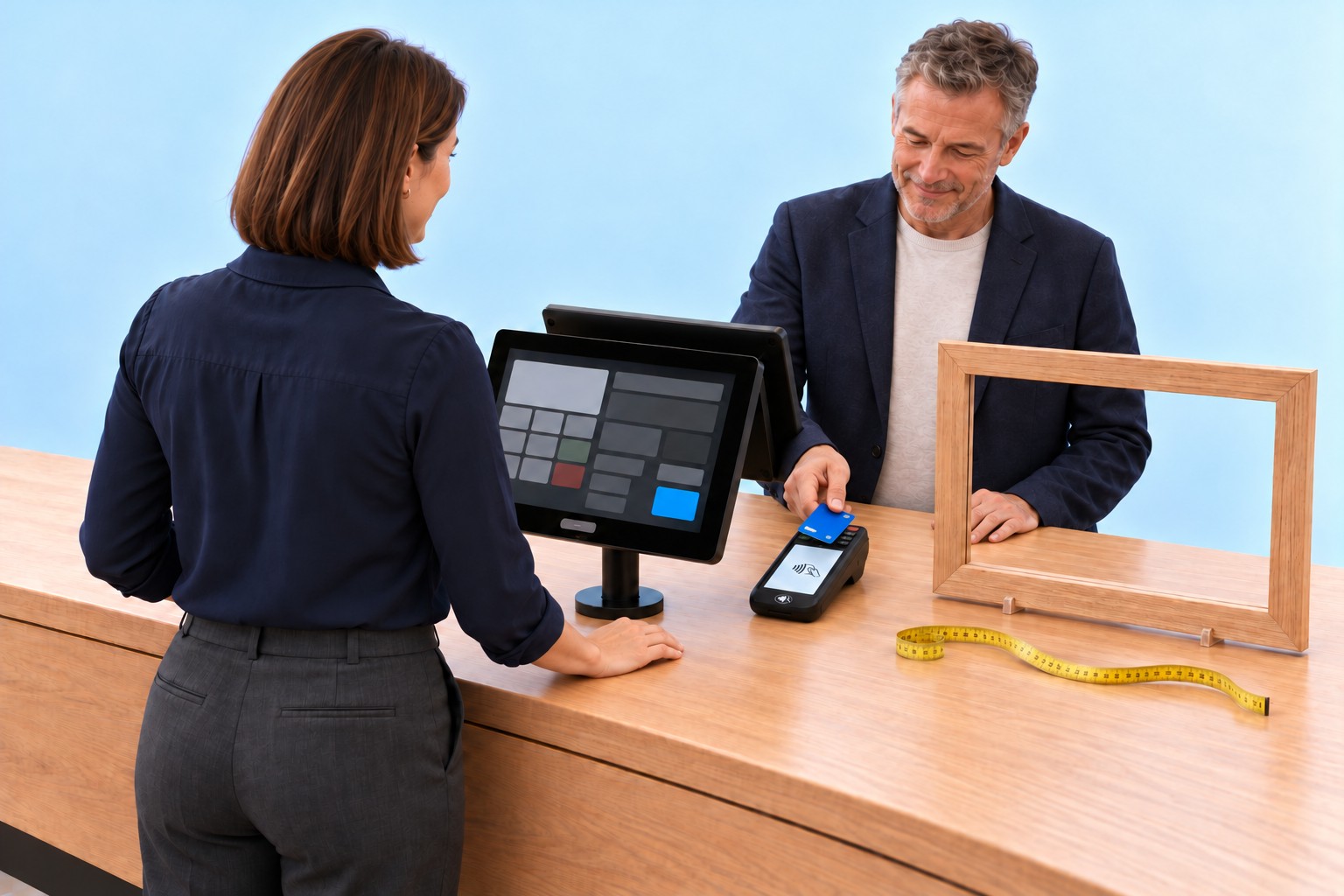
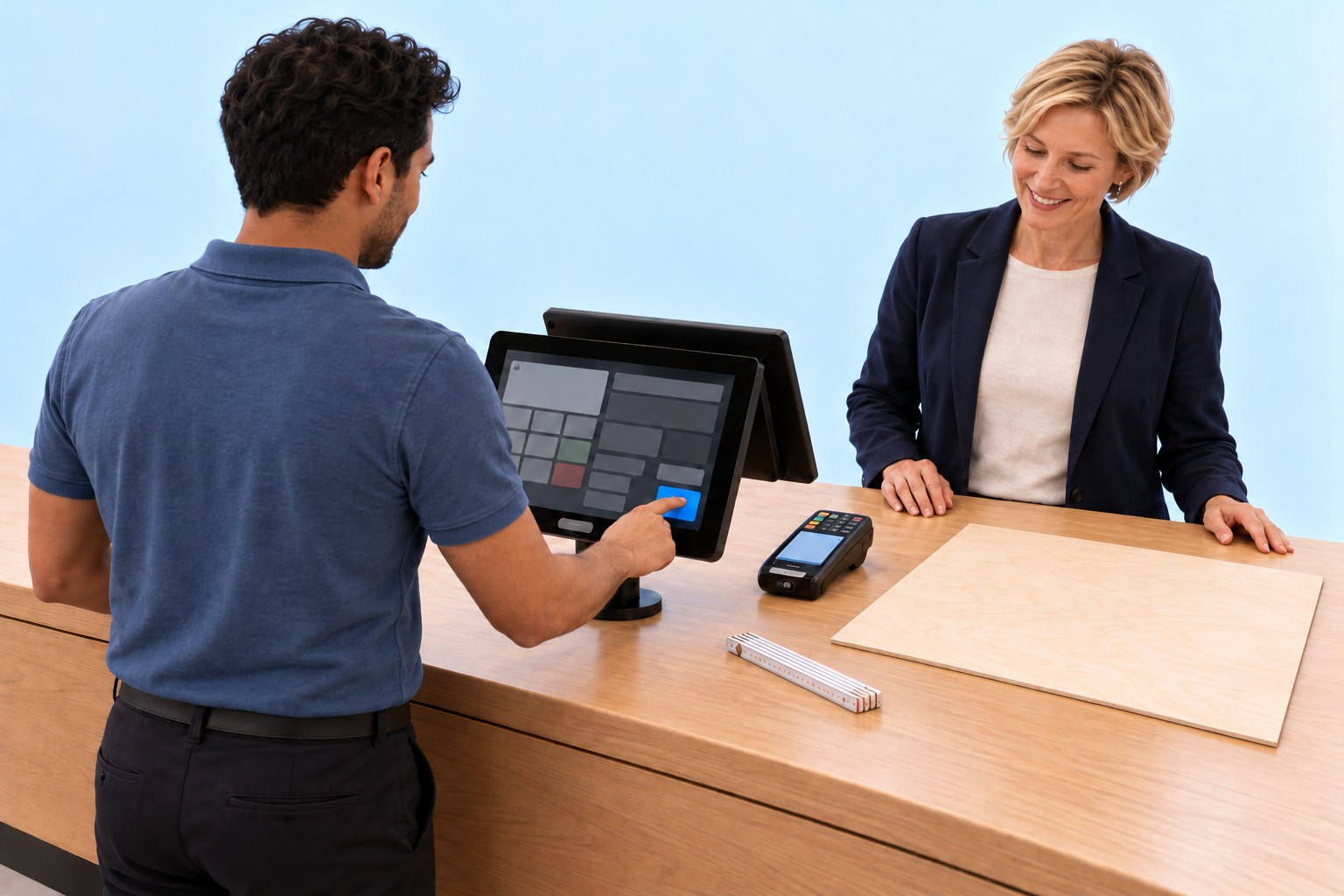
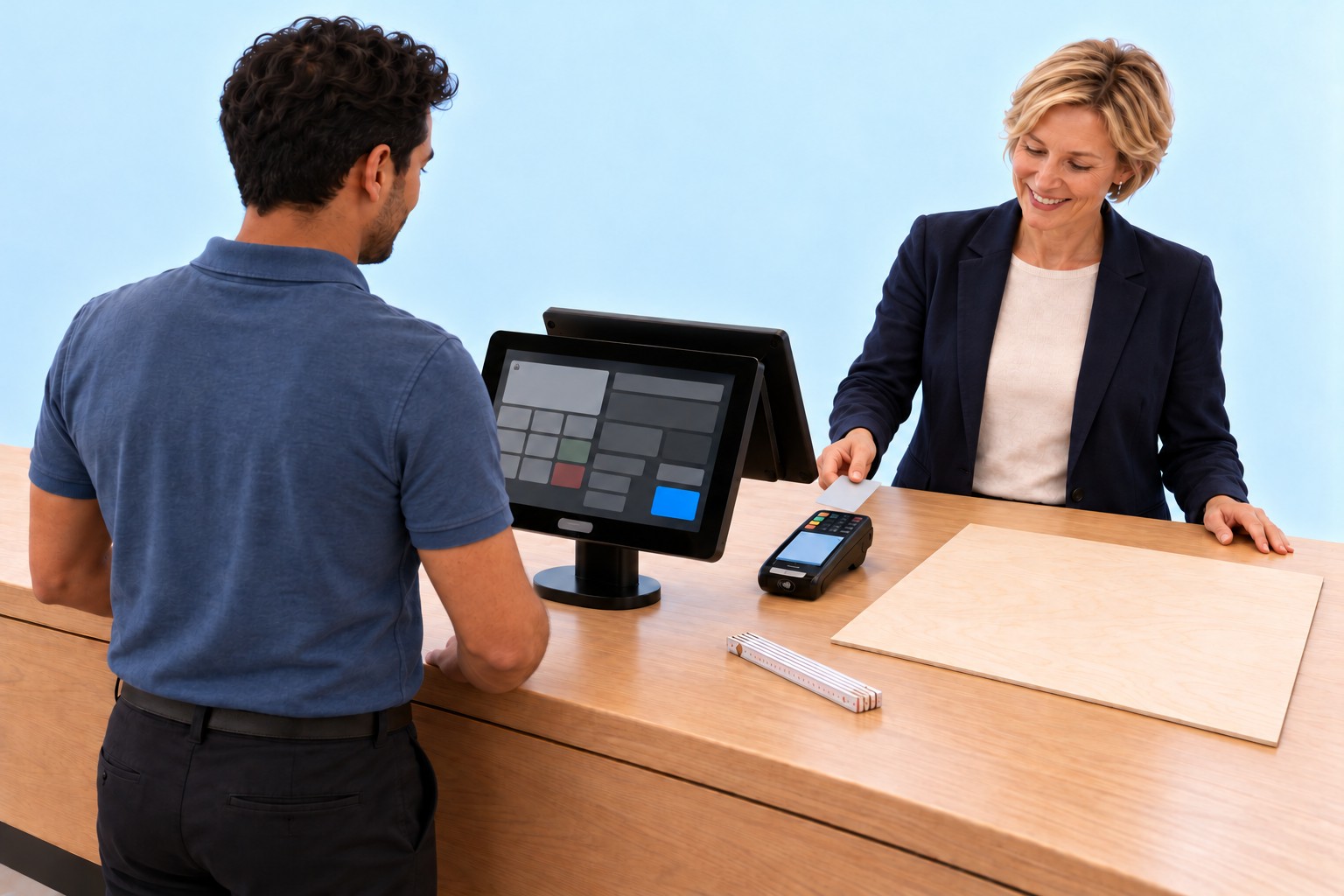
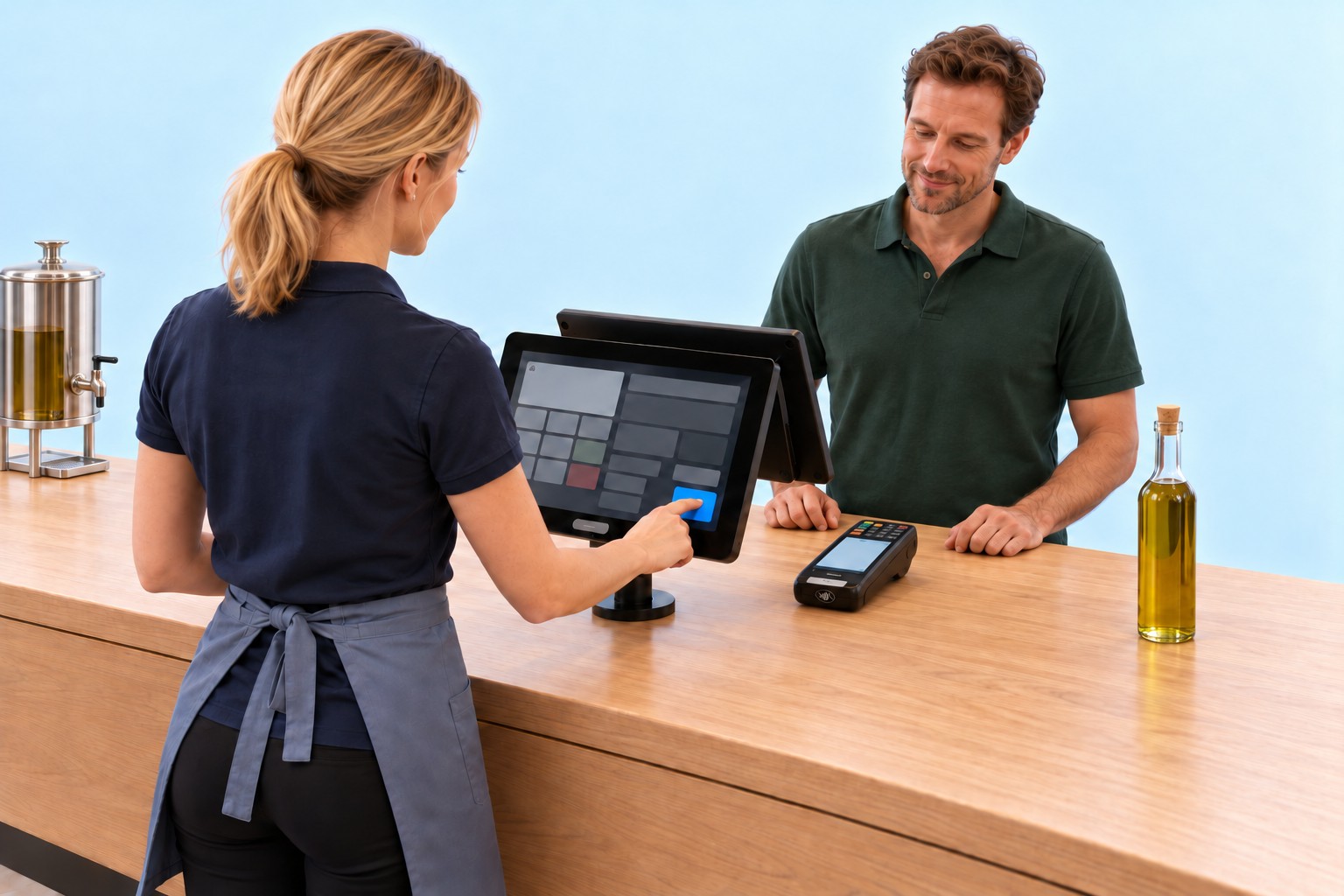
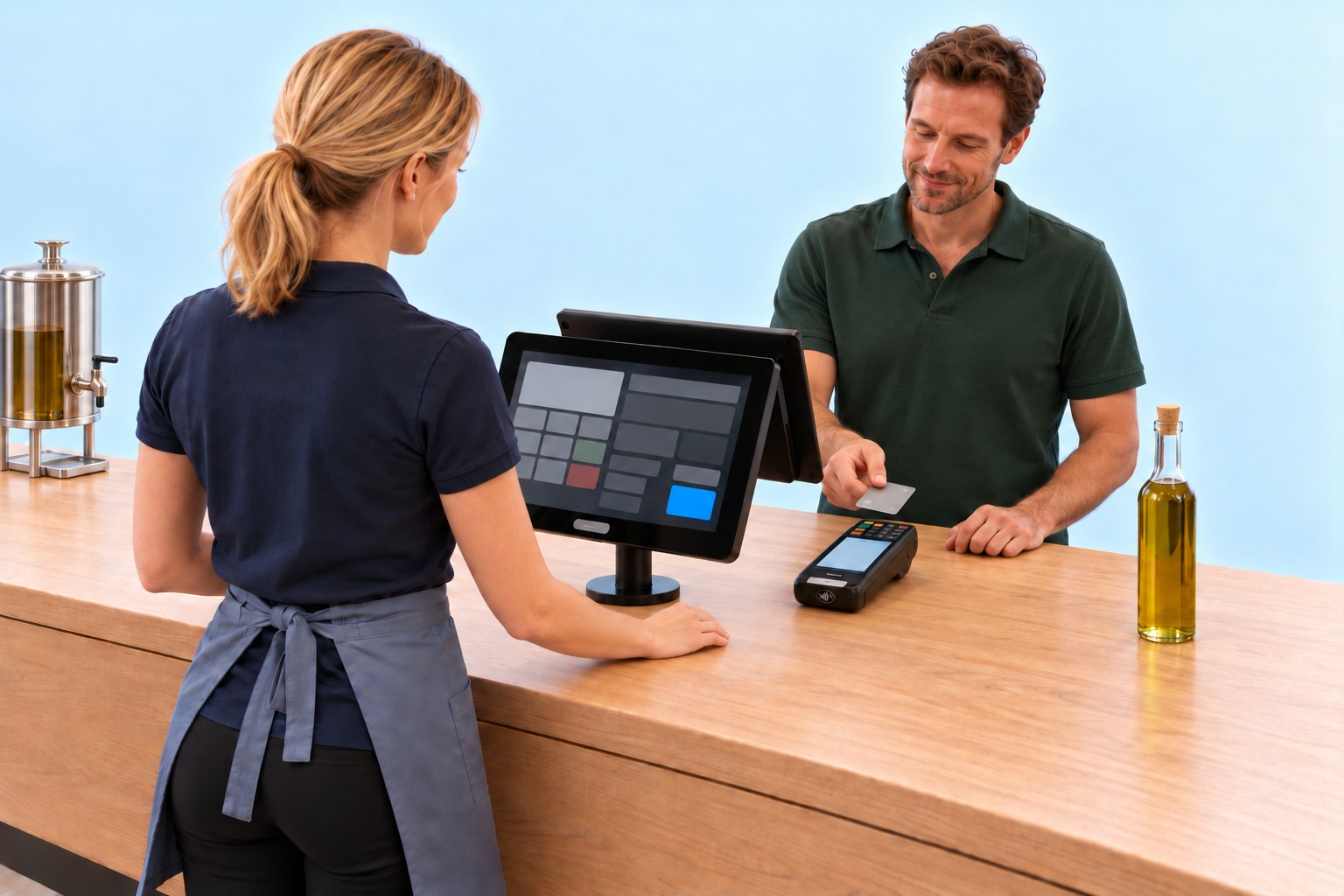
Weight, length, perimeter, area or volume is measured and entered by hand at the register. The register multiplies the measurement by the unit price. Exactly one item is recorded and sold.
Increase quantity
Set quantity
Tables
Reduce quantity
Remove item
Find item
Void now
Void basket
Memo
Change cashier
Save basket
Customers
BackFunctionsNext
ItemQuantityPrice
Enter measurement
0$0.00Σ $0.00
Piece of cheese
Wooden strip
Picture frame
Cut panel
Olive oil
ITEMS
SHOP
FOOD
EXTRAS
DRINKS
BAR
COLD
HOT
HOME
OktoPOS
Sale
Register 1
Sale
Customers
Card
Cash
Next
Enter measurement
Piece of cheese$18.00/kg
0.350kg
7
8
9
4
5
6
1
2
3
0
.
OK
Piece of cheeseEnter measurement
Weight0.350kg
×
Unit price$18.00/kg
=
Price$6.30
Sales quantity1 item$6.30remains one item
Increase quantity
Set quantity
Tables
Reduce quantity
Remove item
Find item
Void now
Void basket
Memo
Change cashier
Save basket
Customers
BackFunctionsNext
ItemQuantityPrice
0Piece of cheese0.350 kg × $18.00/kg1 item$6.30
1$0.00Σ $6.30
Piece of cheese
Wooden strip
Picture frame
Cut panel
Olive oil
ITEMS
SHOP
FOOD
EXTRAS
DRINKS
BAR
COLD
HOT
HOME
OktoPOS
Sale
Register 1
Sale
Customers
Card$6.30
Cash
Next
Piece of cheeseCalculate price1 item recorded
Weight0.350kg
×
Unit price$18.00/kg
=
Price$6.30
Sales quantity1 item$6.30remains one itemRecorded
$6.30
Increase quantity
Set quantity
Tables
Reduce quantity
Remove item
Find item
Void now
Void basket
Memo
Change cashier
Save basket
Customers
BackFunctionsNext
ItemQuantityPrice
0Piece of cheese0.350 kg × $18.00/kg1 item$6.30
1$0.00Σ $6.30
Piece of cheese
Wooden strip
Picture frame
Cut panel
Olive oil
ITEMS
SHOP
FOOD
EXTRAS
DRINKS
BAR
COLD
HOT
HOME
OktoPOS
Sale
Register 1
Sale
Customers
Card$6.30
Cash
Next
Piece of cheeseCard payment
Weight0.350kg
×
Unit price$18.00/kg
=
Price$6.30
Sales quantity1 item$6.30Paid
Increase quantity
Set quantity
Tables
Reduce quantity
Remove item
Find item
Void now
Void basket
Memo
Change cashier
Save basket
Customers
BackFunctionsNext
ItemQuantityPrice
Enter measurement
0$0.00Σ $0.00
Wooden strip
Picture frame
Cut panel
Olive oil
Piece of cheese
ITEMS
SHOP
FOOD
EXTRAS
DRINKS
BAR
COLD
HOT
HOME
OktoPOS
Sale
Register 1
Sale
Customers
Card
Cash
Next
Enter measurement
Wooden strip$6.50/m
1.80m
7
8
9
4
5
6
1
2
3
0
.
OK
Wooden stripEnter measurement
Length1.80m
×
Unit price$6.50/m
=
Price$11.70
Sales quantity1 item$11.70remains one item
Increase quantity
Set quantity
Tables
Reduce quantity
Remove item
Find item
Void now
Void basket
Memo
Change cashier
Save basket
Customers
BackFunctionsNext
ItemQuantityPrice
0Wooden strip1.80 m × $6.50/m1 item$11.70
1$0.00Σ $11.70
Wooden strip
Picture frame
Cut panel
Olive oil
Piece of cheese
ITEMS
SHOP
FOOD
EXTRAS
DRINKS
BAR
COLD
HOT
HOME
OktoPOS
Sale
Register 1
Sale
Customers
Card$11.70
Cash
Next
Wooden stripCalculate price1 item recorded
Length1.80m
×
Unit price$6.50/m
=
Price$11.70
Sales quantity1 item$11.70remains one itemRecorded
$11.70
Increase quantity
Set quantity
Tables
Reduce quantity
Remove item
Find item
Void now
Void basket
Memo
Change cashier
Save basket
Customers
BackFunctionsNext
ItemQuantityPrice
0Wooden strip1.80 m × $6.50/m1 item$11.70
1$0.00Σ $11.70
Wooden strip
Picture frame
Cut panel
Olive oil
Piece of cheese
ITEMS
SHOP
FOOD
EXTRAS
DRINKS
BAR
COLD
HOT
HOME
OktoPOS
Sale
Register 1
Sale
Customers
Card$11.70
Cash
Next
Wooden stripCard payment
Length1.80m
×
Unit price$6.50/m
=
Price$11.70
Sales quantity1 item$11.70Paid
Increase quantity
Set quantity
Tables
Reduce quantity
Remove item
Find item
Void now
Void basket
Memo
Change cashier
Save basket
Customers
BackFunctionsNext
ItemQuantityPrice
Enter measurement
0$0.00Σ $0.00
Picture frame
Cut panel
Olive oil
Piece of cheese
Wooden strip
ITEMS
SHOP
FOOD
EXTRAS
DRINKS
BAR
COLD
HOT
HOME
OktoPOS
Sale
Register 1
Sale
Customers
Card
Cash
Next
Enter measurement
Picture frame$0.12/cm
200cm
7
8
9
4
5
6
1
2
3
0
.
OK
Picture frameEnter measurement
Outer perimeter200cm
×
Unit price$0.12/cm
=
Price$24.00
Sales quantity1 item$24.00remains one item
Increase quantity
Set quantity
Tables
Reduce quantity
Remove item
Find item
Void now
Void basket
Memo
Change cashier
Save basket
Customers
BackFunctionsNext
ItemQuantityPrice
0Picture frame200 cm × $0.12/cm1 item$24.00
1$0.00Σ $24.00
Picture frame
Cut panel
Olive oil
Piece of cheese
Wooden strip
ITEMS
SHOP
FOOD
EXTRAS
DRINKS
BAR
COLD
HOT
HOME
OktoPOS
Sale
Register 1
Sale
Customers
Card$24.00
Cash
Next
Picture frameCalculate price1 item recorded
Outer perimeter200cm
×
Unit price$0.12/cm
=
Price$24.00
Sales quantity1 item$24.00remains one itemRecorded
$24.00
Increase quantity
Set quantity
Tables
Reduce quantity
Remove item
Find item
Void now
Void basket
Memo
Change cashier
Save basket
Customers
BackFunctionsNext
ItemQuantityPrice
0Picture frame200 cm × $0.12/cm1 item$24.00
1$0.00Σ $24.00
Picture frame
Cut panel
Olive oil
Piece of cheese
Wooden strip
ITEMS
SHOP
FOOD
EXTRAS
DRINKS
BAR
COLD
HOT
HOME
OktoPOS
Sale
Register 1
Sale
Customers
Card$24.00
Cash
Next
Picture frameCard payment
Outer perimeter200cm
×
Unit price$0.12/cm
=
Price$24.00
Sales quantity1 item$24.00Paid
Increase quantity
Set quantity
Tables
Reduce quantity
Remove item
Find item
Void now
Void basket
Memo
Change cashier
Save basket
Customers
BackFunctionsNext
ItemQuantityPrice
Enter measurement
0$0.00Σ $0.00
Cut panel
Olive oil
Piece of cheese
Wooden strip
Picture frame
ITEMS
SHOP
FOOD
EXTRAS
DRINKS
BAR
COLD
HOT
HOME
OktoPOS
Sale
Register 1
Sale
Customers
Card
Cash
Next
Enter measurement
Cut panel$22.50/m²
0.96m²
7
8
9
4
5
6
1
2
3
0
.
OK
Cut panelEnter measurement
Area0.96m²
×
Unit price$22.50/m²
=
Price$21.60
Sales quantity1 item$21.60remains one item
Increase quantity
Set quantity
Tables
Reduce quantity
Remove item
Find item
Void now
Void basket
Memo
Change cashier
Save basket
Customers
BackFunctionsNext
ItemQuantityPrice
0Cut panel0.96 m² × $22.50/m²1 item$21.60
1$0.00Σ $21.60
Cut panel
Olive oil
Piece of cheese
Wooden strip
Picture frame
ITEMS
SHOP
FOOD
EXTRAS
DRINKS
BAR
COLD
HOT
HOME
OktoPOS
Sale
Register 1
Sale
Customers
Card$21.60
Cash
Next
Cut panelCalculate price1 item recorded
Area0.96m²
×
Unit price$22.50/m²
=
Price$21.60
Sales quantity1 item$21.60remains one itemRecorded
$21.60
Increase quantity
Set quantity
Tables
Reduce quantity
Remove item
Find item
Void now
Void basket
Memo
Change cashier
Save basket
Customers
BackFunctionsNext
ItemQuantityPrice
0Cut panel0.96 m² × $22.50/m²1 item$21.60
1$0.00Σ $21.60
Cut panel
Olive oil
Piece of cheese
Wooden strip
Picture frame
ITEMS
SHOP
FOOD
EXTRAS
DRINKS
BAR
COLD
HOT
HOME
OktoPOS
Sale
Register 1
Sale
Customers
Card$21.60
Cash
Next
Cut panelCard payment
Area0.96m²
×
Unit price$22.50/m²
=
Price$21.60
Sales quantity1 item$21.60Paid
Increase quantity
Set quantity
Tables
Reduce quantity
Remove item
Find item
Void now
Void basket
Memo
Change cashier
Save basket
Customers
BackFunctionsNext
ItemQuantityPrice
Enter measurement
0$0.00Σ $0.00
Olive oil
Piece of cheese
Wooden strip
Picture frame
Cut panel
ITEMS
SHOP
FOOD
EXTRAS
DRINKS
BAR
COLD
HOT
HOME
OktoPOS
Sale
Register 1
Sale
Customers
Card
Cash
Next
Enter measurement
Olive oil$18.00/l
0.75l
7
8
9
4
5
6
1
2
3
0
.
OK
Olive oilEnter measurement
Volume0.75l
×
Unit price$18.00/l
=
Price$13.50
Sales quantity1 item$13.50remains one item
Increase quantity
Set quantity
Tables
Reduce quantity
Remove item
Find item
Void now
Void basket
Memo
Change cashier
Save basket
Customers
BackFunctionsNext
ItemQuantityPrice
0Olive oil0.75 l × $18.00/l1 item$13.50
1$0.00Σ $13.50
Olive oil
Piece of cheese
Wooden strip
Picture frame
Cut panel
ITEMS
SHOP
FOOD
EXTRAS
DRINKS
BAR
COLD
HOT
HOME
OktoPOS
Sale
Register 1
Sale
Customers
Card$13.50
Cash
Next
Olive oilCalculate price1 item recorded
Volume0.75l
×
Unit price$18.00/l
=
Price$13.50
Sales quantity1 item$13.50remains one itemRecorded
$13.50
Increase quantity
Set quantity
Tables
Reduce quantity
Remove item
Find item
Void now
Void basket
Memo
Change cashier
Save basket
Customers
BackFunctionsNext
ItemQuantityPrice
0Olive oil0.75 l × $18.00/l1 item$13.50
1$0.00Σ $13.50
Olive oil
Piece of cheese
Wooden strip
Picture frame
Cut panel
ITEMS
SHOP
FOOD
EXTRAS
DRINKS
BAR
COLD
HOT
HOME
OktoPOS
Sale
Register 1
Sale
Customers
Card$13.50
Cash
Next
Olive oilCard payment
Volume0.75l
×
Unit price$18.00/l
=
Price$13.50
Sales quantity1 item$13.50Paid
01 / 15
Cheese counterEnter measurement
The piece of cheese weighs 0.350 kg. The register calculates the price for this one piece.
Step 1 of 15. The piece of cheese weighs 0.350 kg. The register calculates the price for this one piece.
Click through the slideshowAI-generated
Illustrative local prices, not exchange-rate conversions.The register interface and input window shown are mock-ups.Perfume by the milliliter, silver chains by the gram, fabric by the meter, carpet by the square meter or natural stone by the cubic meter can also be sold as one item.
Cash book
One day at the register. Every cash movement posted.
The register posts cash payments, cash outs and cash drops the moment they happen. At shift change and end-of-day closing, the cash is counted and compared with the book balance. OktoPOS posts any difference automatically. Accounting sees the cash book in the cloud.
Start of shift
Prepare count
Good morningStart of shift
Good morningCash bookMorning, first shift
PostingAmount
Opening balance / carryover$350.00
Count follows at register opening.
Book cash balance$350.00
Register opening
Prior-day closing $350.00
Counted $350.00
Difference $0.00
Balance correct
Cash bookMorning, first shift
Count reconciliation
Book$350.00Counted (actual)$350.00
Difference$0.00
Balance correct. No new posting.
PostingAmount
Opening balance / carryover$350.00
Book cash balance$350.00
Balance correct
Cash book
Cash sales +$1,284.60
Cash balance $1,634.60
Added automatically
Cash bookMid-morning, first shift
PostingAmount
Opening balance / carryover$350.00
Cash sales (total)+$1,284.60
Book cash balance$1,634.60
Cash sales +$1,284.60
Cash out
Goods purchase
Receipt G-1042
$186.40
Cash balance $1,448.20
Posted
Drinks delivery
Receipt G-1042
$186.40
Paid in cash
Cash bookMid-morning, first shift
PostingAmount
Opening balance / carryover$350.00
Cash sales (total)+$1,284.60
Goods purchase, G-1042-$186.40
Book cash balance$1,448.20
Goods purchase -$186.40
Midday cash count
Book $1,448.20
Counted $1,448.20
Difference $0.00
Balance correct
Shift change
Shift changeCash bookMidday, at the shift handover
Count reconciliation
Book$1,448.20Counted (actual)$1,448.20
Difference$0.00
Balance correct. Shift handed over.
PostingAmount
Opening balance / carryover$350.00
Cash sales (total)+$1,284.60
Goods purchase, G-1042-$186.40
Book cash balance$1,448.20
Balance correct
Card payment
Bill amount $36.00
Tip $4.00
By card $40.00
Paid
Card payment
$40.00
Payment complete
Cash bookAfternoon, second shift
PostingAmount
Opening balance / carryover$350.00
Cash sales (total)+$1,284.60
Goods purchase, G-1042-$186.40
$40.00 recorded by card, including $4.00 tip. No cash added.
Book cash balance$1,448.20
Tip by card+$4.00
+$4.00 tip by card
Pay out tip
Card tip in cash
$4.00
Cash balance $1,444.20
Posted
Cash bookAfternoon, right after
PostingAmount
Opening balance / carryover$350.00
Cash sales (total)+$1,284.60
Goods purchase, G-1042-$186.40
Card tip in cash-$4.00
Book cash balance$1,444.20
-$4.00 from the register
End of day (evening)
Book before count $1,444.20
Counted $1,443.70
Cash difference -$0.50
Posted automatically
New balance $1,443.70
End of day
End of dayCash bookEvening, at end-of-day closing
Count reconciliation
Book$1,444.20Counted (actual)$1,443.70
Difference-$0.50
Difference of -$0.50 posted automatically.
PostingAmount
Earlier postings
Opening balance / carryover$350.00
Cash sales (total)+$1,284.60
Goods purchase, G-1042-$186.40
Card tip in cash-$4.00
Cash difference-$0.50
Book cash balance$1,443.70
Cash difference -$0.50
Cash drop for the bank
$1,093.70
Posted
Float remaining $350.00
Cash balance $350.00
Cash bookEvening, after closing
PostingAmount
Earlier postings
Opening balance / carryover$350.00
Cash sales (total)+$1,284.60
Goods purchase, G-1042-$186.40
Card tip in cash-$4.00
Cash difference-$0.50
Cash drop for the bank-$1,093.70
Book cash balance$350.00
Cash drop for the bank -$1,093.70
Cash bookRight after, at the bank
PostingAmount
Earlier postings
Opening balance / carryover$350.00
Cash sales (total)+$1,284.60
Goods purchase, G-1042-$186.40
Card tip in cash-$4.00
Cash difference-$0.50
Cash drop for the bank-$1,093.70
$1,093.70 deposited. Cash drop already posted.
Book cash balance$350.00
To the bank: $1,093.70
Cash book
Cash balance $350.00
Postings saved
Cash bookBack at the business
PostingAmount
Earlier postings
Opening balance / carryover$350.00
Cash sales (total)+$1,284.60
Goods purchase, G-1042-$186.40
Card tip in cash-$4.00
Cash difference-$0.50
Cash drop for the bank-$1,093.70
Kept for tomorrow. Cash balance unchanged.
Book cash balance$350.00
$350.00 set aside
Cash book in the cloud
Opening balance $350.00
Cash sales +$1,284.60
Goods purchase -$186.40, G-1042
Card tip in cash -$4.00
Cash difference -$0.50
Cash drop for the bank -$1,093.70
Closing balance $350.00
Cash book as PDF
Export for accounting
Separate login for bookkeeper
Cash bookThen in accounting
PostingAmount
Earlier postings
Opening balance / carryover$350.00
Cash sales (total)+$1,284.60
Goods purchase, G-1042-$186.40
Card tip in cash-$4.00
Cash difference-$0.50
Cash drop for the bank-$1,093.70
Book cash balance$350.00
01 / 12
Morning, first shiftBring the cash box to the register
The cashier brings the closed cash box to the register. The balance from the previous day is $350.00.
Step 1 of 12. The cashier brings the closed cash box to the register. The balance from the previous day is $350.00.
Click through the slideshowAI-generated
The day starts and ends with a $350.00 float.
Which devices you need for this
RegisterCash in and cash out
Connected to the register
Cash drawer
Customer display
Receipt printer
Card payment terminal
OktoPOS POS systemCash book and cash balance are held in the cloud, and accounting sees the same status.
The cash book runs on the register that is already on site. No separate device is needed.
Which software you need for this
Required
Data storage
Keeps all of the venue's data on the server, with hosting. Nothing runs without it.
OktoPOS Manager
The foundation: articles, prices, users and reports are held here.
Register
Records cash in and cash out with reason and receipt and compares book and actual when counting.
OktoJournal
Keeps the cash book in the cloud, with PDF, export and separate access for accounting.
Payment / OktoFIN
Settles the card payment including the tip. No cash moves in the process.
Growth
Start with one register. Grow with one system.
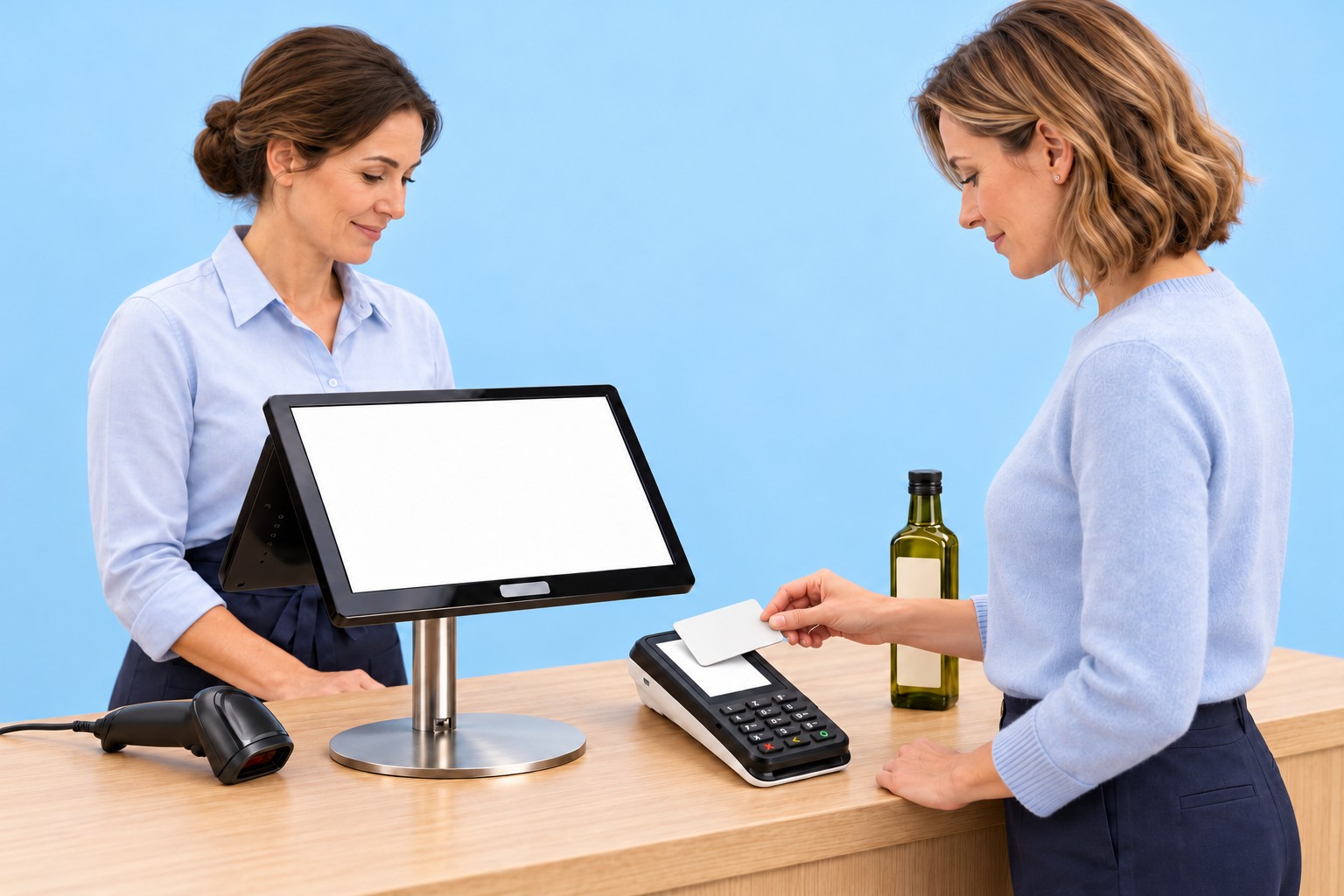
The shop starts with one checkout. Devices, ordering channels, customer loyalty and vouchers are added when the business needs them. From the second branch on, OktoPOS Manager manages all locations centrally, including franchisees and companies abroad. In the end, the figures from all locations come together in one system.
Register
ScannerScale
Self-Order Terminal
OrderTab
Kitchen station
App
Loyalty program
Gift vouchers
Online store
OktoPOS Managermanages all branches
Branch 1Branch 2Central data and management
Staff management
Inventory management
OktoPOS Managermanages all branches
Branch 1Own branchBranch 2Own branchFranchiseSeparate companyCentral data and management
OktoPOS Managermanages all branches
Branch 1GermanyOwn branchBranch 2GermanyOwn branchFranchiseGermanySeparate companyLe MarchéFranceIndependent companySample locations · Central data and management
OktoPOS Managermanages all branches
Branch 1GermanyOwn branchBranch 2GermanyOwn branchFranchiseGermanySeparate companyLe MarchéFranceIndependent companySakura MarketJapanIndependent companyMercatoItalyIndependent companyOperators worldwideSample locations · Central data and management
Hotel PMS
GBPBritish Pound
CHFSwiss Franc
JPYJapanese Yen
Converted to local currencyat the register
OktoPOS ManagerCentral reporting
Branch 1GermanyB1Branch 2GermanyB2FranchiseGermanyFRLe MarchéFranceFRSakura MarketJapanJPMercatoItalyITAll locations. One overview. One system.
01 / 19
The first storeStart with one register
The shop owner starts with a single checkout. Everything else is added when the shop needs it.
Step 1 of 19. The shop owner starts with a single checkout. Everything else is added when the shop needs it.
Click through the slideshowAI-generated
Electronic price tags
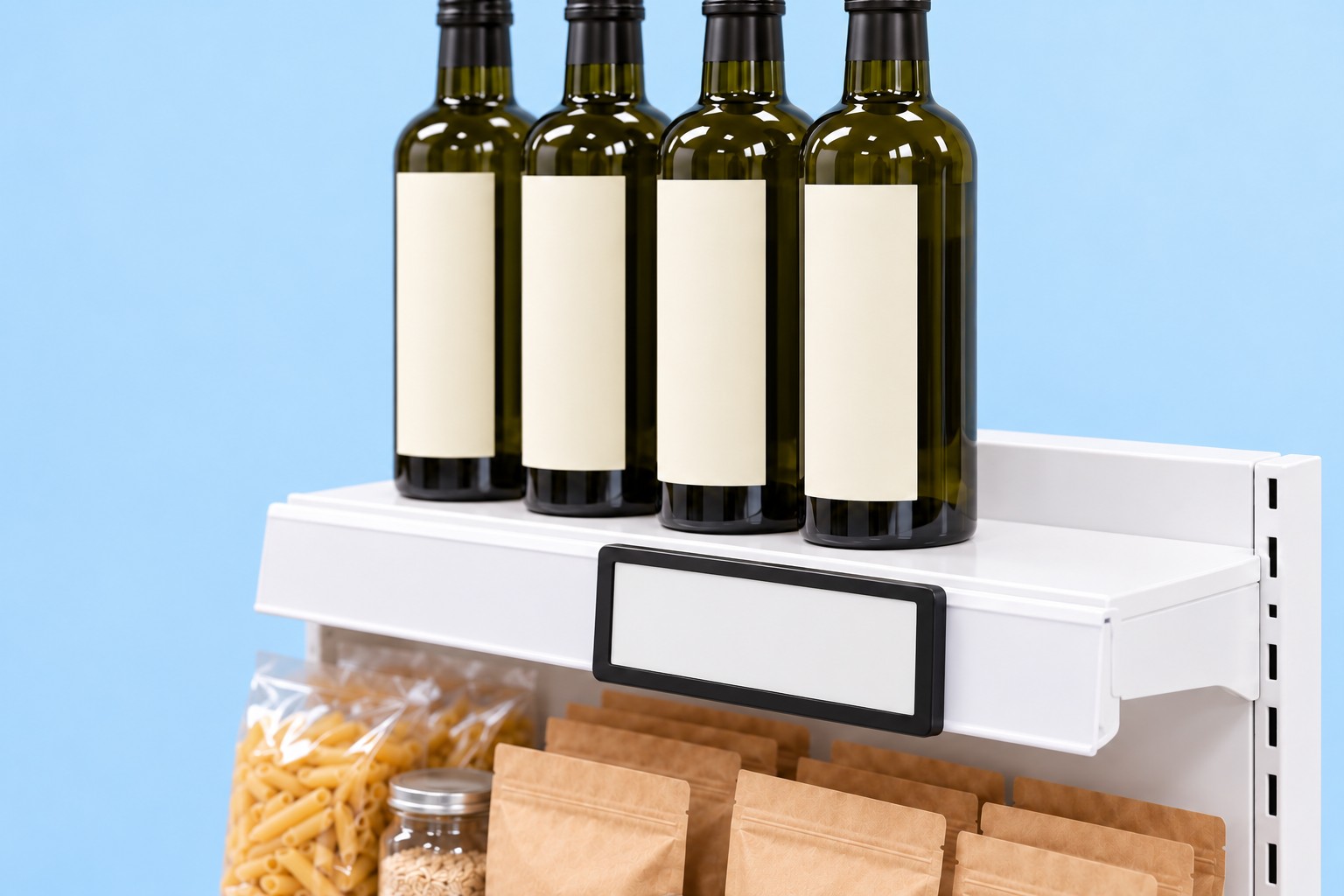
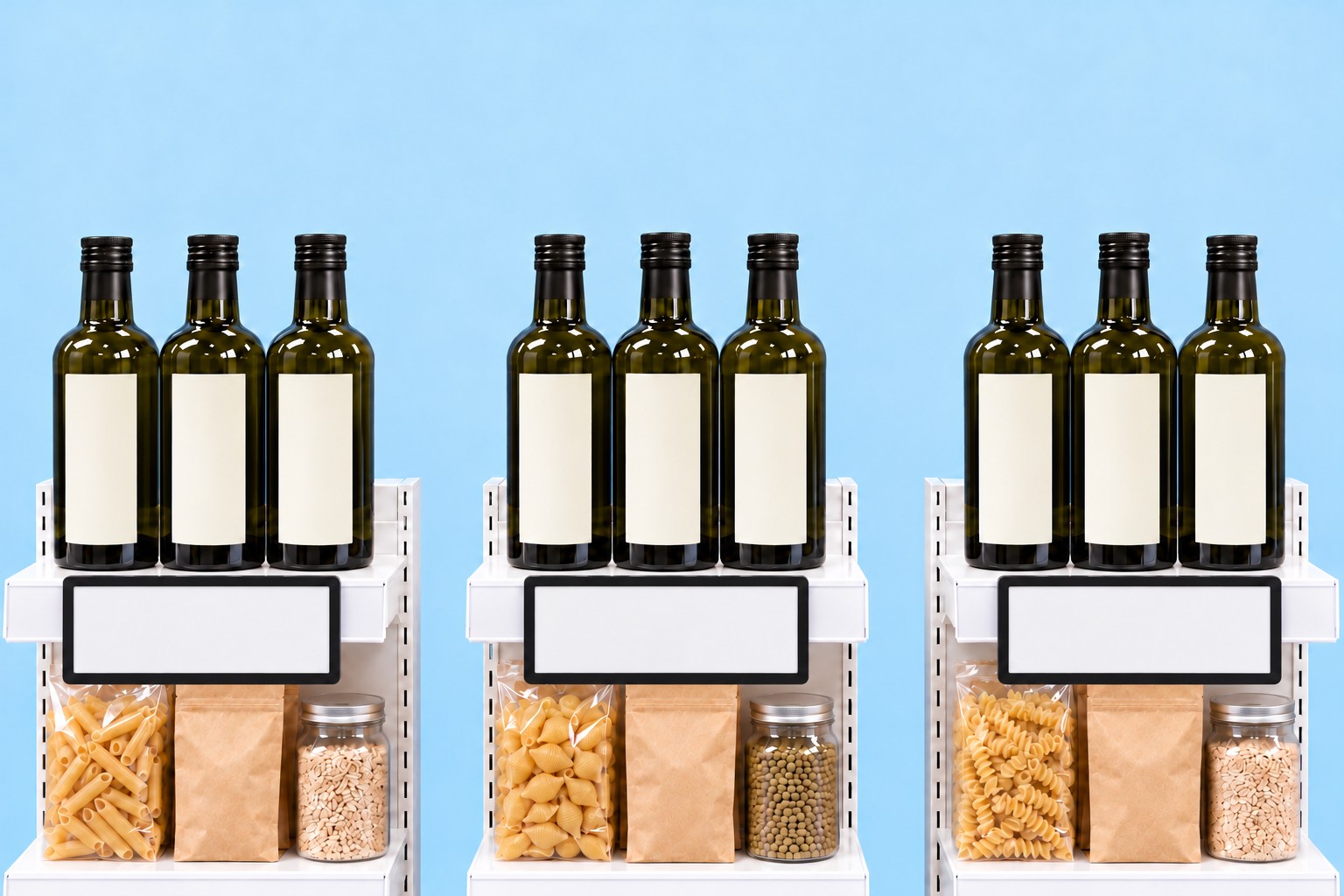
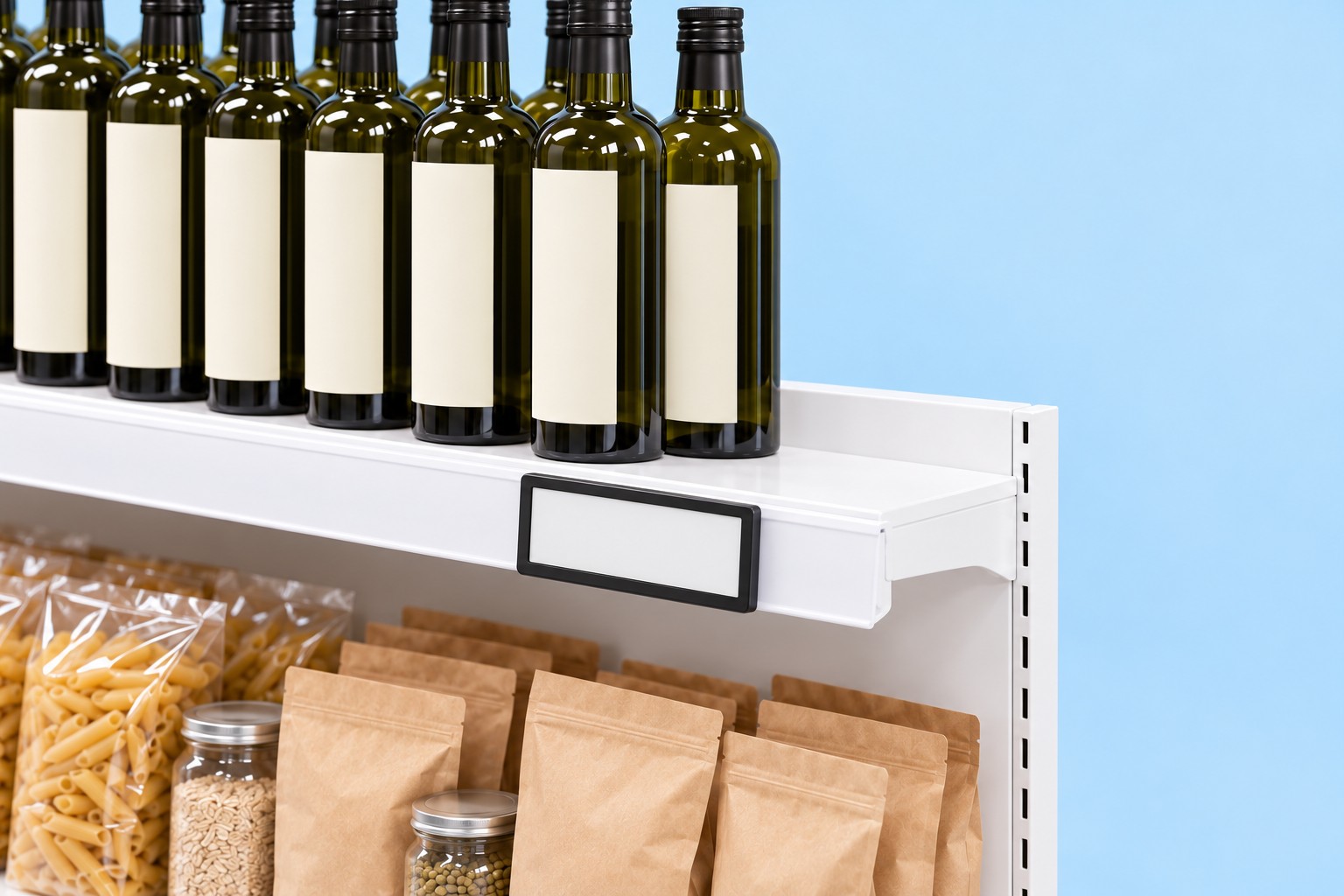
Changed once, centrally. Up to date on every shelf.
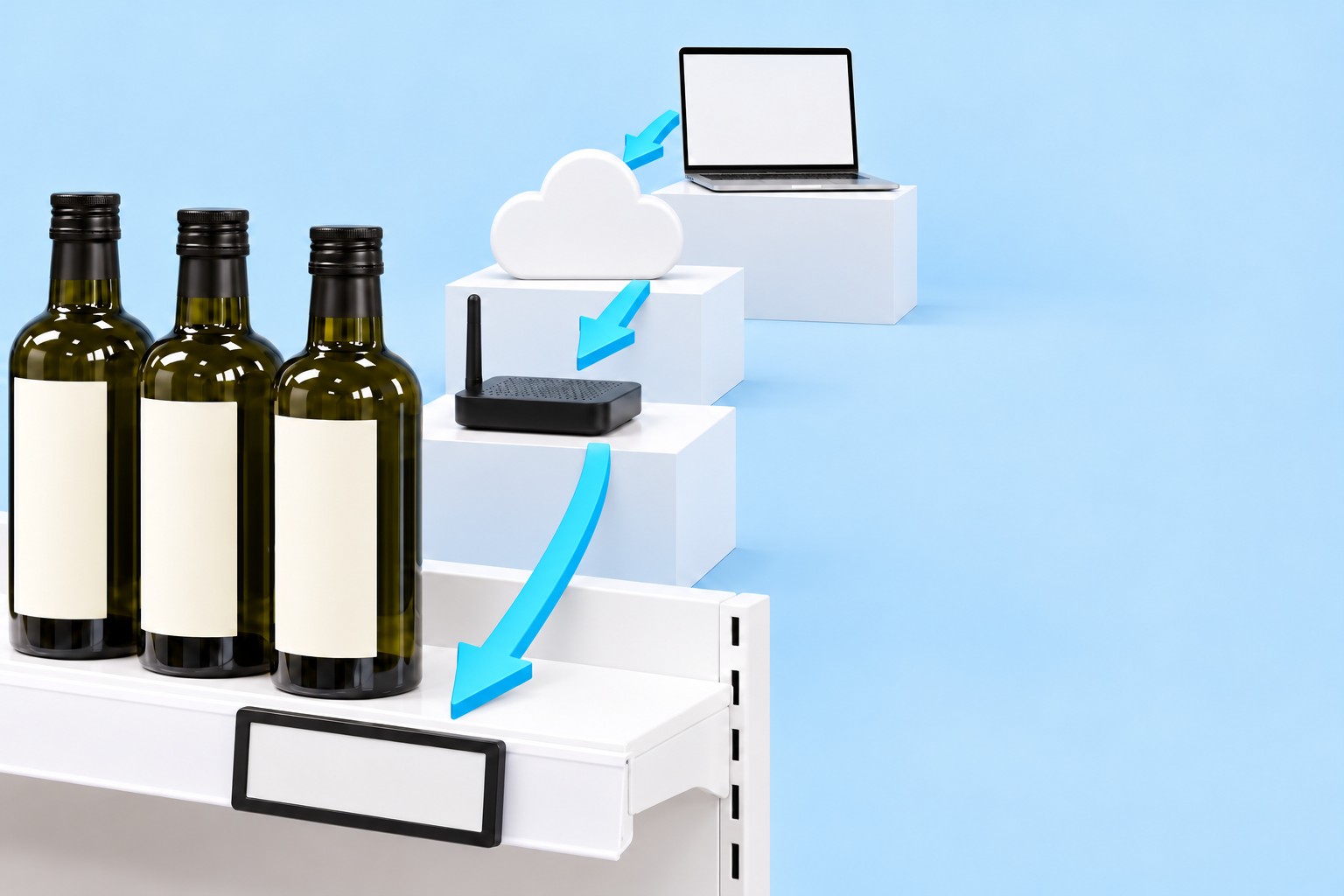
The price is maintained once in the OktoPOS Manager and goes via the cloud to the tags on the shelf. All the location needs for this is a small router. At the register, the customer is charged the same price they read on the shelf.
Organic olive oil 500 ml
$8.99
$17.98/L
The same price in three places
In the OktoPOS Manager$8.99
On the shelf$8.99
At the register$8.99
Unit price on the shelf$17.98/L
Organic olive oil 500 ml
$8.99
$17.98/L
OktoPOS Manager
Article
Organic olive oil 500 ml
Sales price
$7.99
All locations
Save
The same price in three places
In the OktoPOS Manager$7.99
On the shelf$8.99
At the register$8.99
Unit price on the shelf$17.98/L
in transit
OktoPOS Manager
$7.99
OktoPOS ManagerCloudRouterPrice tag
The same price in three places
In the OktoPOS Manager$7.99
On the shelfin transit
At the register$8.99
Unit price on the shelfin transit
Organic olive oil 500 ml
$7.99
$15.98/L
The same price in three places
In the OktoPOS Manager$7.99
On the shelf$7.99
At the register$7.99
Unit price on the shelf$15.98/L
Organic olive oil 500 ml
$7.99
$15.98/L
Organic olive oil 500 ml
$7.99
$15.98/L
Organic olive oil 500 ml
$7.99
$15.98/L
Location 1Location 2Location 3
The same price in three places
In the OktoPOS Manager$7.99
On the shelf$7.99
At the register$7.99
Unit price on the shelf$15.98/L
Organic olive oil 500 ml
$7.99
$15.98/L
The same price in three places
In the OktoPOS Manager$7.99
On the shelf$7.99
At the register$7.99
Unit price on the shelf$15.98/L
Organic olive oil 500 ml
Amount due
$7.99
The same price in three places
In the OktoPOS Manager$7.99
On the shelf$7.99
At the register$7.99
Unit price on the shelf$15.98/L
Organic olive oil 500 ml
Paid
$7.99
$7.99
The same price in three places
In the OktoPOS Manager$7.99
On the shelf$7.99
At the register$7.99
Unit price on the shelf$15.98/L
01 / 08
On the shelf
The shelf shows the previous price: $8.99 for 500 ml, which is $17.98 per liter.
Step 1 of 8. The shelf shows the previous price: $8.99 for 500 ml, which is $17.98 per liter.
Click through the slideshowAI-generated
Prices and unit prices are example values.
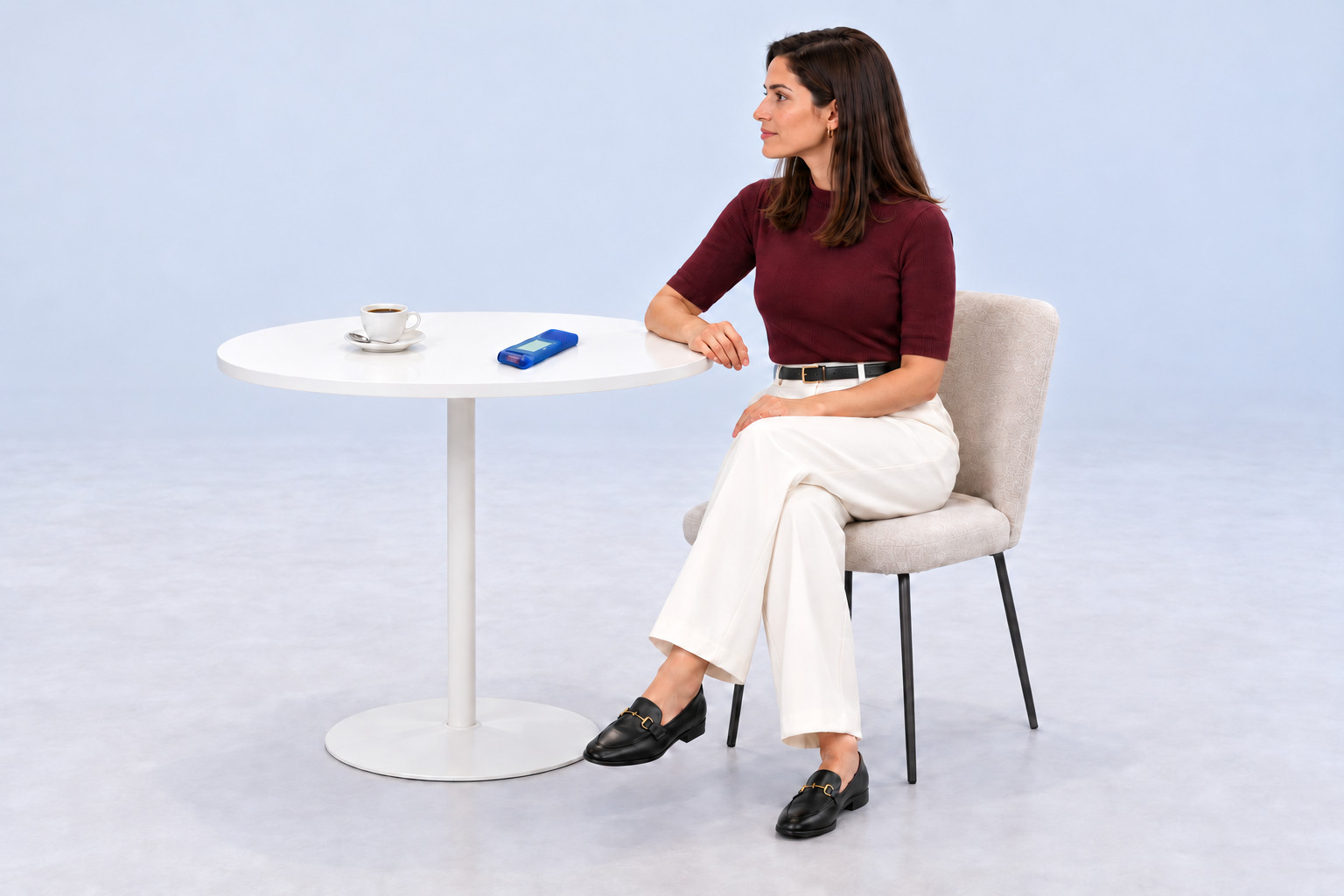
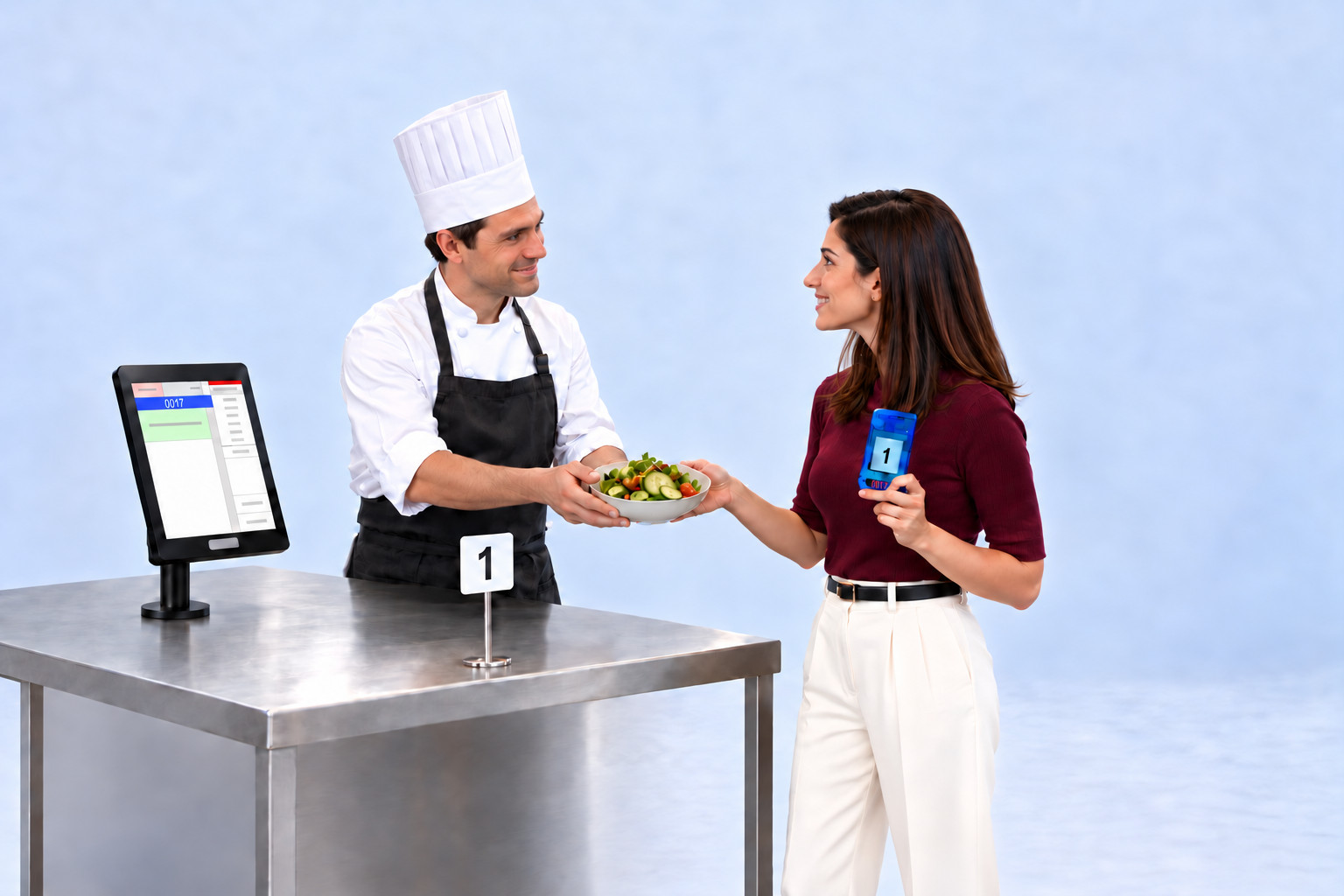
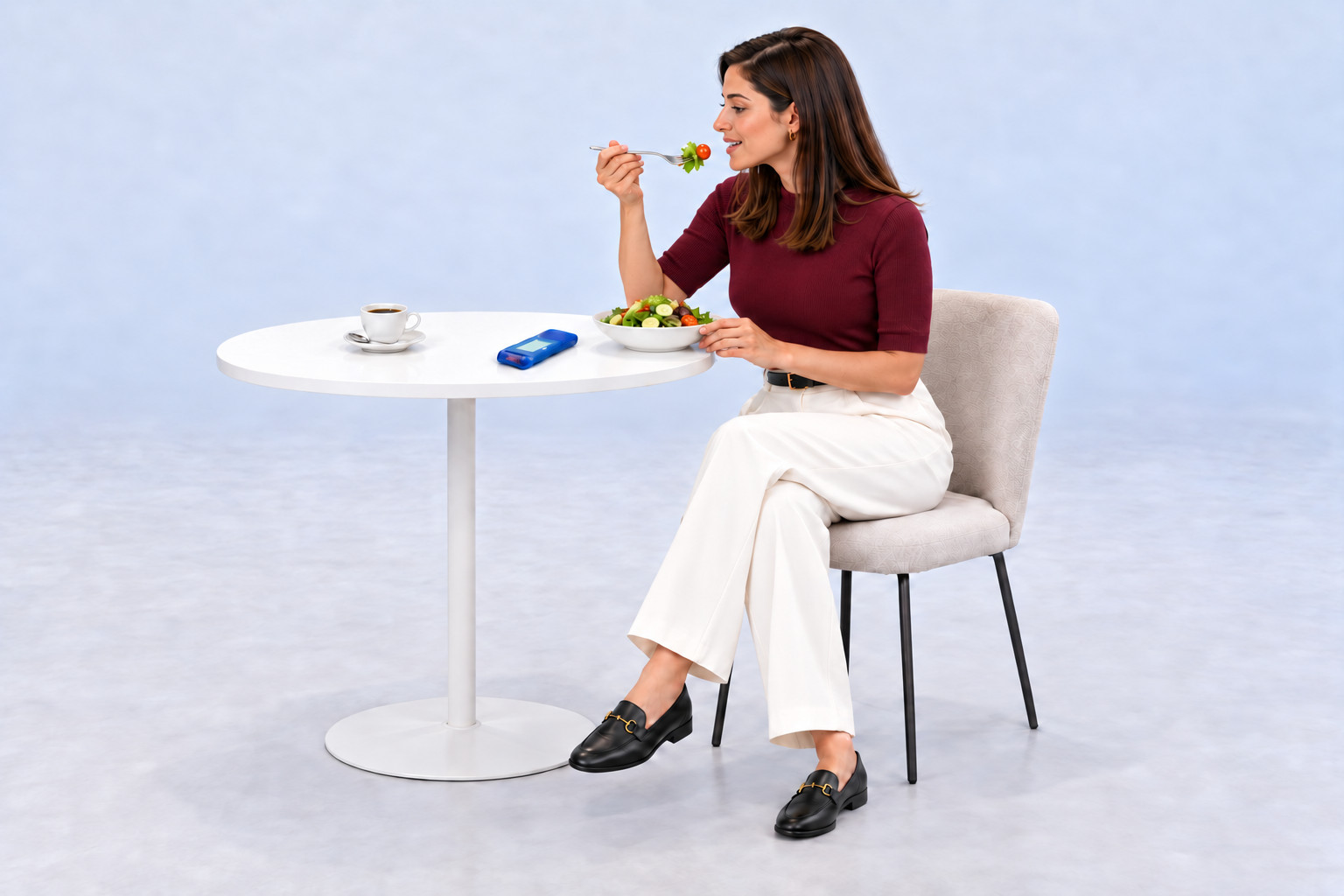
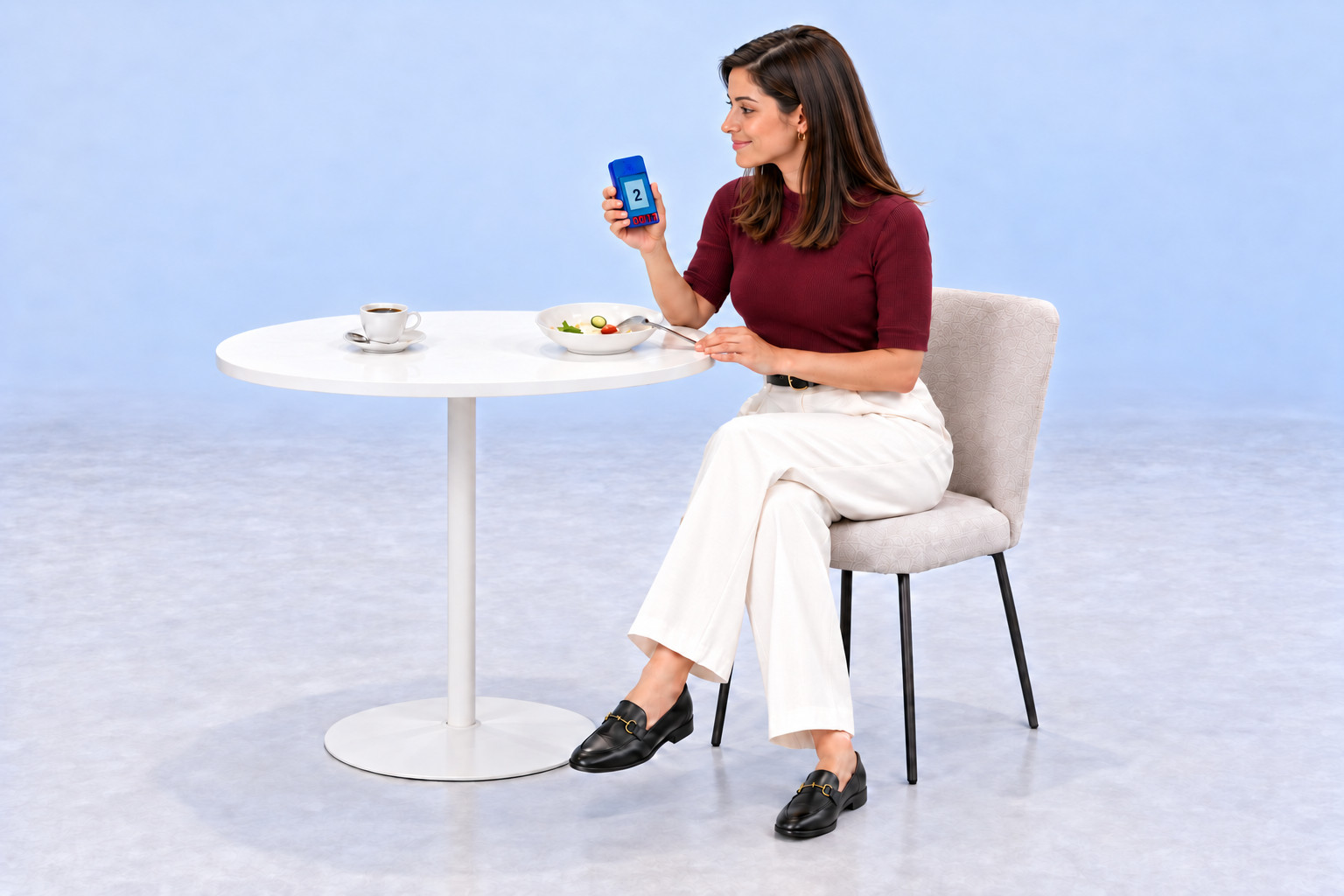
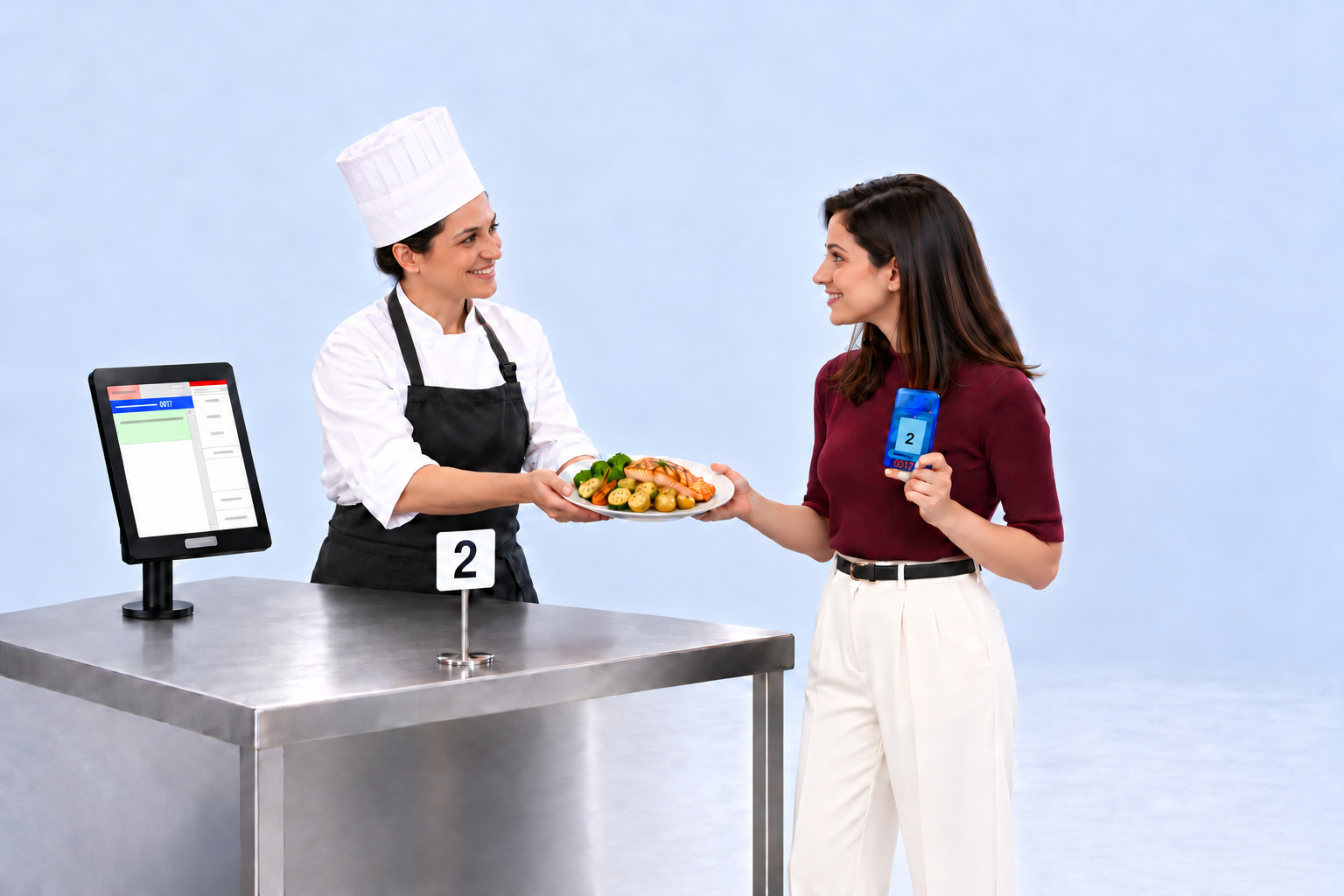
Guest paging
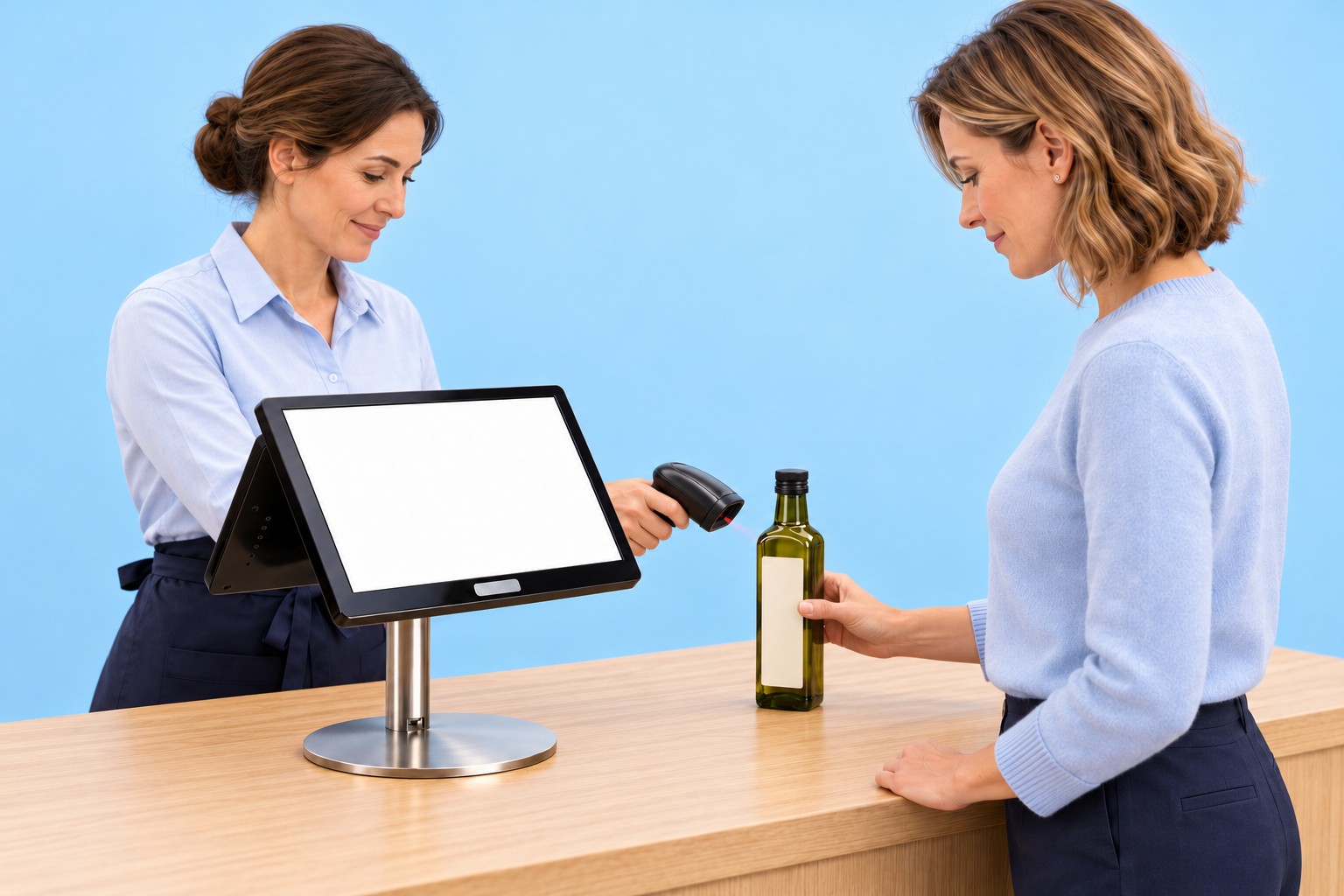
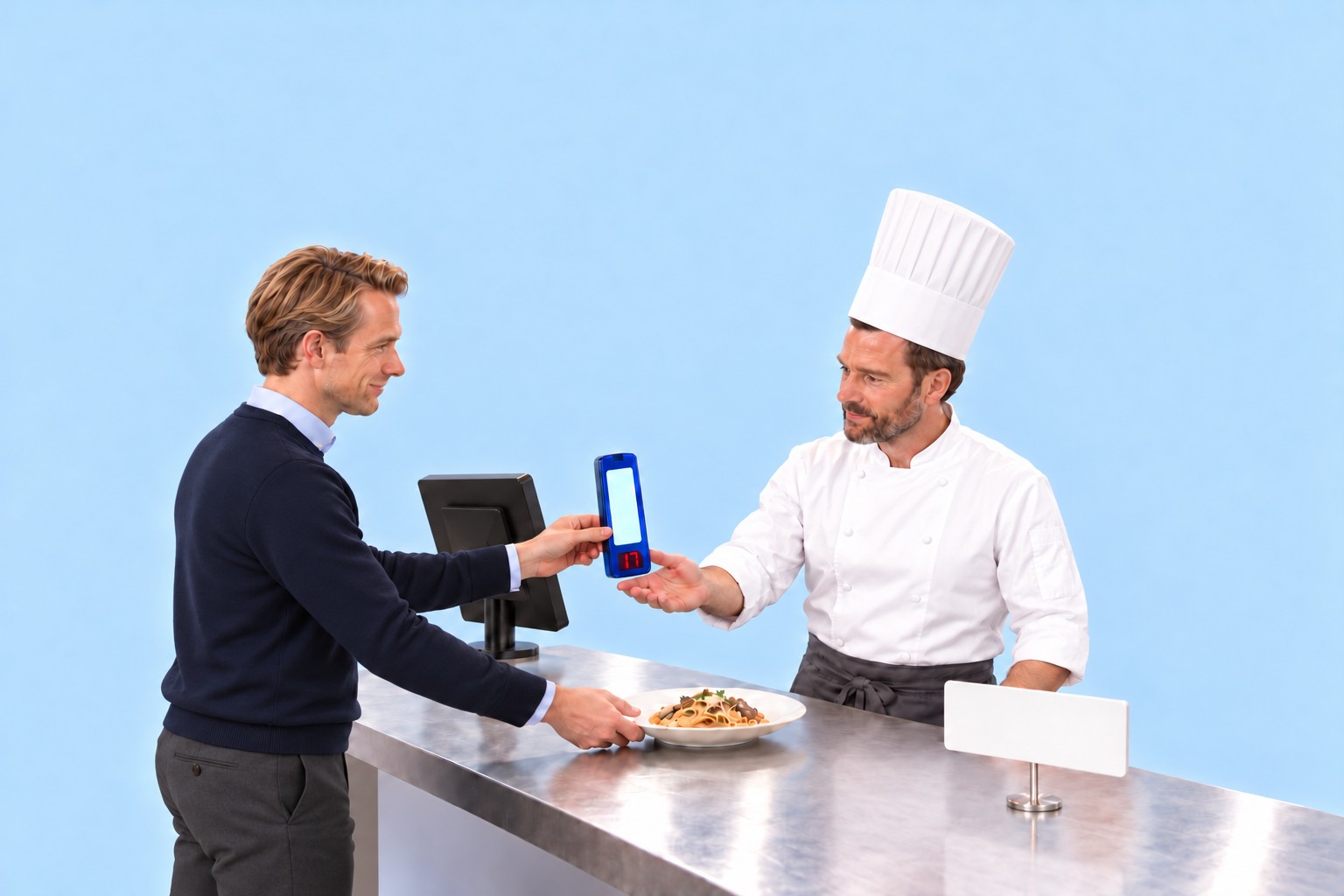
Marked ready in the kitchen. Called on pager or phone.
At the register, Guest A took Pager 17. Guest B scanned the QR code on the customer display and chose to be called via WhatsApp. As soon as the kitchen marks an order as ready, the kitchen station calls the guest.