


Customer cards and gift cards
Customer Cards & Gift Cards
Software: SW-CUS, API-REG
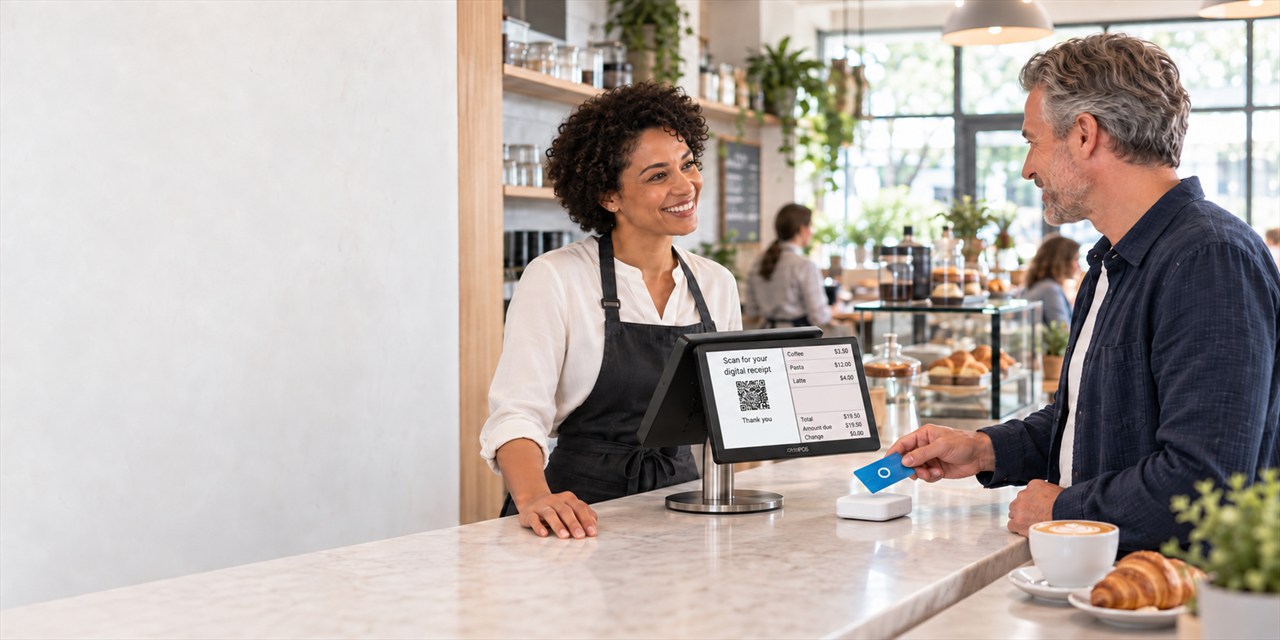
With OktoPOS, you make shopping faster, more personal, and more rewarding. Your customers register directly at the checkout or online via your website. For every purchase, they collect bonus points and redeem them for selected products. This increases loyalty and the average transaction value.

Features at a glance
- Quick customer account setup
In the OktoPOS Manager, at the checkout, or via online registration, right where it fits. - Attractive bonus program
Earn points based on the amount spent and redeem them for defined products. - Flexible customer cards
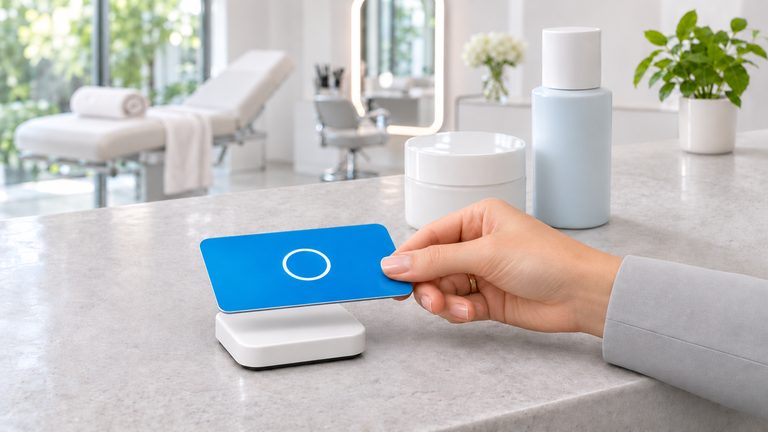
Read via NFC or barcode, optionally with rechargeable credit. - Targeted marketing
Analyze purchasing behavior and launch tailored campaigns. - Invoice purchase included
Send invoices automatically by email. Track incoming payments in the debtor list. - Personalized communication
Maintain birthday lists and send birthday letters addressed by name. - Extra bonus points
For special promotions or as an easy way to handle complaints.
Why OktoPOS?
- All in one place: All loyalty processes where you already work: in OktoPOS Manager and at the checkout.
- More loyalty, less effort: Automated point allocation, redemption, and communication.
- Measurable results: Higher repeat purchase rates and full transparency on payments and customer benefits.

Central Customer Database

Customer Selection at Cash Register

Customer Loyalty
Software: SW-LOY
1. Collecting Bonus Points
Customers shop and earn bonus points on their card.
2. Redeeming Bonus Points
Customer redeems points for rewards.
Bonus Point Account

Redeeming Bonus Points at Cash Register

Accounts Receivable & Pay by Invoice: directly from the POSOpen items & invoices with payment terms: right at the POS
Post invoices, send PDFs, keep track of payments.
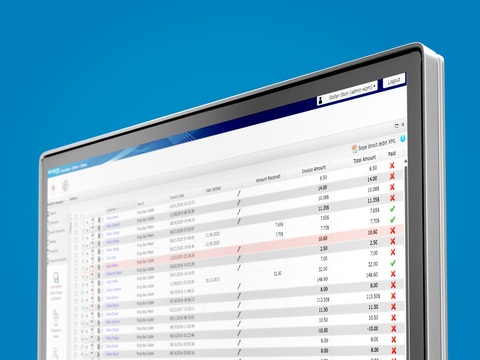
The POS handles invoice purchases too: it records the payment method “on account” and automatically sends the invoice as a PDF to the customer, provided the email address is stored. The invoice appears in the accounts receivable list in the OktoPOS Manager.
The POS handles invoices with payment terms too: it records the payment method “on account” and automatically sends the invoice as a PDF to the client, provided the email address is stored. The invoice appears in the accounts receivable list in the OktoPOS Manager.
This applies to every payment: if a client is selected at the POS, they also receive their invoice as a PDF by email when paying cash or by card.
The POS handles invoices with payment terms too: it records the payment method “on account” and automatically sends the invoice as a PDF to the patient, provided the email address is stored. The invoice appears in the accounts receivable list in the OktoPOS Manager.
This applies to every payment: if a patient is selected at the POS, they also receive their invoice as a PDF by email when paying cash or by card.
Send as PDF with one click: If a customer whose email is not stored later requests an invoice, you can send it via the OktoPOS Manager. Once the payment is recorded, the invoice will be marked as paid in the accounts receivable list.
Send as PDF with one click: If a client whose email is not stored later requests an invoice, you can send it via the OktoPOS Manager. Once the payment is recorded, the invoice will be marked as paid in the accounts receivable list.
Send as PDF with one click: If a patient whose email is not stored later requests an invoice, you can send it via the OktoPOS Manager. Once the payment is recorded, the invoice will be marked as paid in the accounts receivable list.
For customers who pay monthly, a list of outstanding items is created as a payment request.
For clients who pay monthly, a list of open items is created as a payment request.
For patients who pay monthly, a list of open items is created as a payment request.

The customer buys on account.The client pays on account.The patient pays on account.
The transaction is sent to the OktoPOS Manager.
The receivable appears in the accounts receivable list.
The OktoPOS Manager sends the invoice automatically by email.
The customer pays the invoice.The client settles the invoice.The patient settles the invoice.
The amount is marked as paid in the accounts receivable list.
Accounts Receivable Management
Prepaid Cards & Gift Vouchers
Top up and redeem at any location, directly at the POS.
Software: SW-PRE
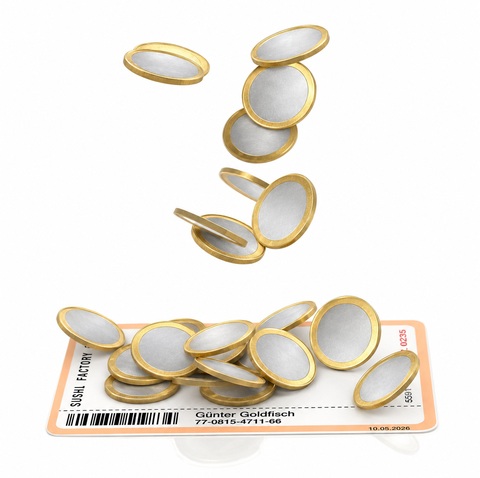
- More revenue & pre-financing: Sell gift vouchers with flexible amounts. The next visit is practically guaranteed.
- Faster checkout: Contactless (RFID) or via barcode/QR scan.
- Maximum flexibility: Redeem partial amounts, recharge cards/vouchers anytime.
- Full control: Each card/voucher automatically has its own credit account in OktoPOS Manager, with history and current balance.
- Usable everywhere: Redemptions possible at different locations, centrally synchronized.
- Ideal for cafeterias & institutional foodservice: Conveniently top up prepaid credit and pay cashless.
Top-Up
- Prepaid cards: Load credit directly onto customer cards at the POS and recharge (Top-Up).
- Gift Vouchers: Load a variable value when selling at the POS, ready to use immediately.
Redeem
- Deduct values flexibly; partial redemptions are also possible.
- Credit can be recharged at any time.
Manage
- Each card/voucher has its own value account in the OktoPOS Manager, ideal for transparency and reporting.
- Vouchers can be sold anonymously or linked to a customer account.
Cards, Media & Printing
- Media selection: Plastic cards with barcode or QR code, or contactless RFID cards.
- Recommendation: RFID, especially fast and convenient for staff & customers.
- Custom design.
- Voucher printing: Issue vouchers with number and QR code directly via the receipt printer and, for example, attach them to a printed sleeve.
- Number ranges: Use your own numbers or let OktoPOS generate them. The number is stored when the value account is created in OktoPOS Manager. This way, the voucher can be uniquely identified when redeemed at any POS or location.
Technology & Security
- Online synchronization: Topping up and redeeming require an internet connection to the OktoPOS Manager. The balance is kept in the OktoPOS Manager, not on the register.
- Cross-location: Balances are managed centrally, perfect for multi-location operations.
- Security features for monitoring compliance with the ZAG (Payment Services Supervision Act, Germany).

Gift Voucher
Software: SW-PRE, API-VOU
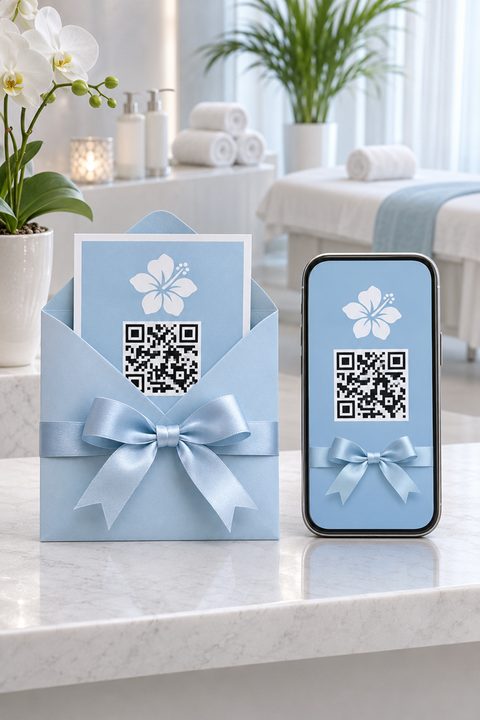
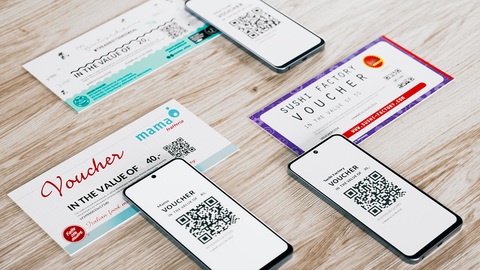
Simply sell gift vouchers through your own homepage. The OktoPOS voucher sale module is easily integrated with an iFrame.
The customer pays for the voucher online and receives it by email as a PDF in your design. Optionally, you can also send the voucher to the customer by mail.
- Independence from third-party providers
- Highlighting your own brand
- Record the customer's address
- Significant cost savings with high voucher sales
Online Sales of Gift Vouchers
Okto-TopUp Terminal
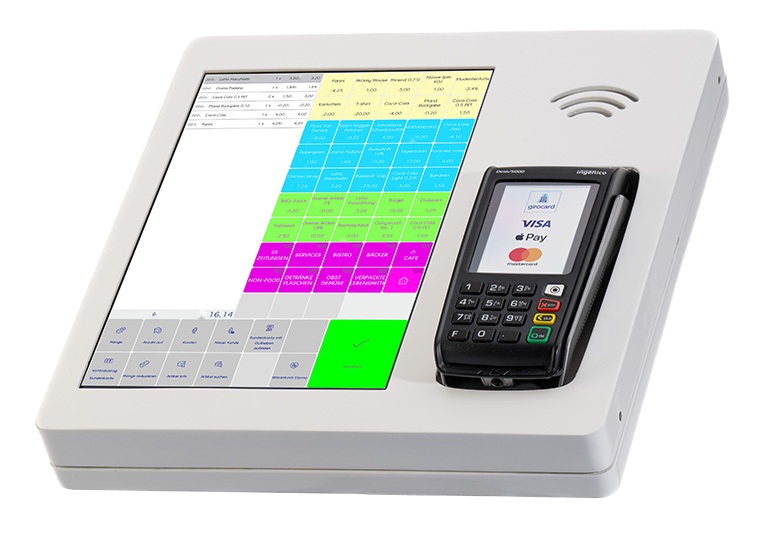
Top up credit via hardware terminal or online store.
Software: SW-TU, API-TOP
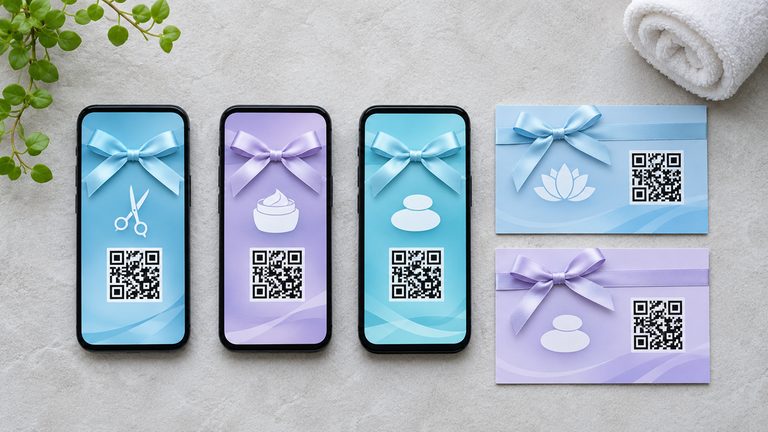
With OktoPOS, prepaid cards and gift vouchers can easily be topped up with the desired credit. This can be done with the OktoTopUp hardware terminal and with an online top-up function.
The topped-up prepaid cards can be used as a means of payment at an OktoPOS cash register or at an OktoPOS self-checkout terminal. For example, in a corporate cafeteria, at schools, etc.

Gift vouchers are usually loaded individually directly upon purchase. However, if the customer does not yet want to commit to an amount, they can do so at a later date.
For example, a restaurant issues a blank gift voucher with a serial number and the customer then tops it up themselves via the online store.